


| Version 3 (modified by , 8 years ago) ( diff ) |
|---|
아직 번역 중인 페이지입니다.
다른 언어:
JOSM 소개
JOSM 전문 용어
 점
점- 노드(node)라고도 합니다.
 선
선- 웨이(way)라고도 하는 선은 여러 개의 점을 연결합니다. 그러므로 선은 결합된 점의 연속을 나타내는 일반적인 용어입니다. 현실의 길(way)과 도로를 나타내지 않습니다.
 관계
관계- 관계는 순서를 맞춘 선과 점, 그리고 요소를 하나로 묶는 데 사용되는 논리적인 컨테이너, 총 두 가지로 이루어진 배열입니다. 데이터의 1%만이 관계를 사용하여 모델링됩니다.
 영역
영역- 영역은 끝과 끝이 서로 연결된 선입니다.
 태그
태그- 태그는 각각의 점, 선, 관계에 대응하는 현실의 지물을 묘사합니다. 태그는 "키"와 "값"으로 이루어져 있습니다. 키는 기본적으로 "도로"나 "토지 이용"과 같은 큰 카테고리입니다. 값은 "주요 도로"나 "주거 도로", "주거"나 "소매" 토지 이용과 같은 구체적인 지물입니다.
도로의 경우에는, 농로, 임도, 또는 통로는 곡선으로 이루어져 있습니다. 곡선은 선에 포함된 수많은 점과 점들을 연결하는 짧은 선들을 사용해 근사적으로 표현합니다. 만약 도로가 방향성이 있다면, 태그를 사용해서 도로를 부분적으로 나타냅니다. 예를 들어, "oneway=yes"는 한 방향으로만 통행할 수 있는 도로입니다. 다른 태그들은 선 방향의 왼쪽과 오른쪽을 구별합니다.(해안선 등)
JOSM 실행
JOSM은 Java 프로그램으로, 다운로드 페이지에서 구동할 수 있습니다.
JOSM으로 하는 첫 번째 편집
환영하는 화면
JOSM을 시작하면, JOSM의 최근 변경에 관한 약간의 메시지가 뜹니다. 더 흥미로운 변경 사항을 약간씩 알려주기 때문에 가끔 이 페이지를 봐야 할 필요가 있습니다.
다운로드
다음 절차는 데이터를 다운로드하는 것입니다. 당신이 알고 있거나 최근에 방문한 인근 지역을 다운로드함으로써 JOSM 사용 연습을 할 수 있습니다.
OSM 데이터
다음은 결정한 구역의 데이터를 메인 서버에서 다운로드해 추가하는 것입니다.  데이터 다운로드를 클릭하세요.(
Ctrl+Shift+↓).
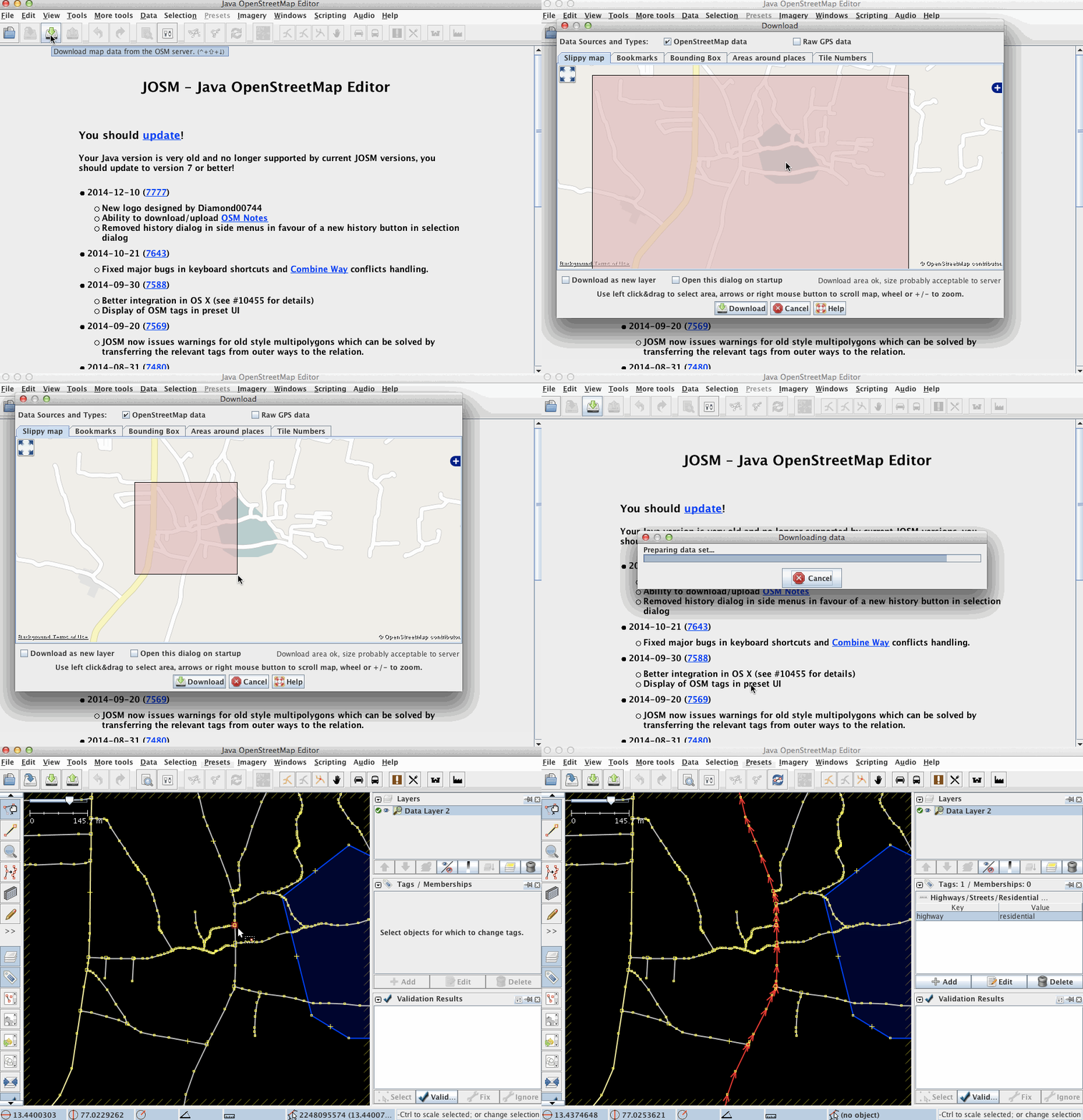
세계 지도가 포함된 다운로드 창이 표시됩니다. 편집할 작은 구역을 선택해야 합니다. 지구 전체를 선택하지 마세요(만약 지구 전체를 선택하면 "다운로드 영역이 너무 큽니다" 메시지가 뜰 것입니다).
지도를 움직이고 다운로드하고 싶은 특정한 영역을 선택하기 위해, 몇몇 도구가 있습니다.
- 지도를 드래그하기 위해 마우스 우클릭을 하세요.
- 확대 및 축소를 위해 휠 버튼을 사용하세요.
- 다운로드할 영역을 정의하기 위해 마우스 좌클릭을 하고 마우스를 움직이세요.
"다운로드 영역이 너무 큽니다" 오류가 사라진 후에, 그리고 영역을 선택한 후에, 메인 서버에서 데이터를 가져오기 위해 "다운로드"를 클릭하세요.
항공 사진 활성화
For most places on earth there is at least one imagery available. You can pick one from the Imagery menu at the top of the editor. Bing and Mapbox are popular, but there may be more recent resources for your locality. Note that all local imagery resources, which are available for the region you are currently working, are displayed in the lower part of the Imagery menu.
Imageries may have different levels of detail and clarity in different places, so it is often worth checking different imageries. Simply select one of them from the imagery menu and you're ready to go.
Mapbox-only: you can request a better imagery for the region of your interest (announcement in 2014-04-11 by Eric Gundersen)
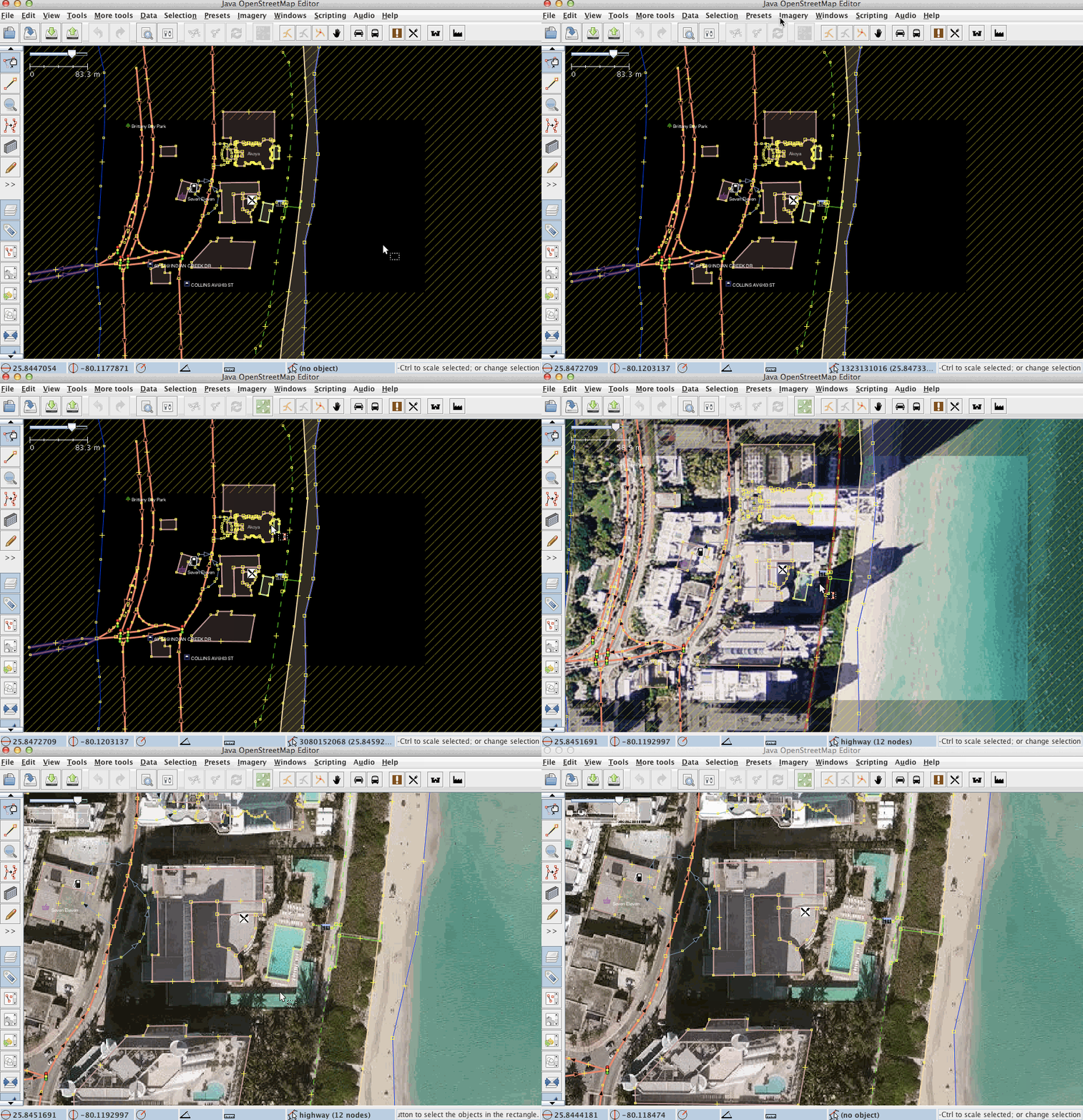
When using imagery, keep in mind that imagery may be offset. That is, due to complexities in processing satellite imagery, features on imagery may not be at the same location as they are in the real world. For reference, check existing features in OpenStreetMap data and compare them with the imagery or download GPS tracks. To download GPS tracks from OpenStreetMap, check the "Raw GPS" box in the download dialog. If you observe an offset in the imagery, you can correct for it by selecting the "New offset" item in the "Imagery" menu.
Editing in JOSM
JOSM is an offline editor which means everything you do won't be visible for anyone else until you upload it to the server. This makes it possible to experiment and repeatedly moving, tagging, adding and deleting elements without breaking anything. Subsequent actions on a single element will go into the database as a single modification when uploaded.
Adding a Node or a Way
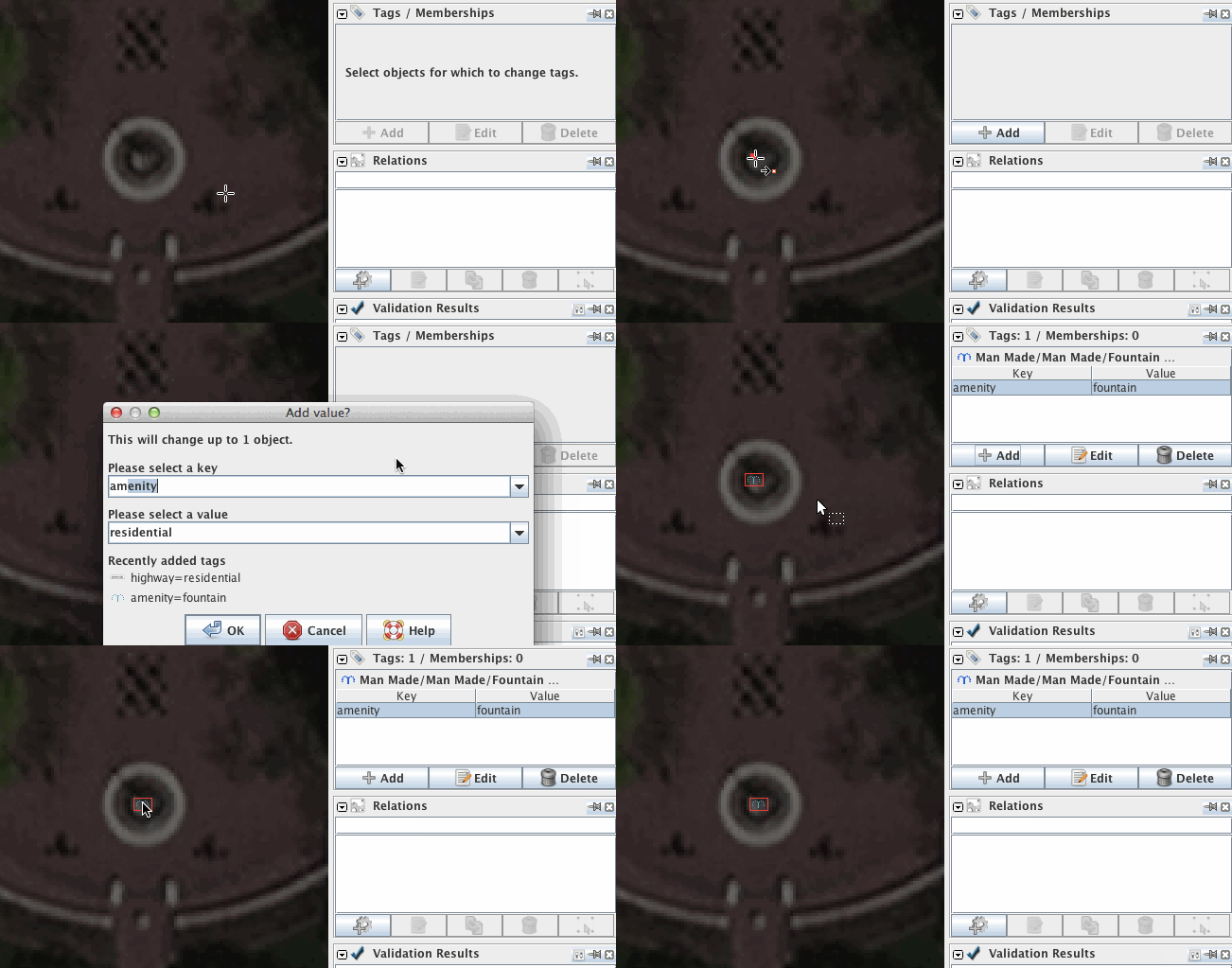
The first step of actual editing is to add a node (en) or way to the OSM data. You can add standalone nodes or you can add nodes to ways, especially where there is a junction between two ways.
To add a node, activate "Draw Nodes" mode (en), either by clicking the  button in the left menu bar, or by hitting the "A" key on the keyboard (the button should then be highlighted).
Then move the mouse cursor over where you want the node, over a way or over your GPS track (if you uploaded one) and left click wherever you want to place the node. A red dot (a selected node) should appear and a rubber-line spans from that node to the mouse cursor. If you create subsequent nodes, the earlier nodes will be shown as yellow nodes.
A series of joined nodes forms a way.
Adding Tags
Ways or nodes on their own are not of much use unless they are tagged to say what they represent. The Map Features page shows some popular tags, this page will never be complete about all tags.
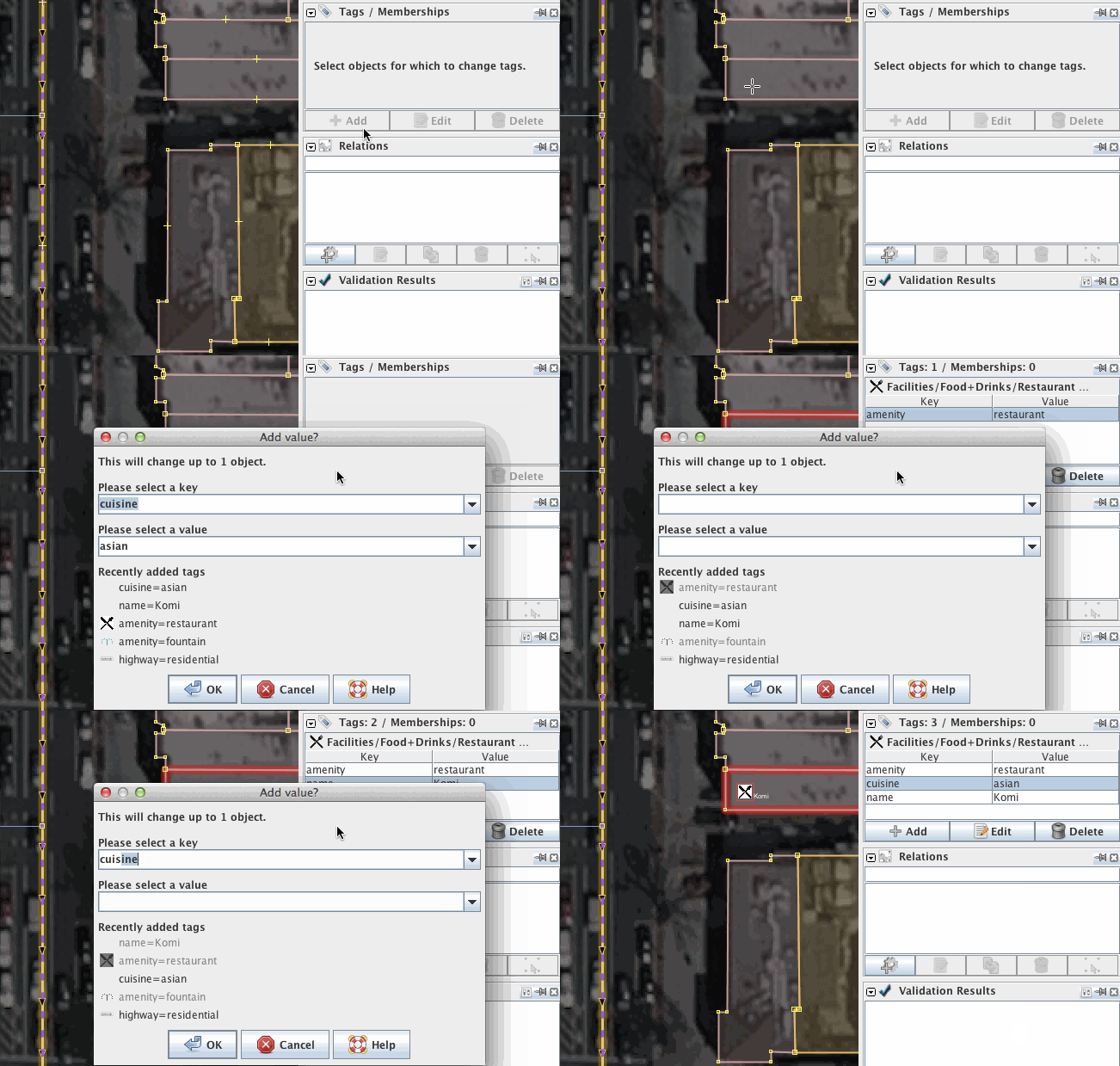
The first step in adding tags is to be sure the Tags/Membership window is open on the right hand side of JOSM. The button on the left should be highlighted. If it is not highlighted, click on it or hit Alt+Shift+P.
You will see three buttons:  Add,
Add,  Edit and
  Delete.
To edit the properties of a node or way (such as adding a tag) in the Tags/Membership window, the way or node must be selected.
- Enter Select mode by clicking on
 of the left-hand icons or by hitting the
 Skey. - Highlight the way or point you wish to select. Click the Add button.
- A dialog box will appear, and you will be asked to select a key and a value for each tag. Type in the key/value pair that represents the tag you are creating. For example, for the key you might type "amenity" and for the value "fountain" (without quotes).
- Click OK. You have now tagged your way. You can add several tags to one object.
Presets
Instead of adding tags manually you can also use Presets.
All presets can be found: 1. at the main menu (shown on the left below) 2. at the main toolbar (no picture below). 3. with the F3 shortcut (pop-up menu shown below on the right)
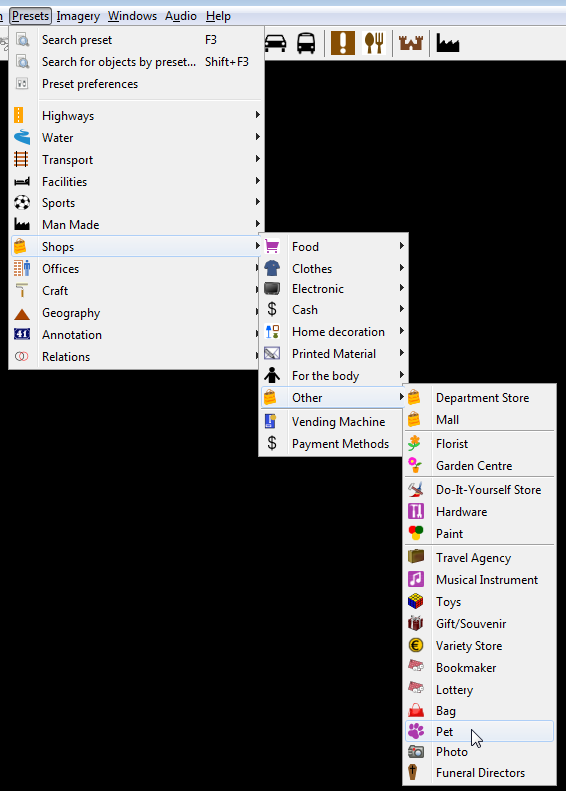
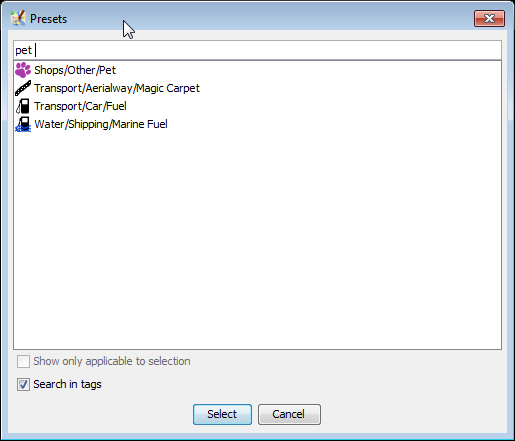
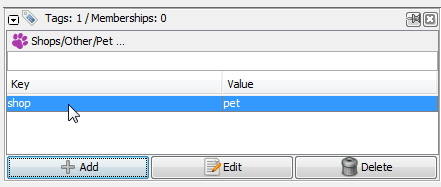
Presets for currently selected object(s) are displayed above the tags for the current object (displayed in Tags/Memberships window):
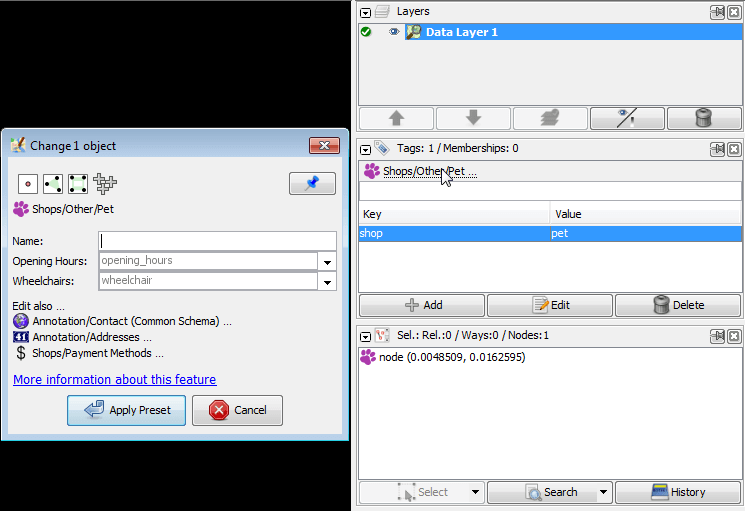
Left mouse click on respective preset heading will open complete preset view
Uploading to OSM
If you are happy with all that you have done then you must upload your work to the OSM server. Click on the  button.
This will automatically trigger a validation of your changes. Review all validation warnings and try to resolve them before you upload. This will prevent unfortunate mistakes such as un-tagged objects or unconnected roads. Note that validator warnings can also be wrong in seldom special cases.
Before you upload, add a proper changeset comment and specify which source you used. This is important as it will show other users who see your changesets what this changeset was intended to modify and from where you took the information.
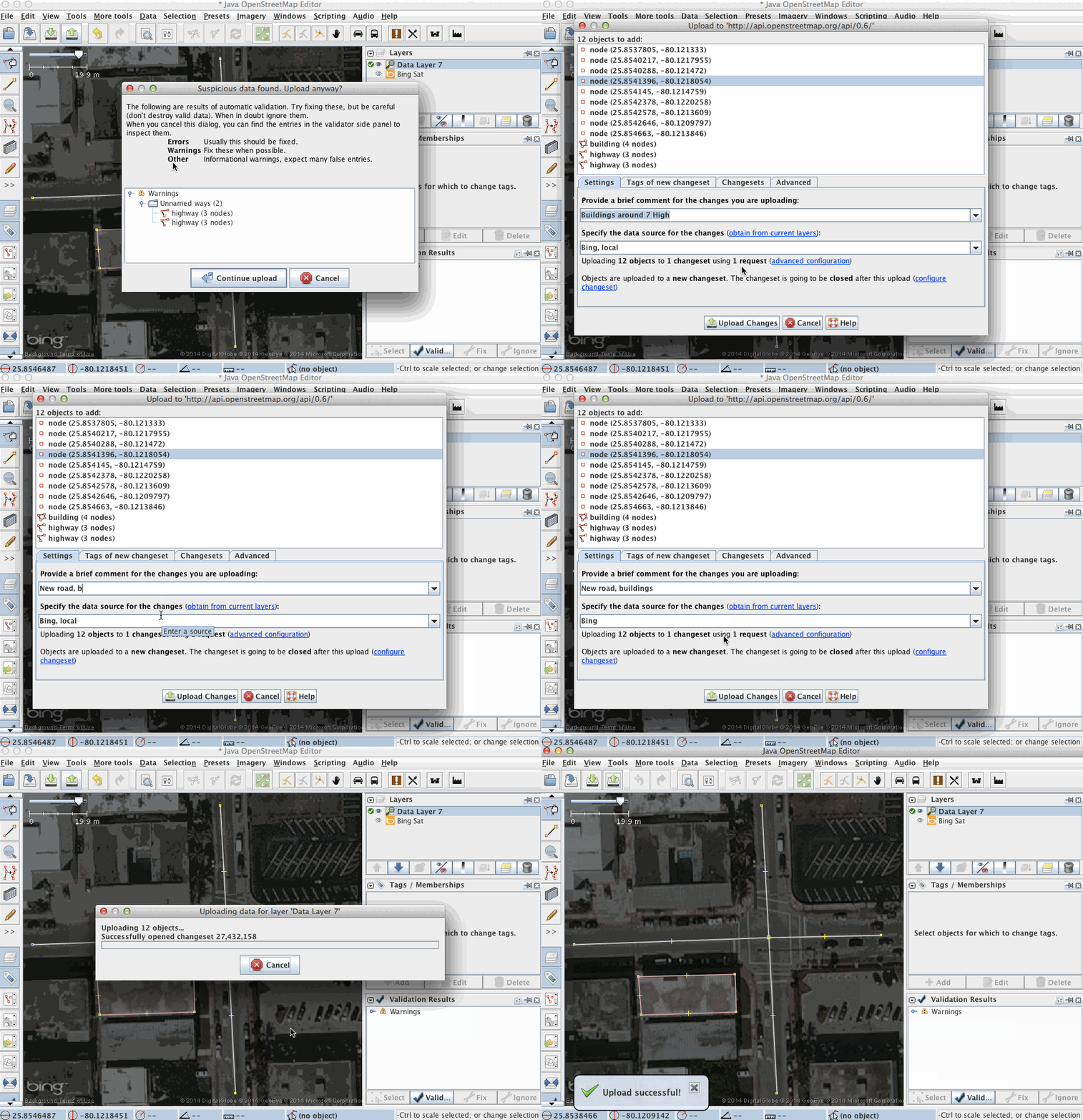
JOSM will give you an overview of the elements that it is about to upload. You will be asked to provide a short text summary and the source of your edits. This description will be saved with your data on the server and provides information, for example, for the Recent Changes list.
If you need more details or have questions about upload process, it is precisely covered at Upload to OSM.
Thank you!
Thanks for contributing to the OSM database. For more information see our help page or simply press F1 over buttons or any interface element within JOSM. This will directly lead you to the respective help page.
What's next
Results of your job
- Your changes will appear at the "Standard" layer probably within a few minutes.
- Data in your routing software, maps and other services: will be updated per each service (from minutes to days, weeks and months)
Tell your friends
- Tell your friends how easy it is to update data and how your changes get displayed quickly. Truck drivers, couriers, photographers, bikers, journalists, fisherman and simply runners with GPS are always welcome in OSM.
- Precise and actual information may affect how you make decisions in your life. The more people who are active in the project - the faster the data gets updated. And while a few contributors can be called as "active" at a given point in time. Every small change advances OSM to a complete and actual state.
- OSM data may be viewed as clocks: without an arrow you wouldn't know minutes. It often gets outdated - simply refresh it. When clocks stop we wind them up again.
- OpenStreetMap is about the whole planet in the same way how your clock about the current time.
External links
- Mapping with OpenStreetMap with animations by Mapbox team covers mostly the same topics.
- Your first steps with JOSM - the Java OpenStreetMap editor 09/02/2016 by Ramya Ragupathy at Mapbox blog
See also
Back to Main Help
