| Version 120 (modified by , 9 years ago) ( diff ) |
|---|
Languages:
Table of Contents
Download
This page provides basic JOSM installation steps and troubleshooting information. To start working with JOSM please see the Introduction and the Help pages. And for complex installation issues see InstallNotes.
Recommended options
 Launch josm.jnlp (newest tested version)
Recommended version, all platforms, automatic update to the newest tested version monthly (how to launch).
 Download josm-tested.jar (tested version 19613)
All platforms (how to start).
All download options
Every month the team of JOSM releases a tested version. It is the base for the MS Windows portable variant and for the Apple Mac variant. When you click to launch josm.jnlp, Java's Web Start provides you always with the newest tested version of JOSM.
Every night the build systems generate a latest version. These versions might have severe errors or even crash. But mostly they work well, too. For the latest version is also a Web Start variant available.
| Version | OS Independent Download | OS Independent Web Start | Windows | Apple Mac | Ubuntu, Debian… | openSUSE |
|---|---|---|---|---|---|---|
| tested 19613 | jar | josm.jnlp | setup.exe (portable) | package.zip (see below) | see below | \ |
| see below | ||||||
| latest 19627 | jar | latest.jnlp | see below | |||
| older | download/ |
When running scripts please first check on latest, tested or both to reduce download bandwidth.
Strip translations
If download size is an issue for you:
- Append ?lang=… to the download link address for the tested version to strip unused translations (e.g. ?lang=de will download JOSM in German language only).
- Note: Use underscore to separate language codes with country code extensions, e.g. ?lang=en_GB
- Append ?unsigned=1 to strip the code signing information
- When lang and unsigned are used the separation is a & sign like in ?lang=de&unsigned=1
The file size shrinks from .jar: 10.2M over .jar?lang=de: 8.2M to .jar?lang=de&unsigned=1: 7.7M (as of version 10786).
Repositories
openSUSE
Tested version of JOSM is available in the Application:Geo repository.
First add as root user in yast or with zypper the repository (replace the version in the URL with the one you are using):
zypper ar -f http://download.opensuse.org/repositories/Application:/Geo/openSUSE_13.2 Application:Geo
Then simply install josm and josm-fonts package.
Ubuntu
This is a package repository primarily for Ubuntu. It should also work with other Debian based (especially Ubuntu based) distributions, but we do not actively test and maintain any distributions other than Ubuntu.
Note: in addition to the regular procedure described below, older DEBs can be manually downloaded from the archives for josm aka josm-tested and for josm-latest.
The repository contains two packages:
josm- The tested version
Replaces the package from the official Ubuntu repository. josm-latest- The development version (nightly build)
Can be installed parallel to thejosmpackage. The default preference folder is~/.josm-latest.
Installation
Edit the package resource list /etc/apt/sources.list:
sudo editor /etc/apt/sources.list
and add one of the following lines according to your Ubuntu-Version:
deb https://josm.openstreetmap.de/apt trusty universe
deb https://josm.openstreetmap.de/apt utopic universe
deb https://josm.openstreetmap.de/apt vivid universe
deb https://josm.openstreetmap.de/apt wily universe
deb https://josm.openstreetmap.de/apt xenial universe
deb https://josm.openstreetmap.de/apt yakkety universe
deb https://josm.openstreetmap.de/apt zesty universe
deb https://josm.openstreetmap.de/apt artful universe
Alternatively, this can be done with the following one-liner:
echo deb https://josm.openstreetmap.de/apt $(lsb_release -sc) universe | sudo tee /etc/apt/sources.list.d/josm.list > /dev/null
For other Debian based distributions, add the following line:
deb https://josm.openstreetmap.de/apt alldist universe
Download and register the public key:
wget -q https://josm.openstreetmap.de/josm-apt.key -O- | sudo apt-key add -
Now refresh your sources (you may need to install sudo apt-get install apt-transport-https)
sudo apt-get update
and install:
josm- (You can skip the first line if you haven't installed these packages before.)
sudo apt-get remove josm josm-plugins
sudo apt-get install josm
josm-latest-
sudo apt-get install josm-latest
Troubleshooting
Troubleshooting jar file
Double click does nothing
In most cases this means Java wasn't installed. JOSM is tested and developed with Oracle JVM, therefore we recommend to get it from their manual Java download site. Keep your systems architecture (32 bit or 64 bit) in mind when choosing the installation. Java 64 bit is recommended for JOSM. Note that Java is the common name for a product now called Java Runtime Environment or short JRE. In former years slightly different names were used. Please avoid the page java.com/en/download because it has an automatic detection that can mislead you. You do not need a Java-Plugin for your web browser to work with JOSM.
If you still can't download or install Java, visit Oracles troubleshoot page for more information.
[Java Test]
Checks to see why JOSM is not starting on a system, examples are for MS Windows.
- Download josm-tested.jar to your desktop.
- Open a Command Prompt aka Terminal
- Type
cd %homepath%\desktop ⏎ - Type
java -version ⏎ - Now you should see three lines with Javas version data. If you see any other message, Java is not properly working on your machine.
- Type
java -jar josm-tested.jar ⏎ - Now you should see JOSM starting up.
Troubleshooting jnlp link
#webstart Launching JOSM via Web Start has many more possible error causes than the step-by-step way with first downloading a jar file and then running it. So please work the check So please download the josm-tested.jar file and try to start Assuming, JVM was already installed, read Web Start help.
Troubleshooting JVM
Out of memory
In more extensive edit sessions, you may get an "out of memory" error.
To avoid this, the assigned memory can be increased with -Xmx option, see Help/CommandLineOptions for details.
VM selection
On current versions of MS Windows by default Java is installed mainly in the C:\Program Files\Java\ directory. Additional parts are placed in C:\Program Files\Oracle\Java\. There .\javapath\ is the target for the PATH environment variable and virtual home for the three files java.exe, javaw.exe and javaws.exe.
The three paragaphes below deal with older versions of Windows and Java.
For Windows 64-Bit, beware that some browsers may install only a JRE 32 bit mode, but may also install their version of the Javawebstart tool somewhere else with different file associations. This may cause your JNLP to start with this alternate JRE because it runs the wrong version of Javawebstart which only supports the 32 bit VM, and sometimes is built with a restricted support for VM options and a max VM size not exceeding 256MB.
Check, for example, if there's no other javawebstart in \Windows\SysWow64. You should not need it (the Java control panel will not detect it) and can safely delete it. Perfom cleanup and only keep the latest version of the JRE (1 for the 32-bit mode, another one for the 64-bit mode).
For shortcuts created on the desktop for JNLP and running the Javawebstart launcher (from \windows\system32), make sure to pass VM parameters prefixed with -J and no intermediate space before the VM option. If you have installed both the 32-bit and 64-bit version, you should pass the option "-d64" if you want to select the preferred 64-bit VM. Note that some Oracle documentation pages indicate the option "-D64" with the incorrect capitalization!)
Example of an edited commandline for the shortcut created on the windows desktop after running JOSM just once from the JNMP and exiting:
<path>javaws.exe -J-d64 -J-Xmx2048m -localfile -J-Djnlp.application.href=https://josm.openstreetmap.de/download/josm.jnlp "C:\Users\<name>\AppData\LocalLow\Sun\Java\Deployment\cache\6.0\21\7311<snipped-hex-number>7f8"
You don't need to change the end of the command line with the snipped parts here. Just check the path for javaws.exe and add options -J-d64 for the 64-bit mode needed to work with large OSM datasets, and -J-Xmx2048m to increase the VM size (to 2GB here).
MacOS Errors

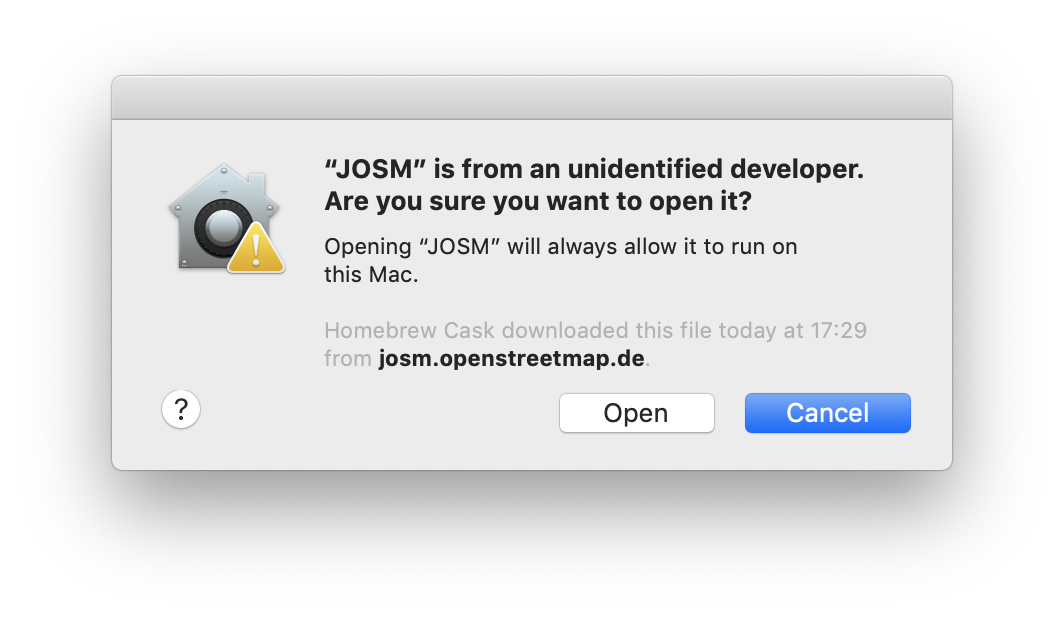
If you get an error saying "'JOSM.app' is an application downloaded from the internet." you can bypass this by right-clicking on JOSM.app or josm.jnlp and selecting 'open'. You should then see the same message but this time with an option to "Open" regardless. This is only necessary on the first run of JOSM.
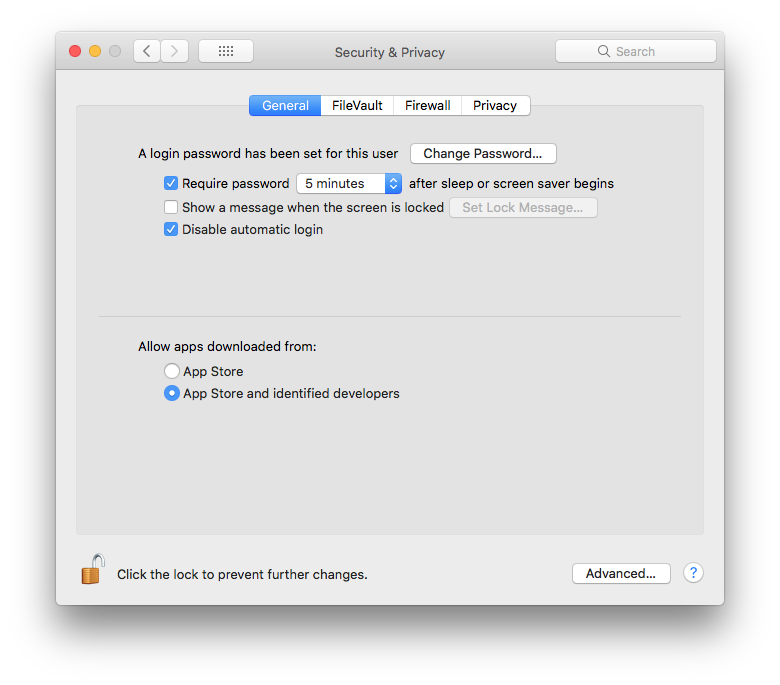
If you get an error saying "'JOSM.app' is damaged and can't be opened. You should move it to the Trash", then you need to temporarily disable Gatekeeper. Open System Preferences and the 'Security & Privacy' options. Set 'Allow applications downloaded from:' to 'Anywhere'. If that radio button is missing from the Security & Privacy preferences panel, the following may be entered using the Terminal window to make it appear:

sudo spctl --master-disable
Known and open issues in JOSM
Not closed issues about ...:
Attachments (2)
-
SecurityPrivacy.png
(86.7 KB
) - added by 9 years ago.
Security & Privacy settings
-
josm_1st_run.png
(204.6 KB
) - added by 7 years ago.
Dialog for granting access to run JOSM
Download all attachments as: .zip