| Version 8 (modified by , 9 years ago) ( diff ) |
|---|
Другие языки:
Файл > Скачать данные
 Сочетание клавиш:
 Ctrl+Shift+↓
Скачать выбранные картографические данные с сервера.
Для скачивания данных в этом окне JOSM достаточно 3 простых действий:
- Выберите сервер и при необходимости настройте предлагаемые сервером параметры скачивания
- Выберите скачиваемую область
- Нажмите
 Скачать
Сервер и его параметры скачивания
По умолчанию здесь только один источник — основной сервер OSM. В режиме эксперта доступны и другие серверы. У каждого сервера есть собственные особые параметры скачивания, которые поясняются ниже.
Скачать с OSM

Это метод скачивания, используемый по умолчанию. Можно скачать различные типы данных (в том числе и все три типа сразу):
Под надписью «Источники и типы данных» может появиться может появиться предупреждение красным шрифтом в случае, если скачиваемая область слишком велика для сервера и он ответит сообщением об ошибке на ваш запрос.
Можно всё же скачать большую область с помощью нескольких последовательных скачиваний её более мелких частей или попробовать выбрать другой сервер данных.
Скачать с Overpass API

Большим преимуществом загрузки с Overpass API по сравнению с загрузкой из OSM является то, что вы можете ограничиться скачивание только нужных вам объектов. Для этого можно ввести запрос Overpass в большое текстовое поле. О его синтаксисе см. Overpass_API/Overpass_QL. Вы можете добавлять, изменять и удалять ваши избранные запросы в списке с правой стороны. Успешно выполненные запросы автоматически добавляются в список как строка со словом «история» и временем и датой этого запроса. Наберите текст в маленьком текстовом поле над списком, чтобы отфильтровать список.
Если частью запроса является {{geocodeArea}}, она будет вычислена. Если частью запроса является {{bbox}}, то вам нужно будет выбрать область для скачивания (см. ниже). Если ни одного из этих элементов нет, то будет выполнен глобальный поиск и скачивание. Если поле запроса слева пусто, то вы можете скачать все данные в указанной ниже области скачивания.
Если вы используете этот метод скачивания данных, убедитесь, что вы знаете, что делаете, так как работа с неполными наборами данных может привести к появлению ошибочных или дублирующихся данных после отправки на сервер OSM. Overpass API позволяет скачать только данные OSM (но не GPS-треки или заметки).
Мастер запроса упрощает создание запроса Overpass. О его синтаксисе и возможностях см. Overpass_turbo/Wizard.

In the favorite editing window the first box contains the name and the box below the query.

Download from Wikosm API

Similar to Download from Overpass API this download method uses special queries to limit the dowloaded data. It has the same features to store your favorite queries.
The usage of the Download from Wikosm API is explained in the osm wiki. To use this download method you need to install the Wikipedia Plugin.
Area to download
Additional to the server choose you need to select in which area ("bounding box", "bbox") you want to download the data (except for special Overpass or Wikosm queries). The area to download can be choosen in different tabs.
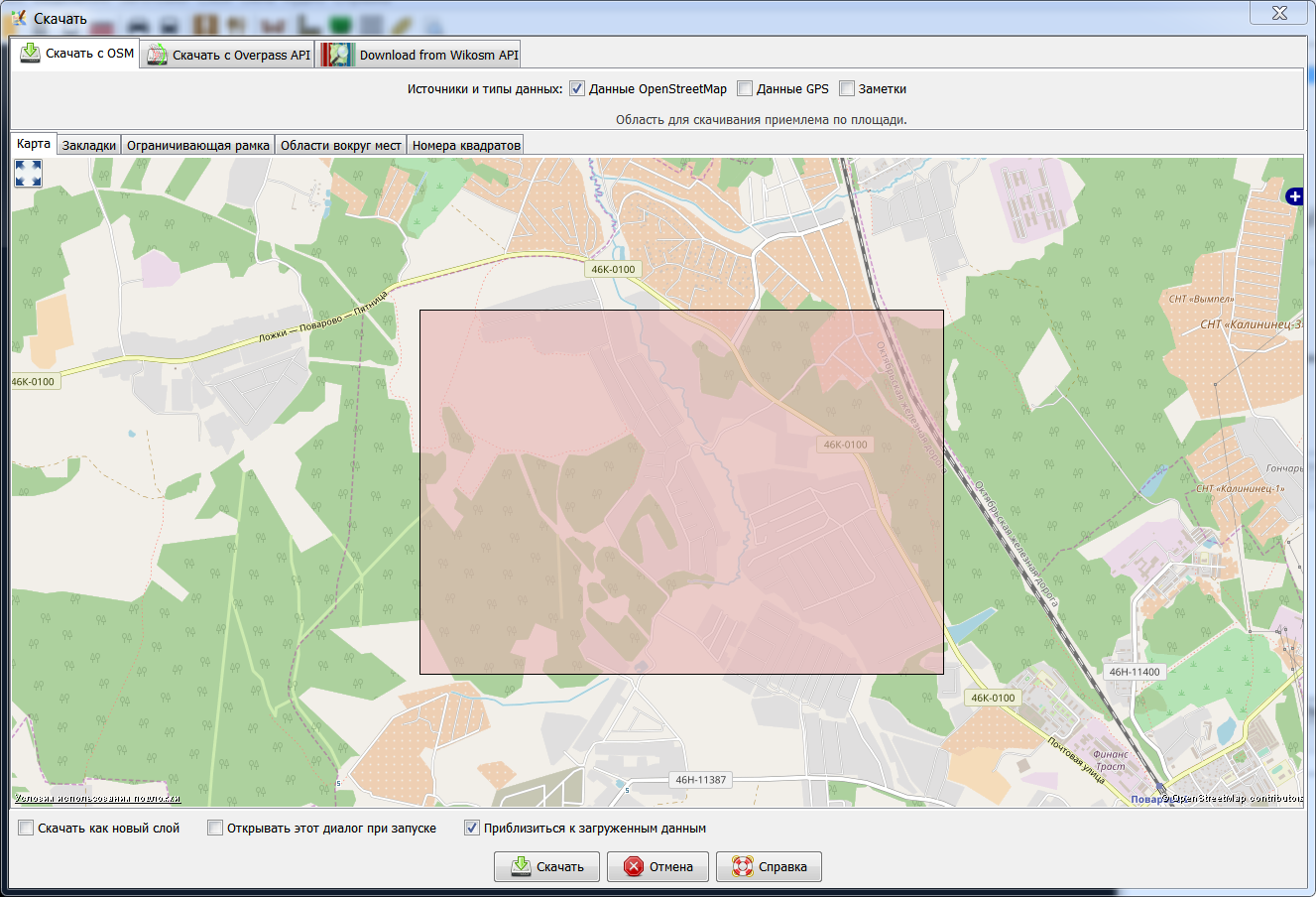
The Slippy map tab is the most intuitive one as you can simply draw a bbox rectangle with your mouse on the map. If you change the bbox in another tab and go back to the Slippy map it will display the new bbox, so you can adjust it before downloading. When the download dialog is called up with data already loaded, the bbox of the downloaded window will be the same like your current map view.
Slippy map
The Slippy map provides a movable map like on the OSM front page with which you can interactively select the area to download. Move the map the JOSM way by press and hold the right mouse button and select an area by press and hold the left mouse button.
Clicking on the  button on the upper right gives you the option to change the displayed map for this window. The available maps are based on your Imagery preferences.
Bookmarks

In the Bookmarks tab you can select from your predefined bookmarks, or create a new bookmark from the current bounding box (bbox) or the area defined in another tab respectively.
There are special bookmarks, which can't be modified directly:
- The Home location bookmark represents the home location, which you have set in your osm profile on osm.org.
- With the
 button on the left you can download the bboxes of you last 15 changesets, which are added as bookmarks then.

Double click on a bookmark to directly download the related bbox or single click on a bookmark, switch to the Slippy map tab and adjust the bbox before downloading.
Bounding Box

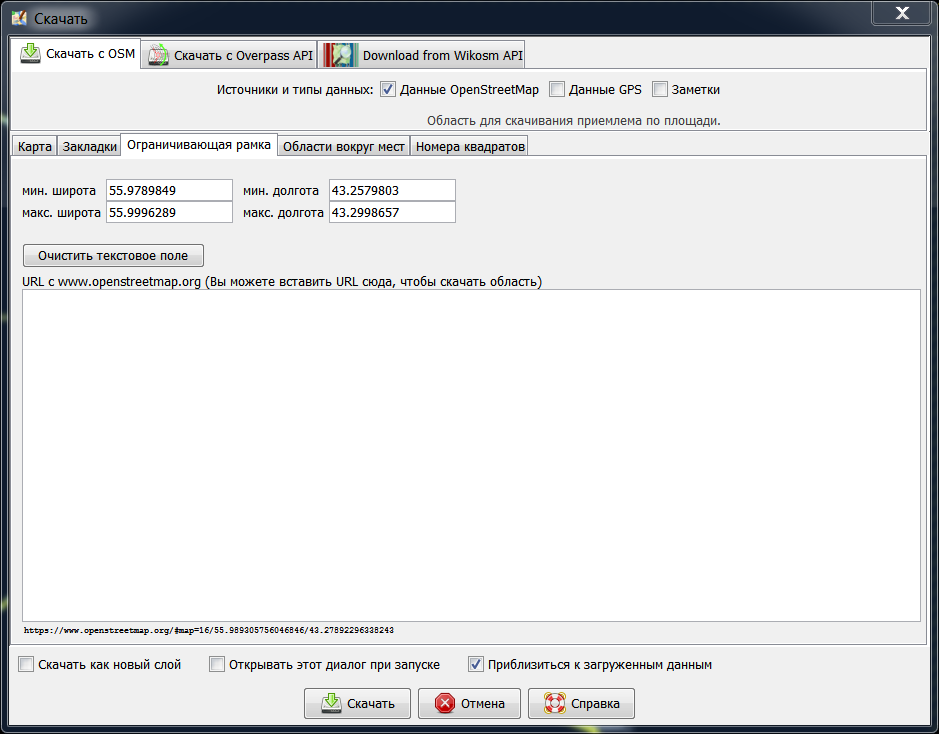
In the Bounding Box tab you can set the latitude/longitude bounds of the data to be downloaded, and also paste an URL from either www.openstreetmap.org or www.informationfreeway.org.
- To paste from the map on the OpenStreetMap site, zoom into the area you are interested in and copy the URL from the address bar of your browser. Then go to JOSM, and paste this URL into the "URL from www.openstreetmap.org" box. (In Windows to paste into the box, left click on the box, and then do CTRL+v).
- To paste from www.informationfreeway.org zoom to the area you are interested in, and then copy the permalink location from the bottom right of the screen, and paste as described above.
Instead of pasting the URL in the text box, you can press [CTRL]+[V] on any other tab to parse the bounds from the clipboard URL.
Area around places

On the Area around places tab you can search for specific places, street names, etc, in the OSM database. Currently, there is only one server for the search available: Nominatim. After you have clicked on a search result you can switch back to the Slippy map tab (which has zoomed to the area of the search result) and adjust the bounding box.
Tile Numbers

In the Tile Numbers tab you can enter a number of tiles and a zoom level to download data of those tiles. Alternatively, you enter a Tile address. This might look a little awkward, especially when reading how to compute the tile numbers. But sometimes it comes in handy. If you want to easily determine the tile numbers with the mouse, see this help center question.
JOSM download options
JOSM offers some general options of this download window:
- Download as new layer
- If checked, the data is loaded in a new layer, if not selected, the data is loaded in the current data layer. (If there isn't any data layer yet, a new data layer is always created.)
- Open this dialog on startup
- If checked this window will automatically be opened after the start of JOSM.
- Zoom to downloaded data
- If checked the map view will move to the downloaded data after downloading, if not checked it will stay at its current position. (If expert mode is off this checkbox is not displayed.)
See also
 Download object
- Download parent ways and relations
 Download from Overpass API (No longer exists in JOSM since it was integrated into this window in september 2017.)
 Download in current view
 continuosDownload Plugin
 Open Location


Attachments (10)
- download_dialog_ru.png (226.1 KB ) - added by 15 years ago.
- SlippyMap.png (366.9 KB ) - added by 9 years ago.
- Overpass.png (383.3 KB ) - added by 9 years ago.
- Wizard.png (138.2 KB ) - added by 9 years ago.
- Favorite.png (43.1 KB ) - added by 9 years ago.
- Wikosm.png (434.4 KB ) - added by 9 years ago.
- Bookmarks.png (87.8 KB ) - added by 9 years ago.
- BBox.png (68.2 KB ) - added by 9 years ago.
- AreaAroundPlaces.png (88.7 KB ) - added by 9 years ago.
- TileNumbers.png (278.8 KB ) - added by 9 years ago.