


| Version 1 (modified by , 8 years ago) ( diff ) |
|---|
befejezetlen fordítás / incomplete translation
Más nyelveken:
Pontok rajzolása
 Gyorsbillentyű:
 A — az egyik munkamód
Ez a mód eltérően viselkedik attól függően, hogyan használod.
Próbáld ki magad
Nyisd meg a https://josm.openstreetmap.de/raw-attachment/wiki/Help/Action/Draw/josmwiki-actiondraw.osm fájlt a "Fájl > Hely megnyitása…" (Ctrl+L) (en) menüből.
Alapértelmezett mód
Pont létrehozása
Ha nincs semmi kijelölve, kattints a térkép egy üres részére, és létrehozol egy pontot (en), ami független a meglévő vonalaktól (en):
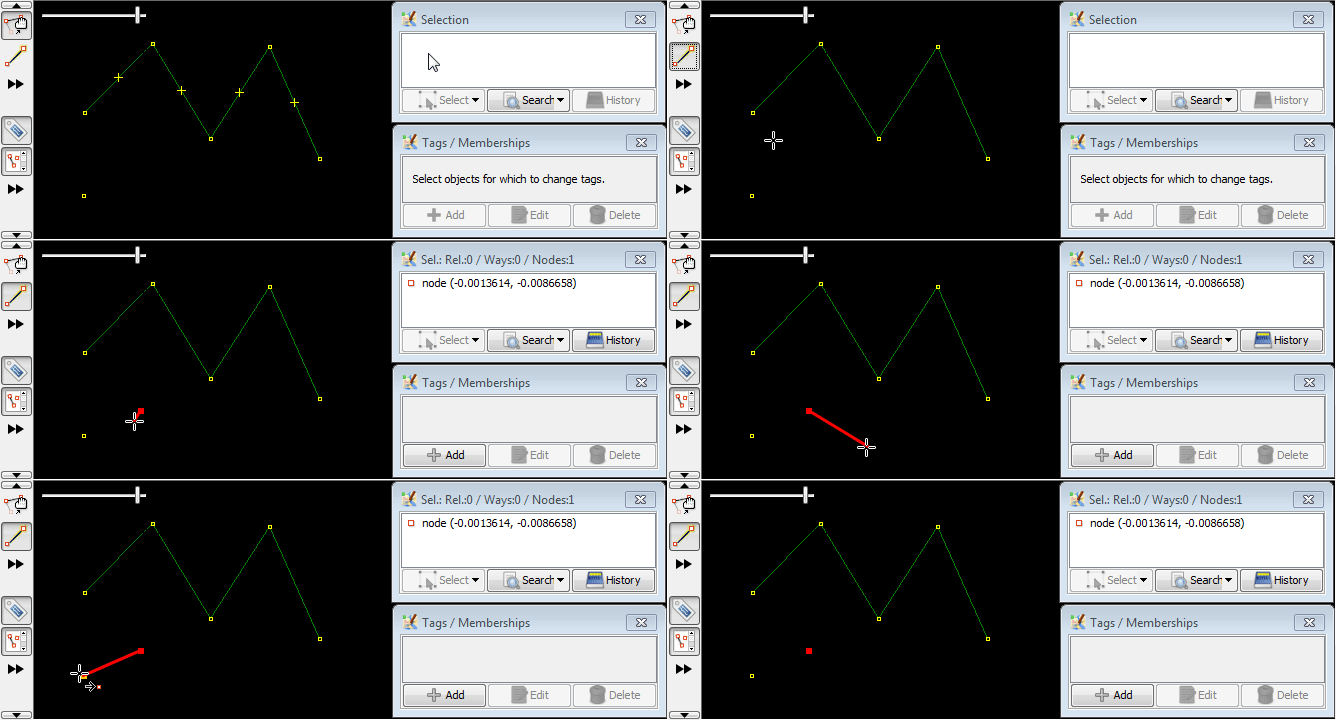
Click on node will stop mode
To stop drawing mode, click on selected object (a node) again. This can be done so quickly and some users confuse it with double click. No, you don't need double click:
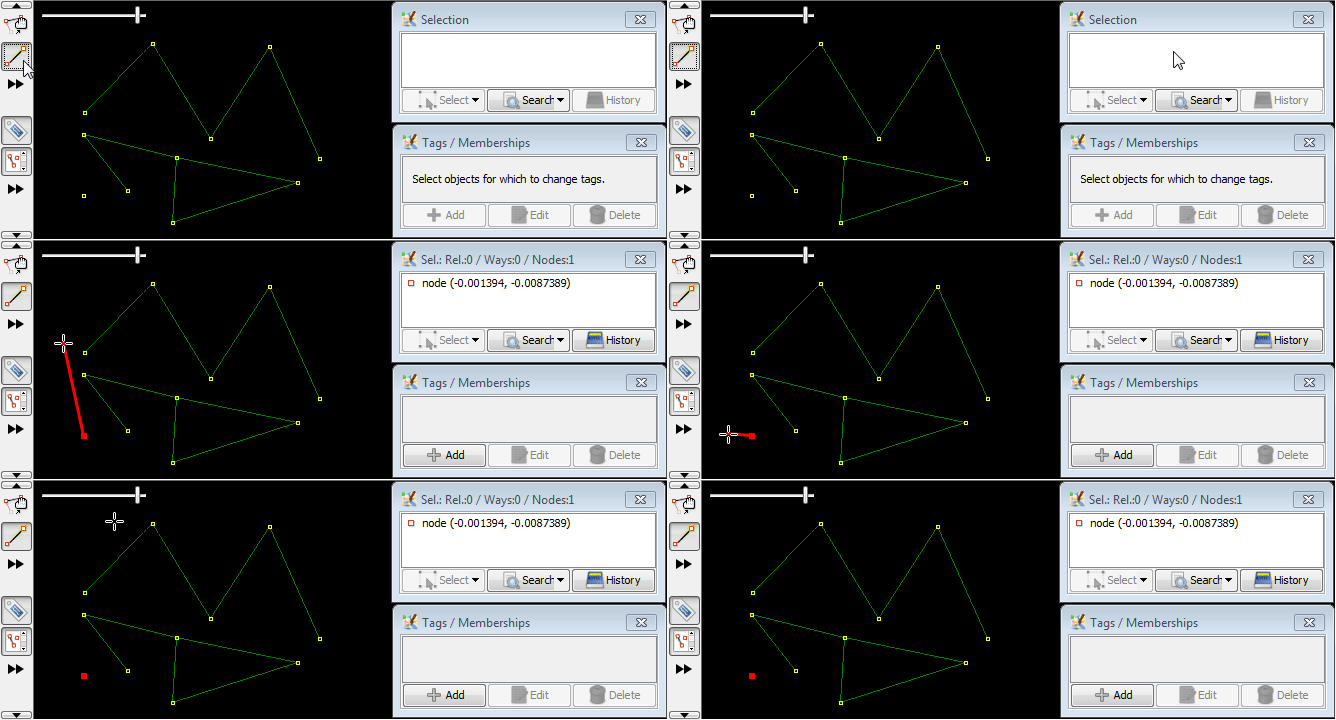
Draw a segment
With empty selection, if you select one node and then click on a blank area of the screen you add a new node and create a new way (with one segment):
Note: click on second node in segment used to stop drawing mode
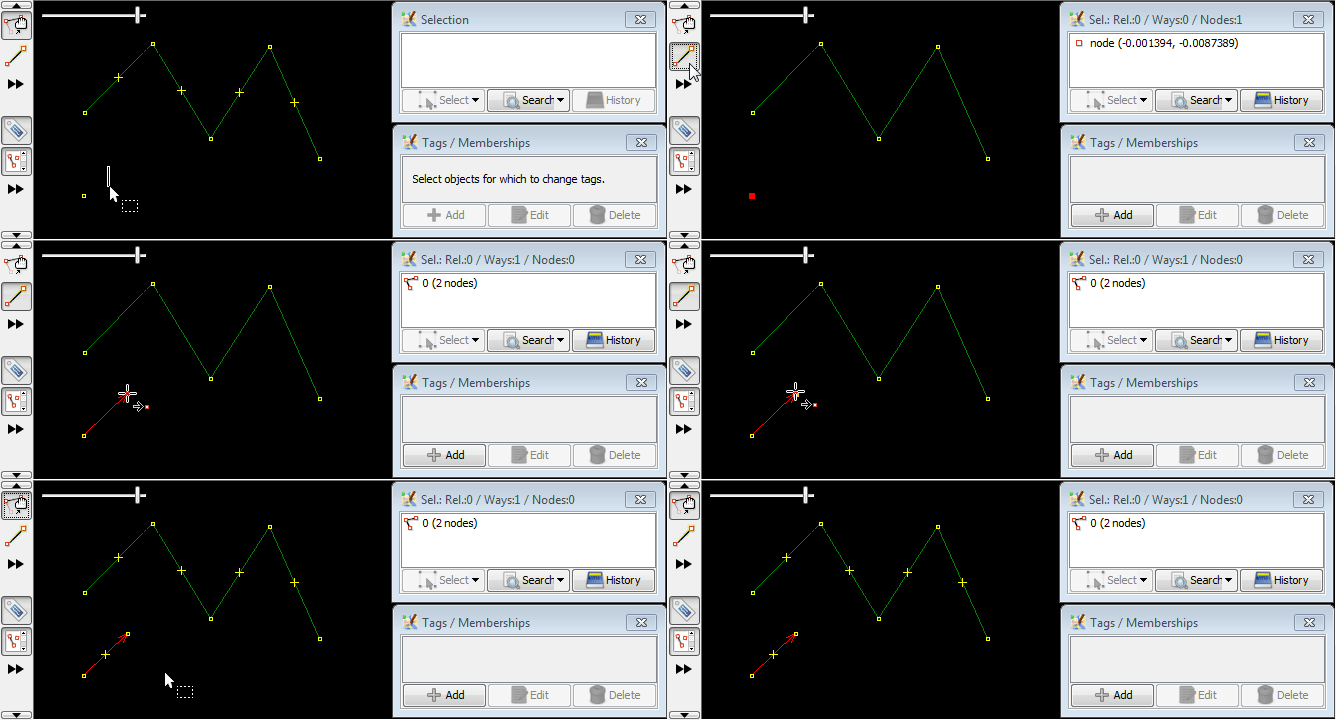
Click on node will start new segment similar to empty
- If you are currently not drawing, then you can select node with a left mouse click
- If the node is an end node of a line then also the line gets selected (leaf node + way in selection); this will be explained in #Continuousdrawing
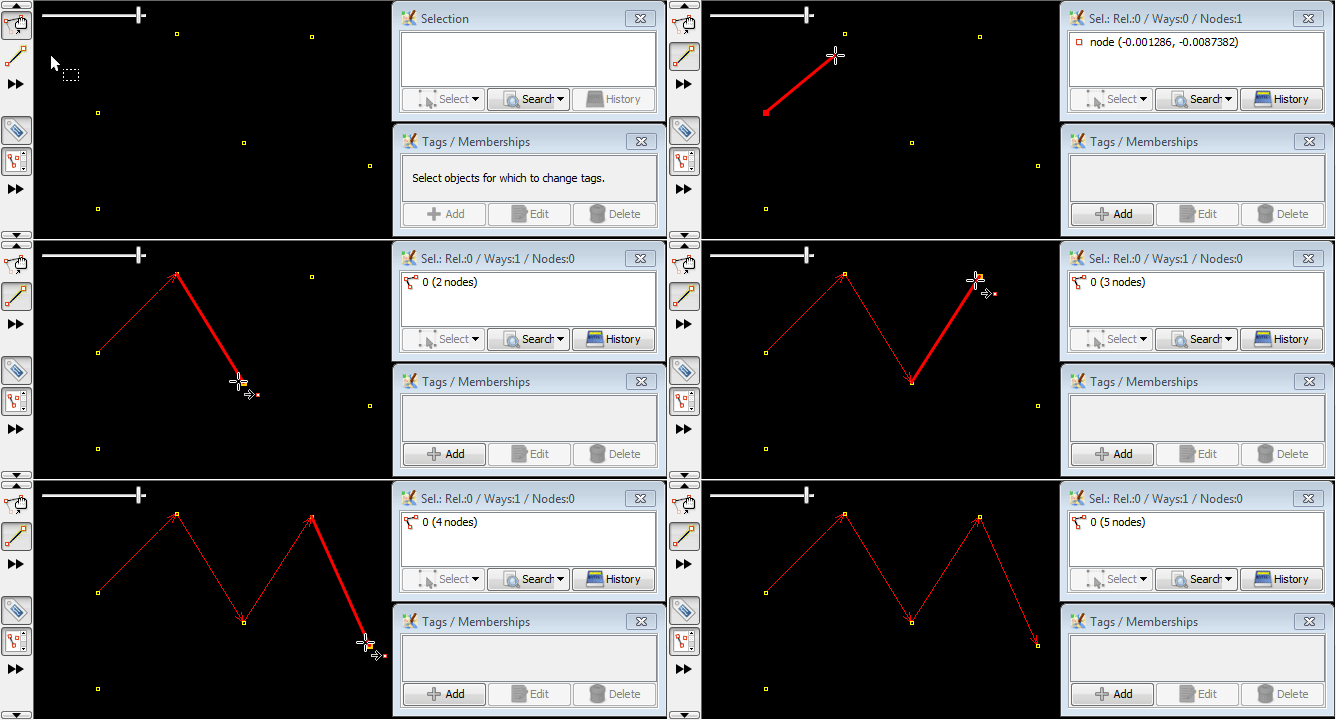
In demo below, left mouse click was used to select first drawing mode, then clicked 6 times at nodes:
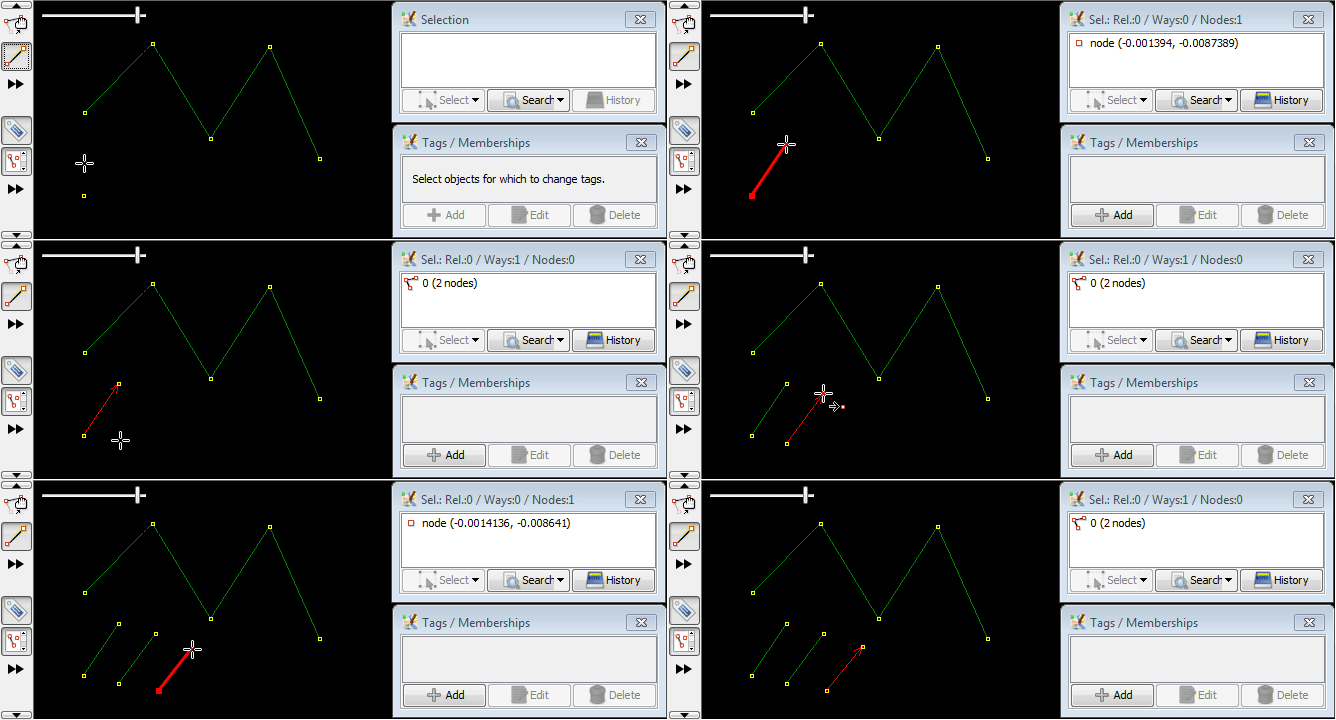
Common nodes
This is often necessary when you edit highways or streams of the river.
Common nodes with another way
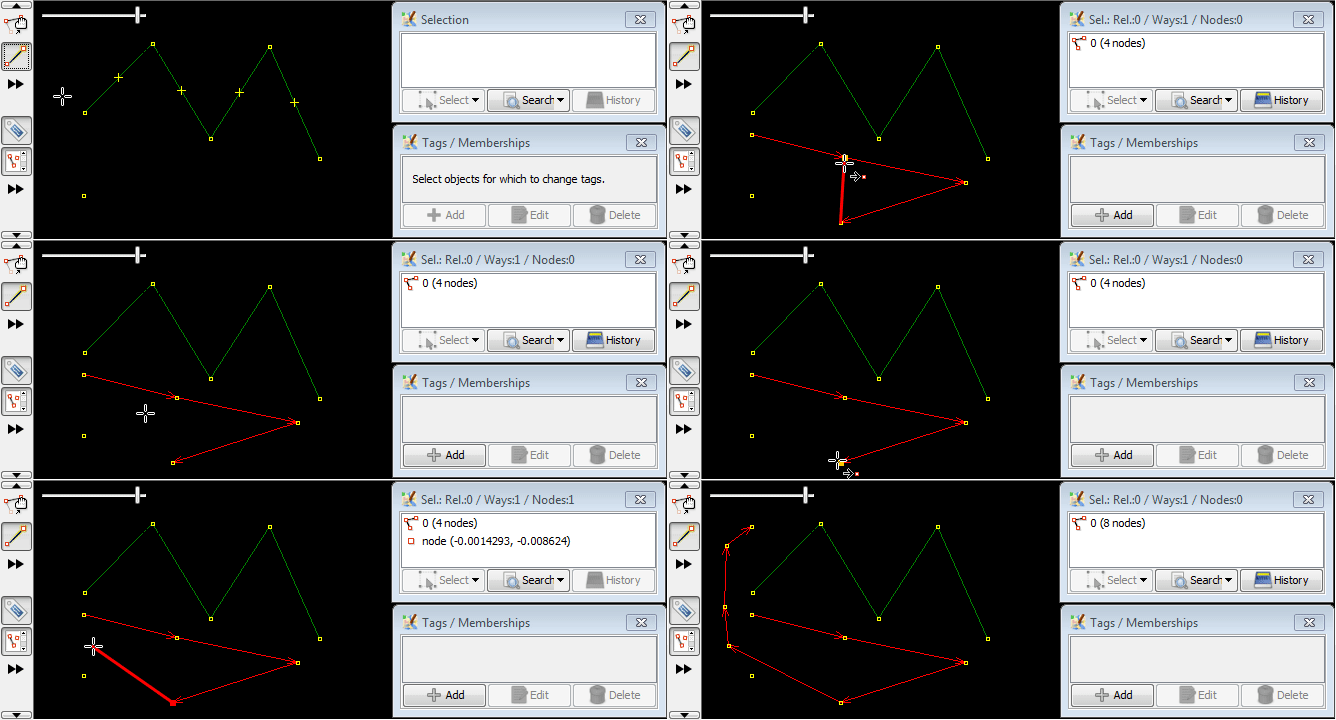
If a node is previously selected and you click between two nodes in an existing way the new node is added on the existing way, between two existing nodes, and a way is drawn between the previously selected node and the new node.
The new node will belong to both ways. It's often refereed as "common node".
Simplest scenario:
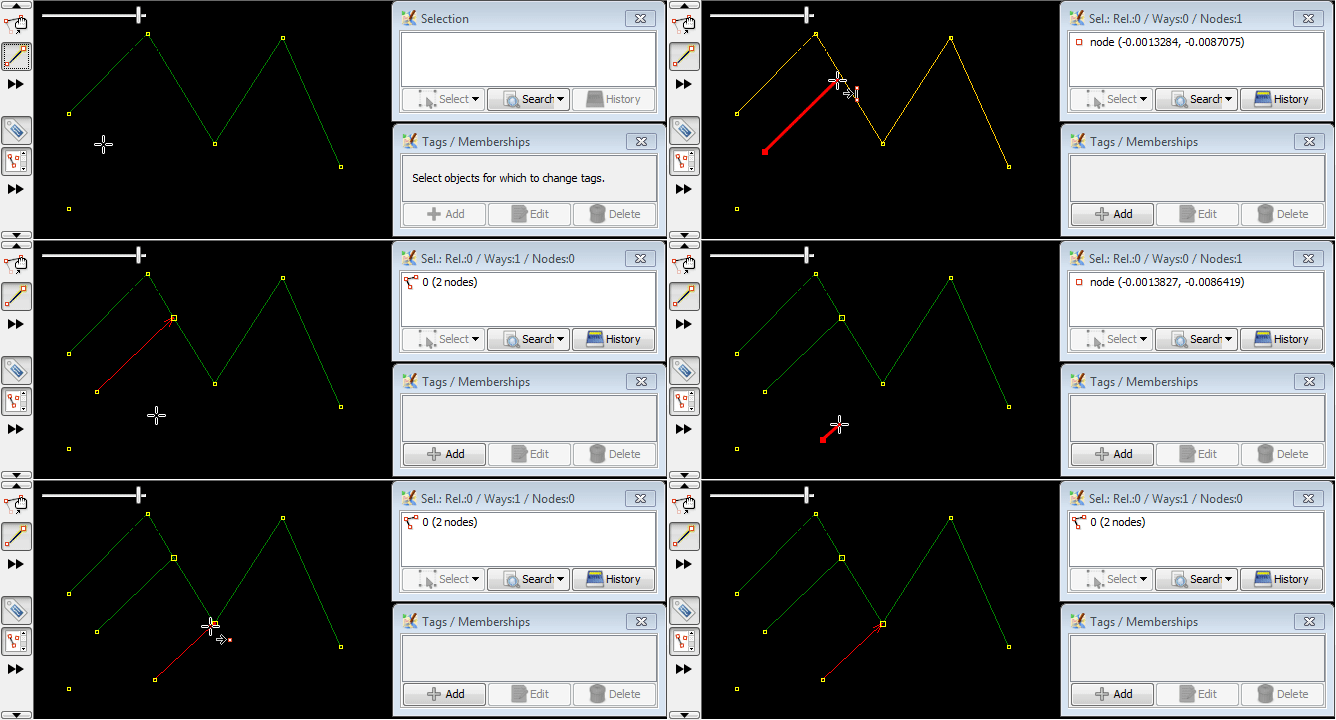
Common nodes are bigger
It help you distinguish them from other nodes.
First drawn way have a common nodes with old way and second drawn way has no common nodes (details how second way was drawn will be explained below):
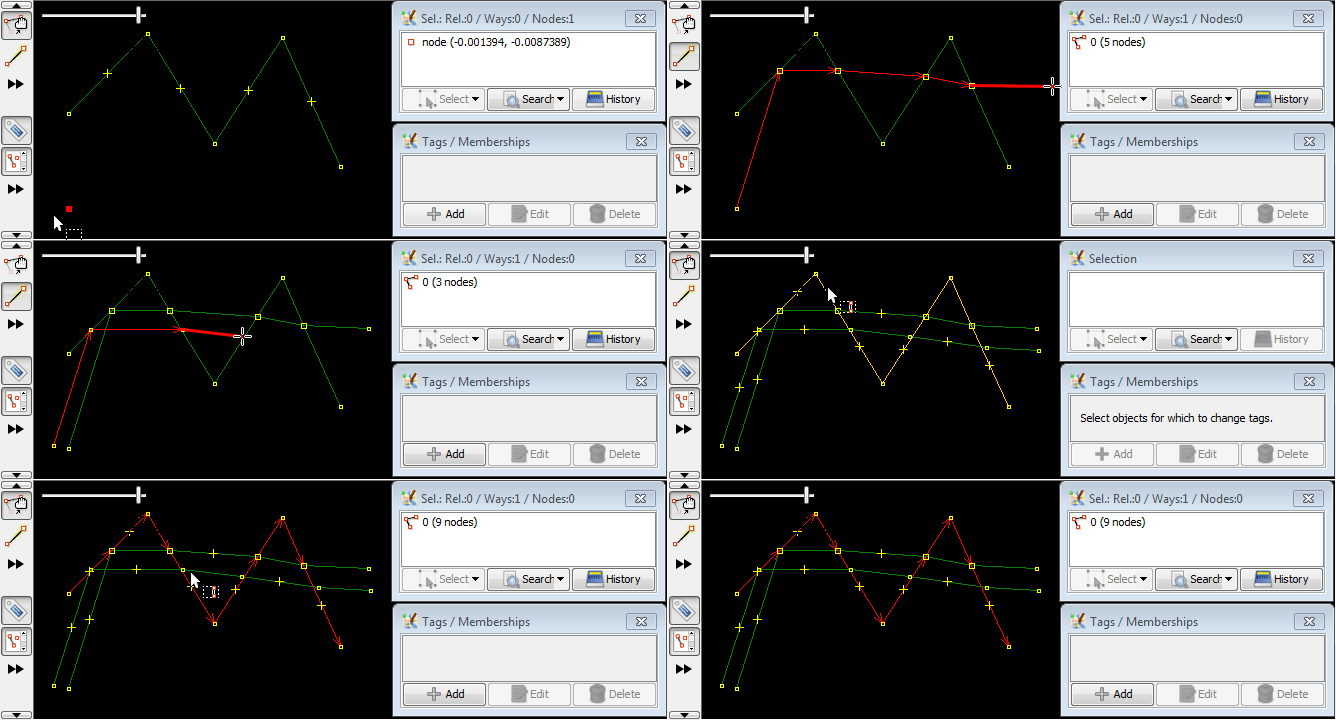
Left mouse click will add nodes on overlapping ways
If two ways overlap, single mouse click will create a common point.
(stub)
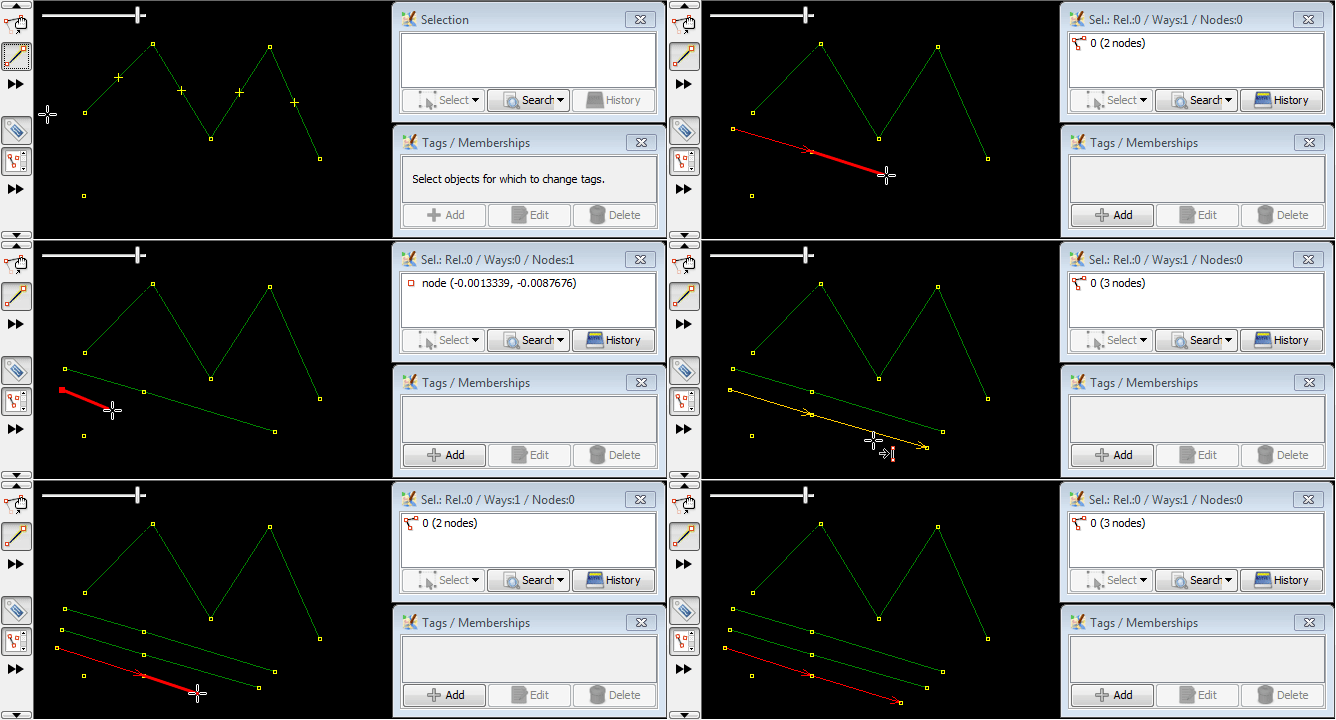
Double click stops drawing on leaf node
Drawing stops, if you make a double click when creating the last node. This way you don't have to click on last node, but you have to know about this special case:
Continuous drawing
Previous way will be continued if both are true:
- nothing was selected OR way in question was selected
- draw mode applied to leaf nodes
If draw mode applied to non-leaf nodes, it will create a new way instead of continuing old one:
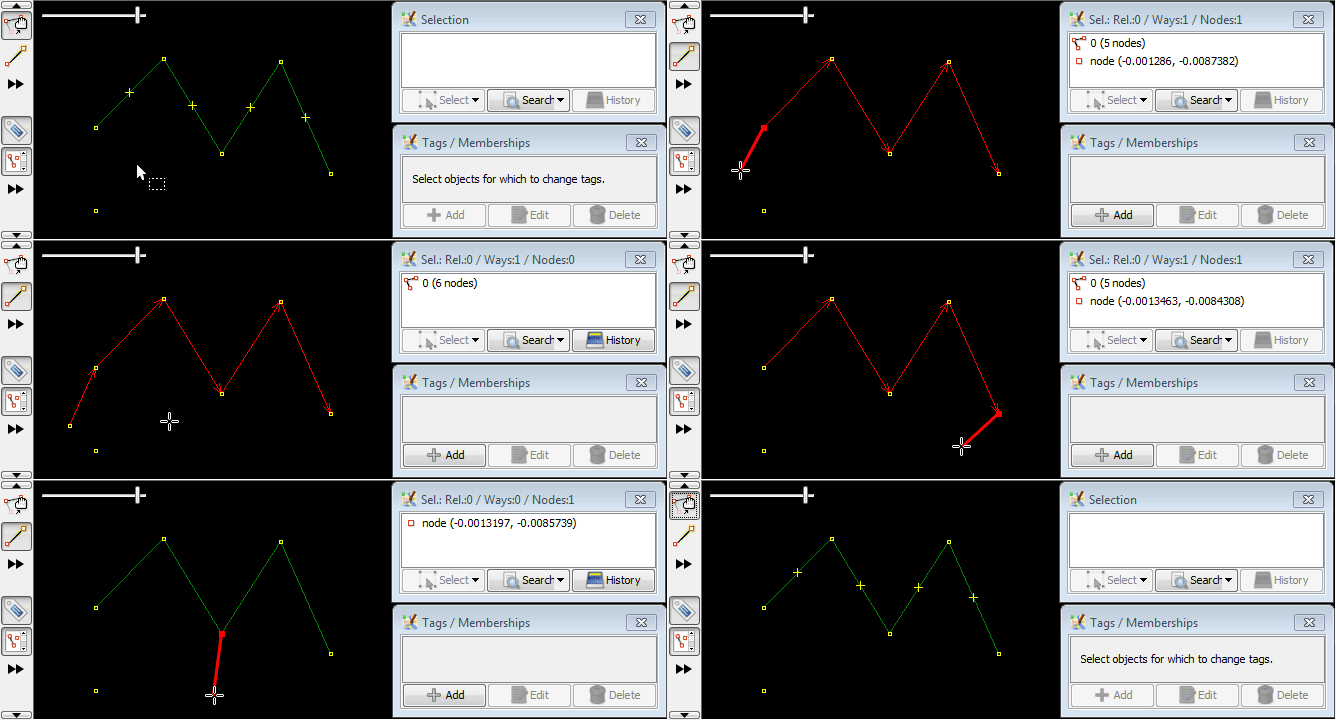
Left click on drawn way will stop continuous drawing
It doesn't matter if you click on nodes or create a new node in a way:
Illesztés meglévő pontokhoz és vonalakhoz
Note how nodes and way change colour to yellow when hovering over them:
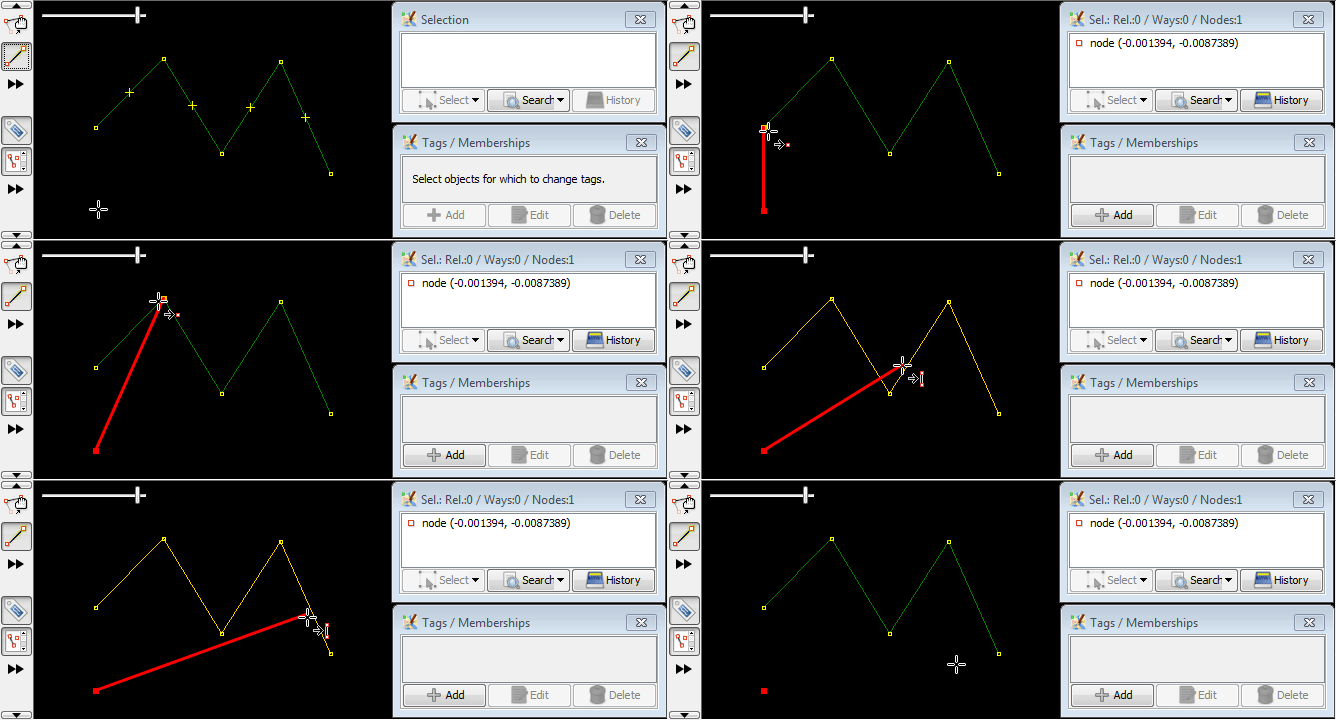
If you click near an existing node it draws a "segment" between what was previously selected and the existing node, and this allows you to re-use existing nodes to make a new way / area (so that certain nodes and "segments" can be reused in more than one way/ area):
Szögillesztés
Often necessary when editing barriers, fences, walls, non-trivial buildings, indoor features and other man-made objects, covered here: Help/Action/Draw/AngleSnap.
Módosítók
Alt módosító
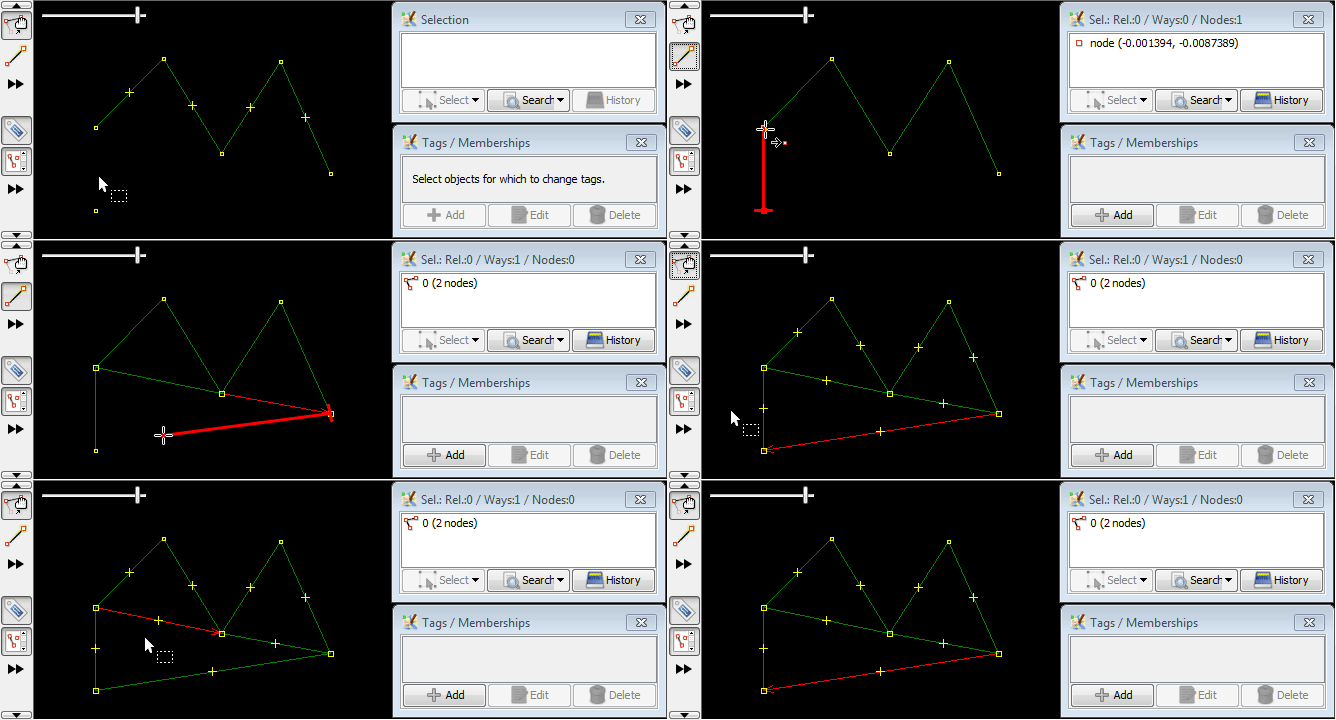
If you hold down the Alt key when using this mode it starts a new way, rather than continuing an existing way.
Shift módosító
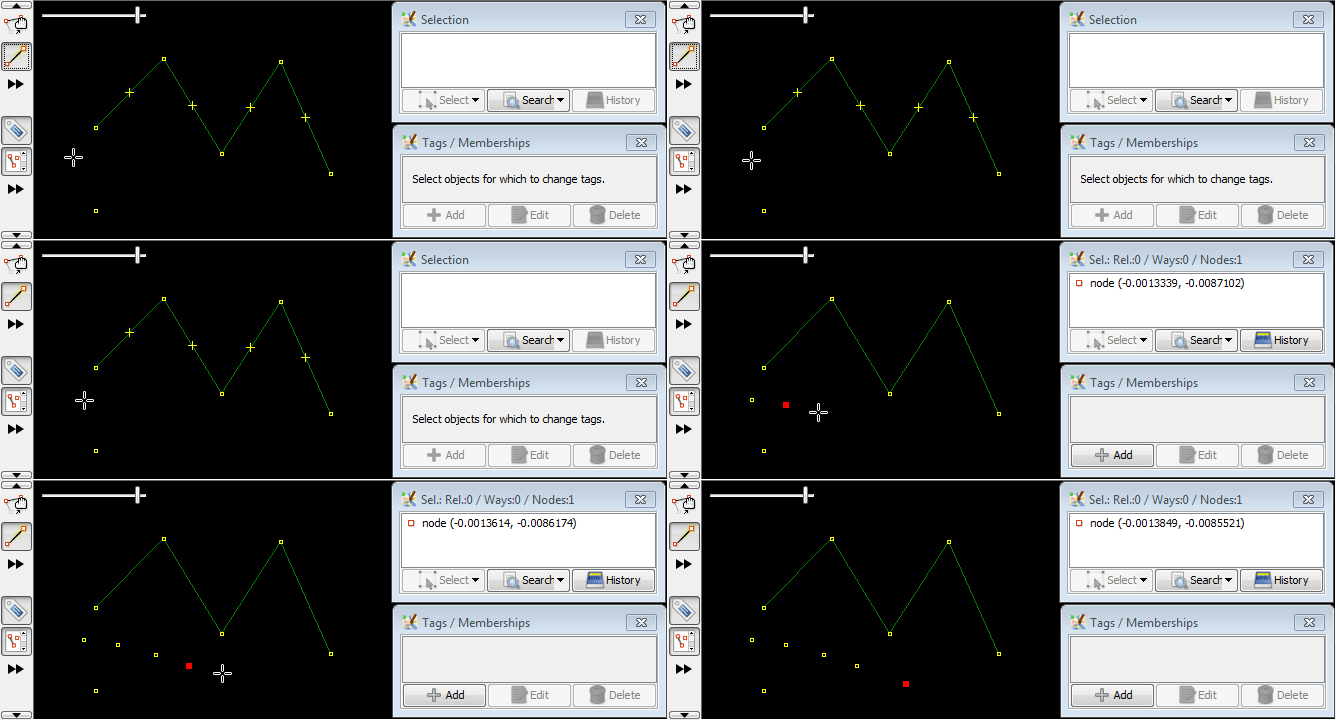
If you hold down the Shift key while using this mode, it disables the "auto-connect" feature. So segments will not be drawn between new nodes.
Ctrl módosító
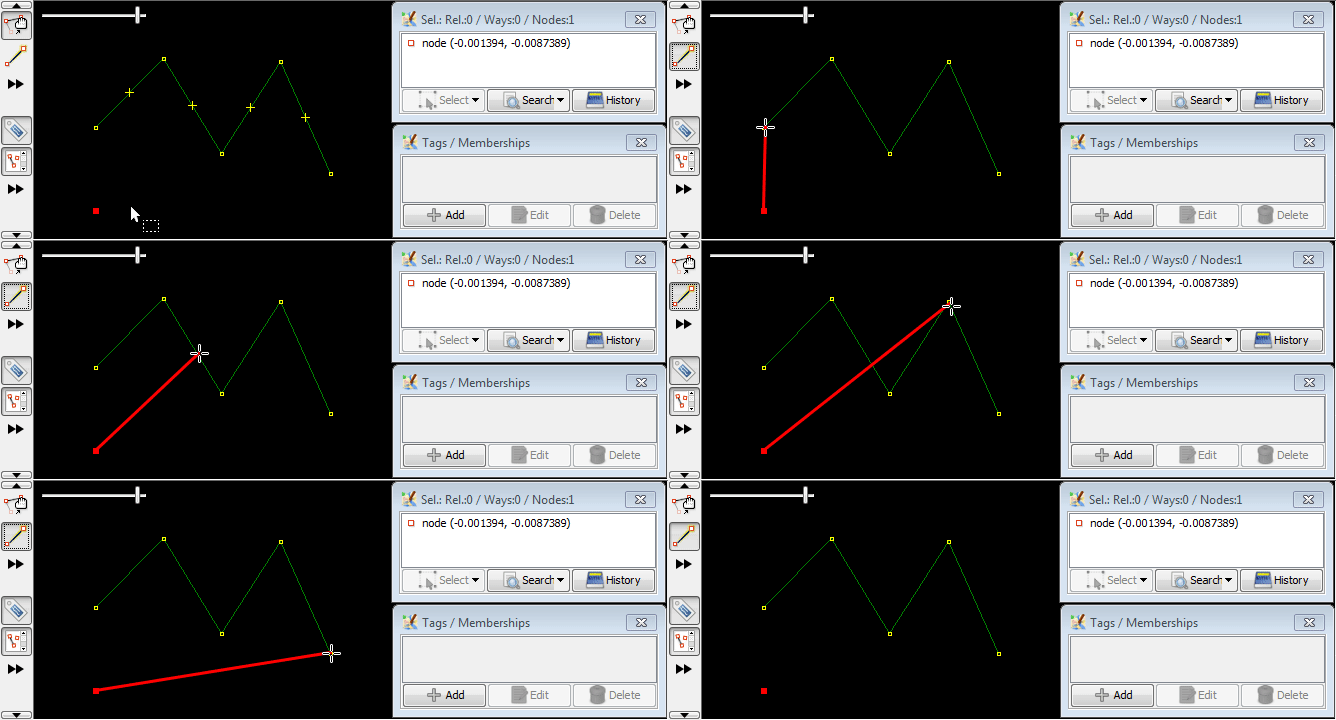
If you hold down the Ctrl key whilst using this mode, it disables the snapping to an existing way, allowing you to draw nodes close to, but not part of an existing way.
Módosítók kombinálása
You may optionally use one or many modifiers at once to get desired result.
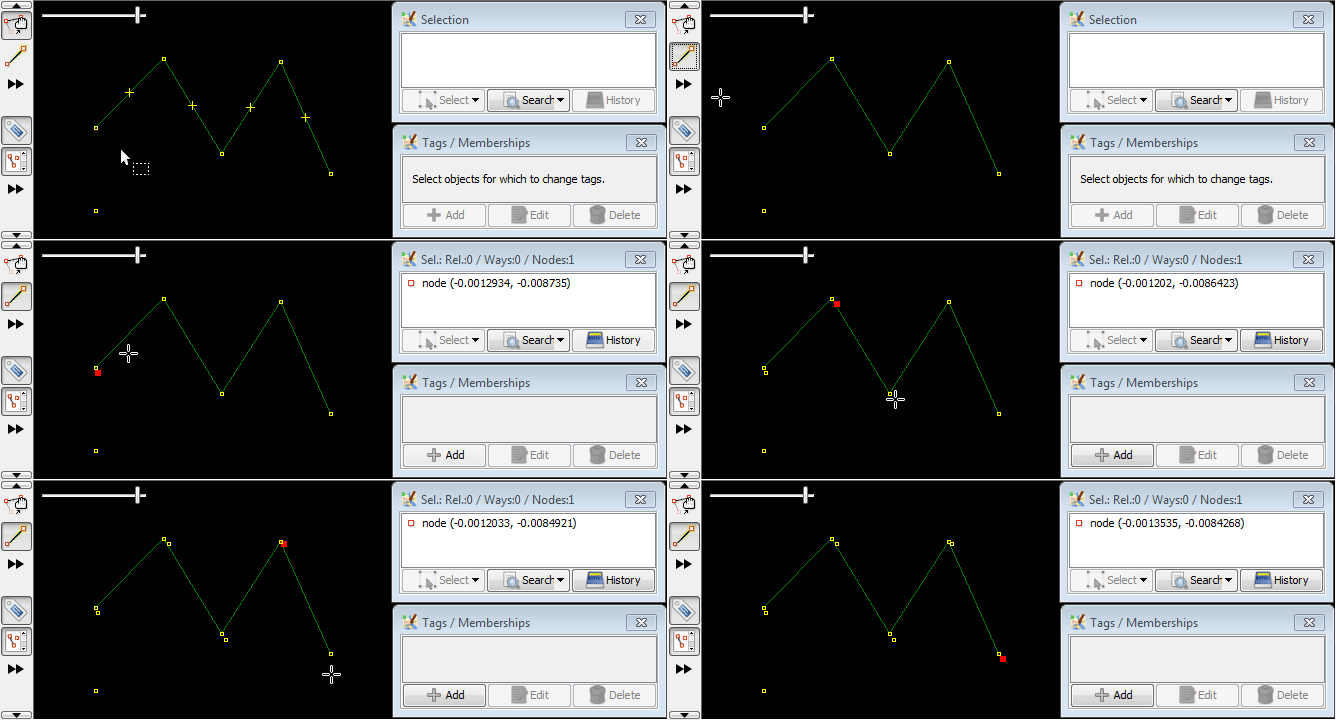
Here is Ctrl modifier used with Shift at once:
Lásd még


Vissza a szerkesztő eszköztárhoz
Vissza a fő súgóba
