


| Version 1 (modified by , 18 months ago) ( diff ) |
|---|
Übersetzung unvollständig bzw. in Arbeit
Andere Sprachen:
Inhaltsverzeichnis
Flächenerzeugung durch Extrusion
 Tastenkürzel:
 X (nur im Expertenmodus) — ist eins der Arbeitsmodi
Kombination aus paralleler Liniensegmentverschiebung und winkelerhaltendem Arbeitsmodus.
Extruder hat zwei verschiedene Verhaltensweisen, die durch die Tastenkombination X oder über das Menü Bearbeiten umgeschaltet werden können.
Abhängig vom Objekttyp (Punkt, Linie, geschlossene Linie) und der gedrückten Umschalttaste (Strg, Alt usw.) bietet der Extruder unterschiedliche Modi an.
Punkt entlang eines benachbarten Segments verschieben (Strg)
Sonderfall: Wenn ein Punkt ausgewählt ist, ist Strg zu drücken, um den Modus zu aktivieren.
Dieser Modus erstellt keine neuen Punkte oder Linien.
Verschiebt einen Punkt in jede von zwei Richtungen. Der resultierende Punkt kann in eine der (2*benachbarten Segmente) Richtungen verschoben werden:

Segment parallel verschieben (Strg)
 Segment parallel verschieben. Punkte werden verschoben, auch wenn sie mit anderen Linien verbunden sind.
Dieser Modus erstellt keine neuen Punkte oder Linien.

Grundlegende Extrudierung bei geschlossenen Linien
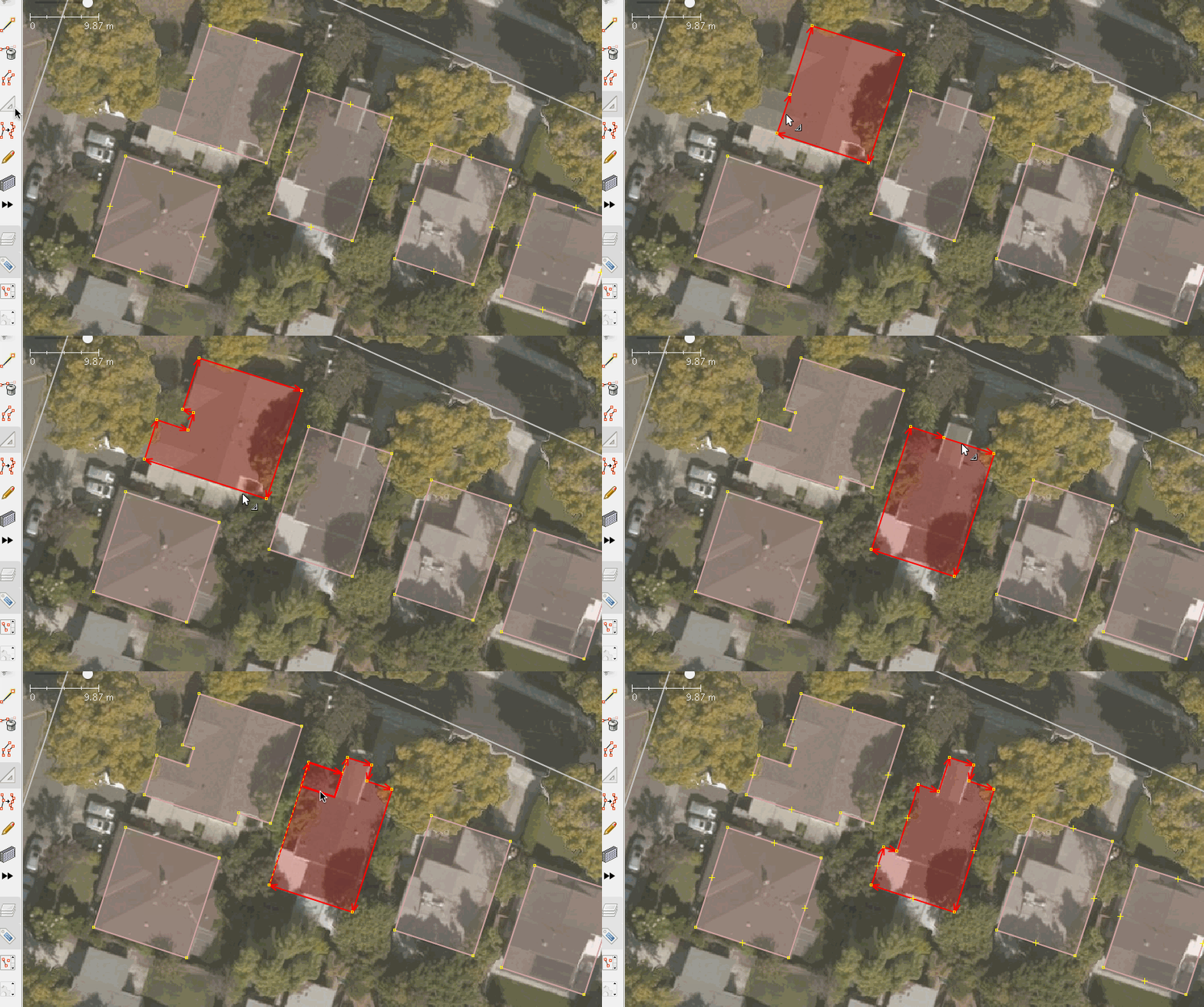
Hier wird zunächst mittels der Funktion Gebäude zeichnen ein Gebäude in erster Annäherung gezeichnet, dann werden verschiedene Extrudier-Funktionen verwendet, die weiter unten erläutert werden:
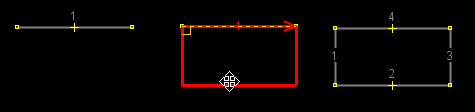
Sonderfall mit zwei Punkten
Wenn mit nur einem einzelnen Liniensegment begonnen wird, erhält man ein Rechteck.
Bei geschlossenen Linien
Click on a way segment and drag it. There are up to 3 possible directions - at right angle to the original position and along its neighboring segments. The chosen reference segment will be indicated.
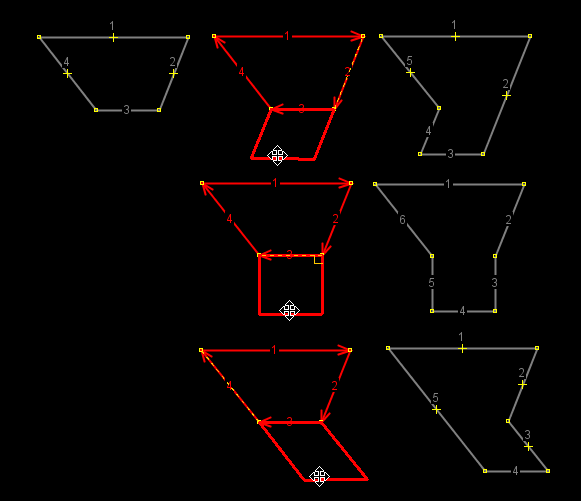
Note: In certain cases new nodes will not be created. Specifically, if new segment is just lengthening of the old one. However, the node will not be moved when it's part of another way, as to not affect the other way.
Double click will insert a node
A double click at a way segment inserts a new node.
Modifiers
Dual alignment (X)
Toggled by X or the  item in the Edit menu. Instead of using one reference segment and moving both nodes of the selected original segment in the same direction,
this mode uses two reference segments (neighbors of the original segment) and moves the nodes each according to its own reference segment.
item in the Edit menu. Instead of using one reference segment and moving both nodes of the selected original segment in the same direction,
this mode uses two reference segments (neighbors of the original segment) and moves the nodes each according to its own reference segment.
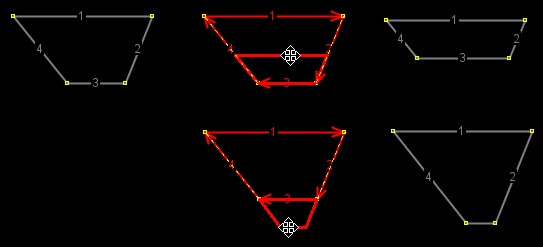
The status is indicated in the status line and visually (two reference segments shown instead of one).
Create intermediate points (Shift)
 Always create nodes, even if new segment is just lengthening of the old one.
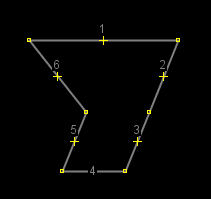
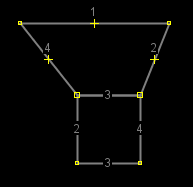
Create a new way nearby (Alt)
 Don't alter original way, create new way instead. Ways will share the two nodes.
Extrude usage on unclosed ways
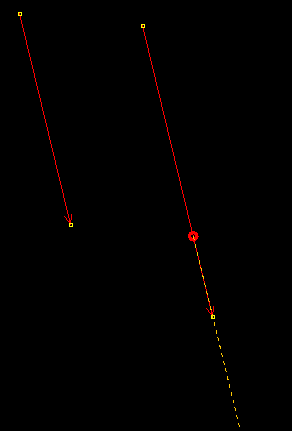
Drag end node with (Ctrl)
Will extend way (move a node along segment):
Advanced Preferences
- Color of main line: Defaults to
selectedcolor, but can be changed with advanced preference (en)color.extrude.main.line. - Stroke of main line:
extrude.stroke.main. Parameters:<width>for solid line (width in pixels),<width> <dashlength> <spacelength>for dashed line. - Stroke of old line (used while moving segment):
extrude.ctrl.stroke.old-line(stroke parameters). - Color of helper line:
Extrude: helper linein colors settings (en). - Stroke of helper line:
extrude.stroke.helper-line(stroke parameters). - Size of right angle helper symbol:
extrude.angle-symbol-radius(pixels). - Moving nodes without the need of pressing
Ctrl:extrude.drag-nodes-without-ctrl(boolean). - Ignoring shared nodes to avoid overlapping segments:
extrude.ignore-shared-nodes(boolean).- If enabled (default), nodes shared with other way(s) are left untouched and new node is created to facilitate the extrusion.

- If disabled, shared nodes are still part of the way, segments might overlap
- If enabled (default), nodes shared with other way(s) are left untouched and new node is created to facilitate the extrusion.
- The extrude action will be performed only if the pointer moved more than specified distance:
extrude.initial-move-threshold(pixels, default 1). - Changing the keyboard shortcut of Dual alignment mode: Set
extrude.dualalign.toggleOnRepeatedXtofalseto disable the default one, set new one viaMode: Extrude Dual alignmentshortcut.
