


| Version 18 (modified by , 8 years ago) ( diff ) |
|---|
Translation is incomplete.
他の言語:
JOSMことはじめ
JOSM内の言葉の定義
 ノード(node)
- ノードは点です。
 ウェイ(way)
- ウェイは複数のノードをつなぐ線を意味します。このことは、ウェイは単に複数のノードをつなぐ線一般を指しており、道路などの現実的なウェイ(道)だけをさす言葉ではないことを意味します。
 リレーション(relation)
- リレーションはウェイとノードを順番に並べた物で、複数の要素をグループ化する論理的なコンテナと言える物です。データの1%のみがリレーションを使用してモデル化されています。
 領域(area)
- 領域は両端が接続されたウェイです。
 タグ(tag)
- タグは各ノード、ウェイやリレーションが何を表しているかを説明するものです。 タグは "キー" と "値" から構成されます。 キーは "道路" や "土地利用" など基本的に大まかなカテゴリに相当します。 それに対して値は "主要地方道"、"居住区域内道路" といった道路種別や "住宅地域"、"商業地域" といった土地利用状況などの詳細な特徴を示します。
道やトラック、パスが曲がっているとき、その曲線は複数のノードを短いウェイで接続して近似的に表現します。ウェイに方向がある場合はタグでそれを表します。例えば "oneway=yes" で一方通行を示します。他のタグではウェイの右側と左側を区別します。(海岸線など)
JOSMを起動する
JOSM は Java で書かれたプログラムであり、ダウンロードページから実行できます。
JOSMでの最初の編集
ようこそ画面
JOSMが起動すると、JOSMの新しいバージョンでの変更点についての情報を書いたウィンドウが開きます。起動するたびにこのページの内容をチェックするように心がけてください。重要な変更があるかもしれません。
ダウンロード
次にデータをダウンロードします。JOSMを使用して練習することができます。あなたが知っている、または最近訪問した近所または地域をダウンロードしてください。
OSM データ
次にメインサーバーからその領域のデータを追加します。  をクリックしてください。OSMからのダウンロード (
Ctrl+Shift+↓)
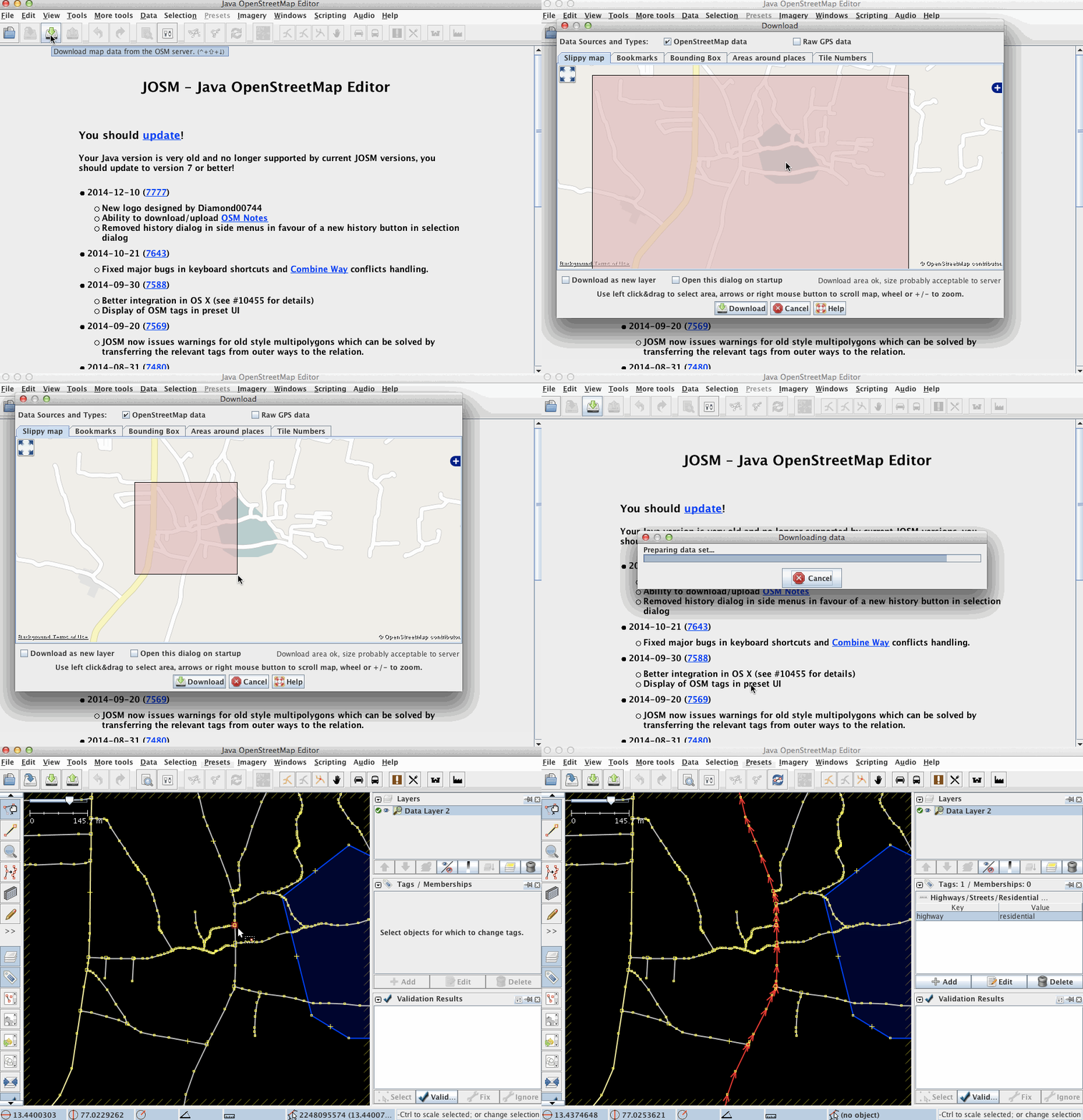
世界の地図を含むダウンロードウィンドウが表示されます。地球全体ではなく編集用に小さな領域を選択する必要があります(したがって、「ダウンロード領域が大きすぎます」というメッセージが表示されます)。
地図を移動してダウンロードする特定のエリアを選択するには、いくつかのツールがあります:
- Click with the right mouse button to drag the map
- Use the scroll wheel to zoom in and out
- Click with the left mouse button and move the mouse to define an area.
「ダウンロード領域が大きすぎます」というエラーが表示されなくなり、地域を選択したら、「ダウンロード」をクリックしてメインサーバーからデータを取得します。
航空写真を有効化する
地球上のほとんどの場所には少なくとも1つの画像があります。エディタの上部にある画像メニューから1つを選択できます。BingとMapboxは人気がありますが、あなたの地域には他にもっと最近のリソースがあるかもしれません。現在作業している地域で使用できるすべてのローカルイメージリソースは、画像メニューの下部に表示されます。
画像のディテールや明瞭度は、さまざまな場所で異なる場合があるため、異なる画像を確認する価値があります。画像メニューからそれらの1つを選択するだけで、すぐに使用できます。
Mapboxのみ: you can request a better imagery for the region of your interest (announcement in 2014-04-11 by Eric Gundersen)
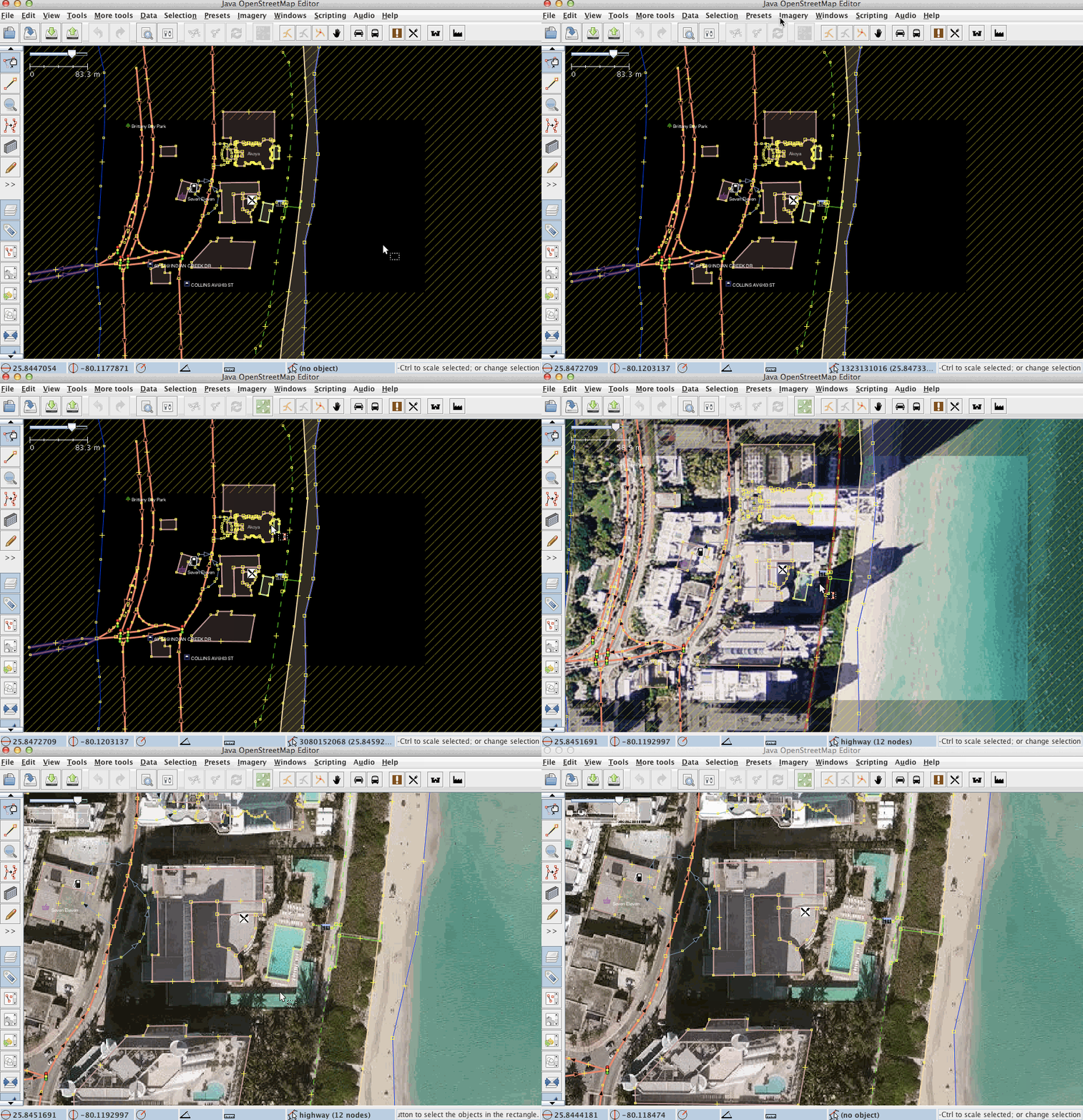
When using imagery, keep in mind that imagery may be offset. That is, due to complexities in processing satellite imagery, features on imagery may not be at the same location as they are in the real world. For reference, check existing features in OpenStreetMap data and compare them with the imagery or download GPS tracks. To download GPS tracks from OpenStreetMap, check the "Raw GPS" box in the download dialog. If you observe an offset in the imagery, you can correct for it by selecting the "New offset" item in the "Imagery" menu.
JOSMで編集する
JOSM はオフラインエディタなのであなたのやった作業はサーバにアップロードするまでは他の誰にも見えません。このため、何も壊さずに実験したり、繰り返し要素を移動、タグ付け、追加や削除することができます。単一の要素へのその後操作はアップロード時にはひとつの修正としてデータベースへ送られます。
ノードやウェイの追加
実際の編集作業で最初に行うことは、OSMデータにノードやウェイを加えることです。 独立したノードを作ることもできますし、二つのウェイが交わる交差点など、ウェイにノードを追加することや、あるいはウェイの方向を変更することもできます。
ノードを追加するには、左メニューバー2番目のボタンをクリックするか、キーボードの"A"キーを押下(2番目のボタンがハイライトになるはずです)してノードボタンをハイライトにします。
次にノードを置きたい場所やウェイ、あるいはGPSトラックをアップロードしていればその軌跡上にマウスカーソルを移動し、左クリックします。白い点(選択されたノード)が現れ、ゴムのように伸び縮みする線がその点からマウスカーソルまで引かれます。その後ノードを作成するにつれ、前のノードは黄色の点で表示されます。
一連の連続したノードがウェイを形作ります。
タグの追加
ウェイやノードそのものは、"タグ付け"されて何を表すのかが分からないとあまり役に立ちません。 Map Features(地物) にウェイとノードに現在使用できる全てのタグの説明が載っています。
タグを追加する最初のステップは、タグ/メンバー ウィンドウがJOSMの右側に開かれていることを確認することです。The button on the left should be highlighted. If it is not highlighted, click on it or hit Alt+Shift+P.
 追加、
追加、 編集、
編集、 削除の3つのボタンが表示されます。
プロパティペインで(タグを追加するなど)ノードやウェイのプロパティを編集するには、そのノードやウェイを選択しておく必要があります。
- 左側のアイコンの一番上のアイコン
 をクリックするか、"S"キーを押して選択モードに入ります。
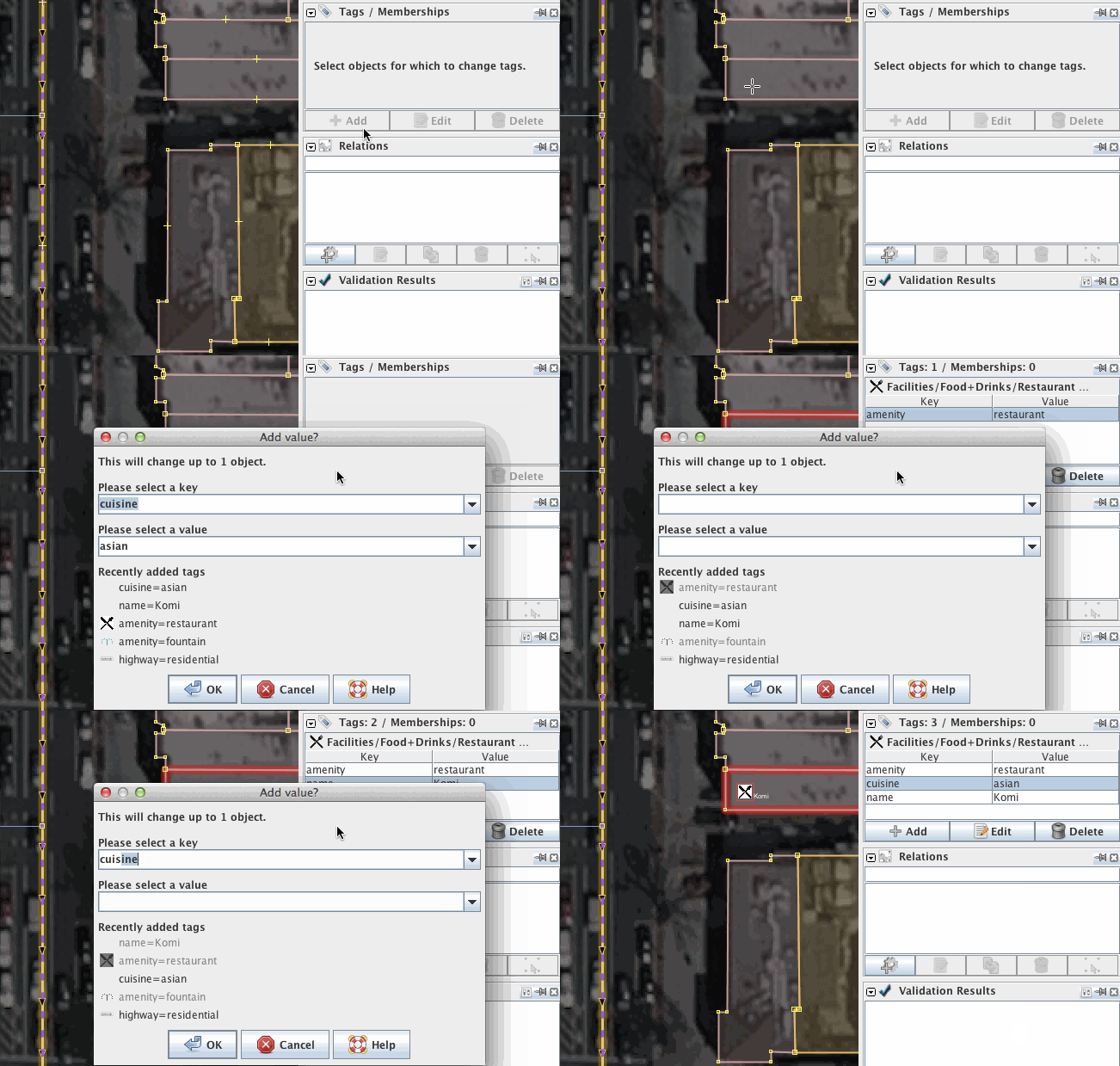
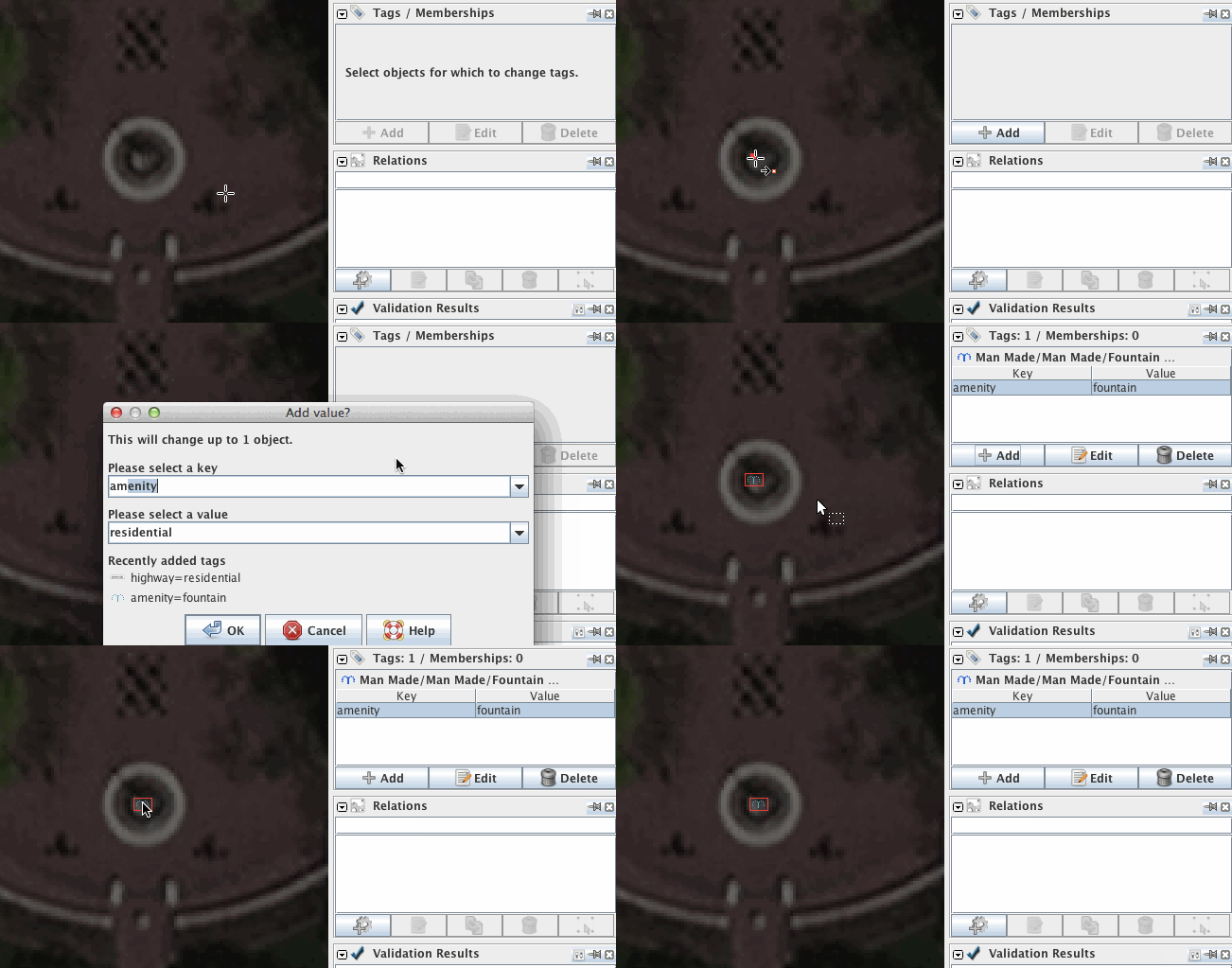
- 選択したいウェイやノードをハイライトして"追加"ボタン をクリックします。
- ダイアログボックスが表示され、タグのキーと値を選択するように尋ねられます。 作成しようとするタグを表すキー/値のペアを入力します。 例えば、キーには引用符なしで"amenity"を、値には"fountain"をこれも引用符なしで入力します。
- OK をクリックします。これでウェイにタグが付けられました。1つのオブジェクトに複数のタグを追加できます。
プリセット
手動でタグを追加する代わりに、プリセットを使用することもできます。
All presets can be found: 1. at the [wikite:Help/Menu main menu] (shown on the left below) 2. at the main toolbar (no picture below). 3. with the F3 shortcut (pop-up menu shown below on the right)
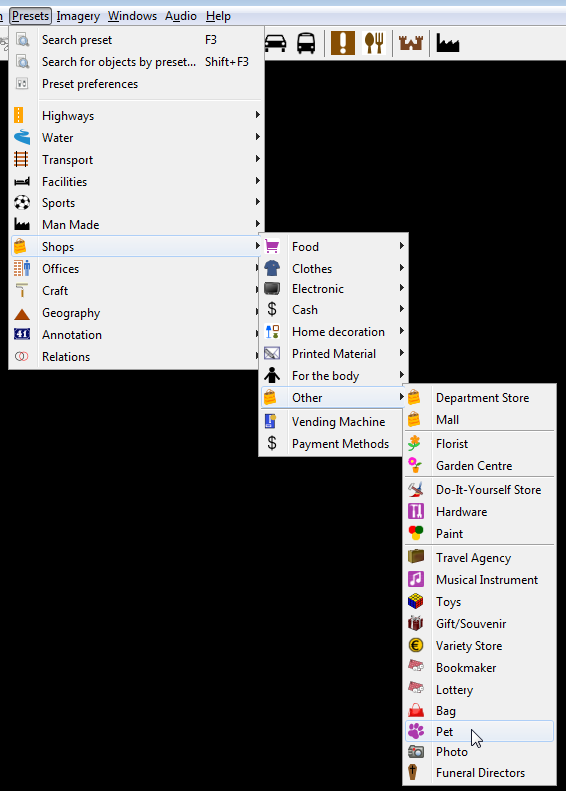
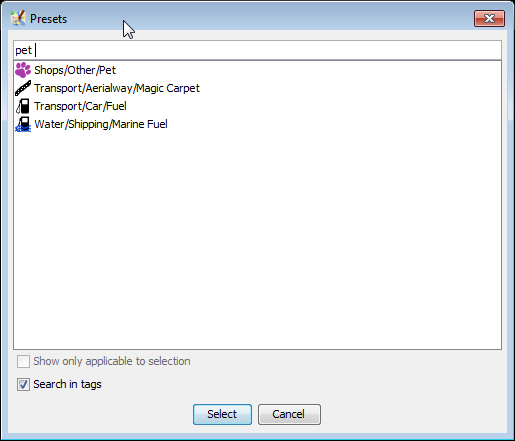
Presets for currently selected object(s) are displayed above the tags for the current object (displayed in Tags/Memberships window):
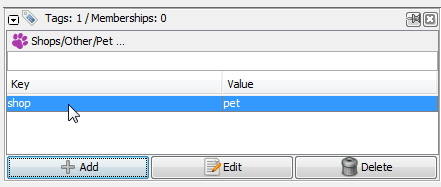
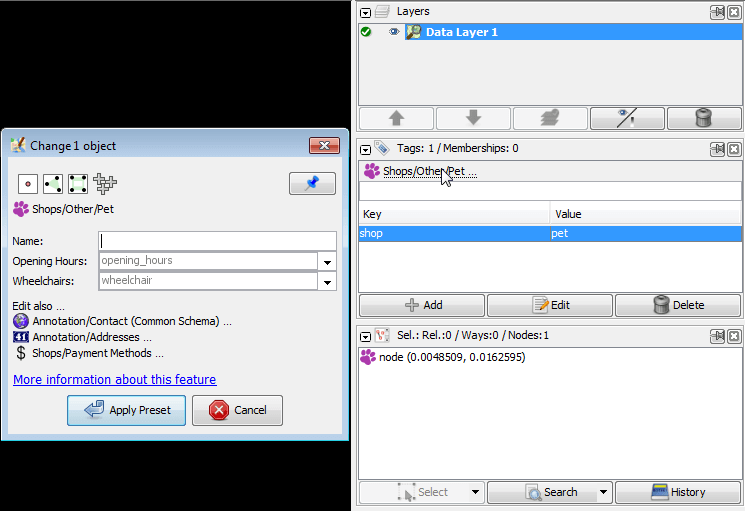
Left mouse click on respective preset heading will open complete preset view
OSMへのアップロード
If you are happy with all that you have done then you must upload your work to the OSM server. Click on the  button.
This will automatically trigger a validation (en) of your changes. Review all validation warnings and try to resolve them before you upload. This will prevent unfortunate mistakes such as un-tagged objects or unconnected roads. Note that validator warnings can also be wrong in seldom special cases.
Before you upload, add a proper changeset comment and specify which source you used. This is important as it will show other users who see your changesets what this changeset was intended to modify and from where you took the information.
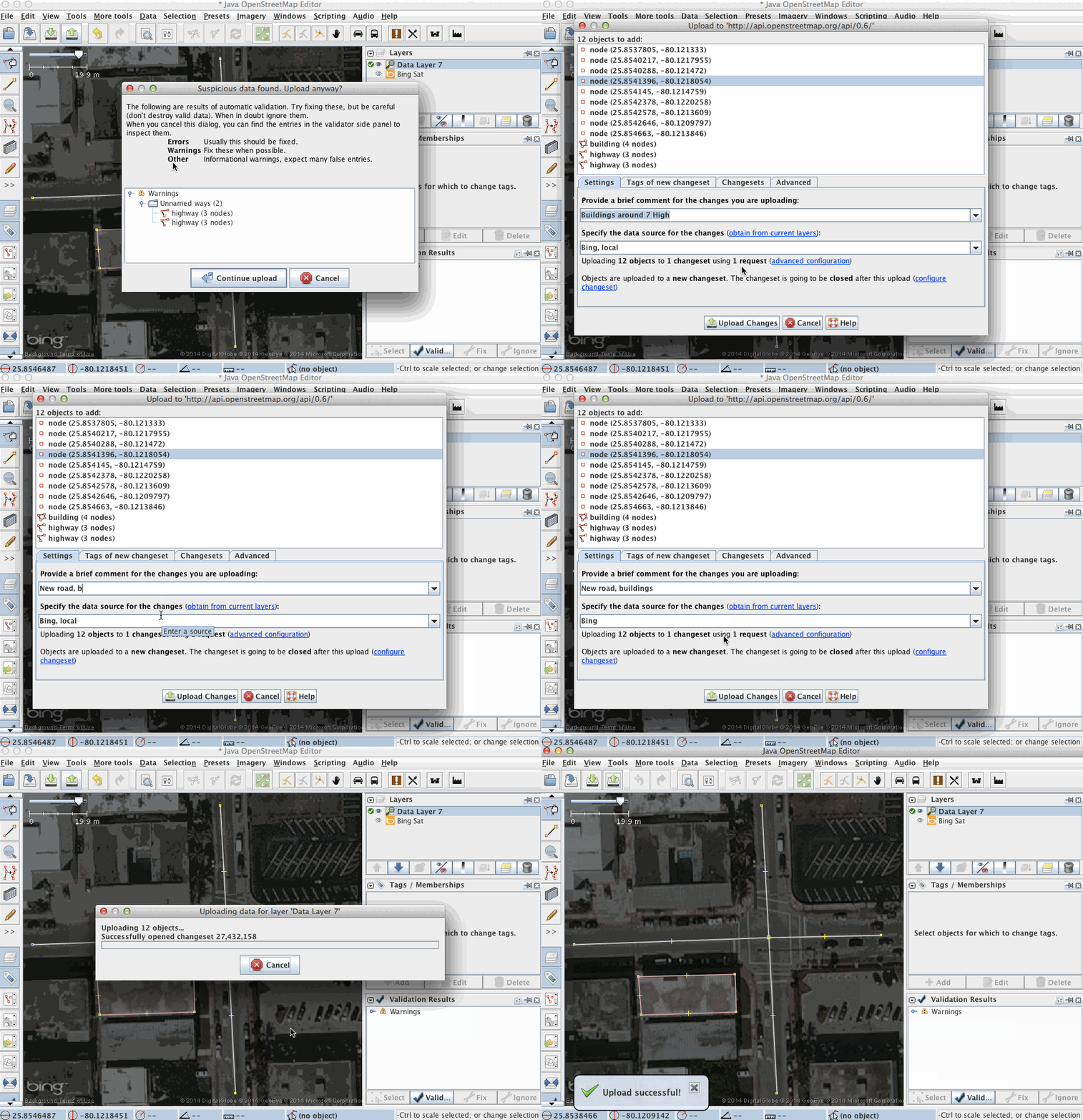
JOSM will give you an overview of the elements that it is about to upload. You will be asked to provide a short text summary and the source of your edits. This description will be saved with your data on the server and provides information, for example, for the Recent Changes list. If you need more details or have questions about upload process, it is precisely covered at Upload to OSM.
Thank you!
OSMデータベースに貢献してくれてありがとうございます。For more information see our help page or simply press F1 over buttons or any interface element within JOSM. これはそれぞれのヘルプページに直接つながります。
What's next
Results of your job
- Your changes will appear at the "Standard" layer probably within a few minutes.
- Data in your routing software, maps and other services: will be updated per each service (from minutes to days, weeks and months)
Tell your friends
- Tell your friends how easy it is to update data and how your changes get displayed quickly. Truck drivers, couriers, photographers, bikers, journalists, fisherman and simply runners with GPS are always welcome in OSM.
- Precise and actual information may affect how you make decisions in your life. The more people who are active in the project - the faster the data gets updated. And while a few contributors can be called as "active" at a given point in time. Every small change advances OSM to a complete and actual state.
- OSM data may be viewed as clocks: without an arrow you wouldn't know minutes. It often gets outdated - simply refresh it. When clocks stop we wind them up again.
- OpenStreetMap is about the whole planet in the same way how your clock about the current time.
外部リンク
- Mapping with OpenStreetMap with animations by Mapbox team covers mostly the same topics.
- Your first steps with JOSM - the Java OpenStreetMap editor 09/02/2016 by Ramya Ragupathy at Mapbox blog
関連項目
ヘルプに戻る
