| Version 105 (modified by , 6 years ago) ( diff ) |
|---|
Languages:
Table of Contents
Sidebar
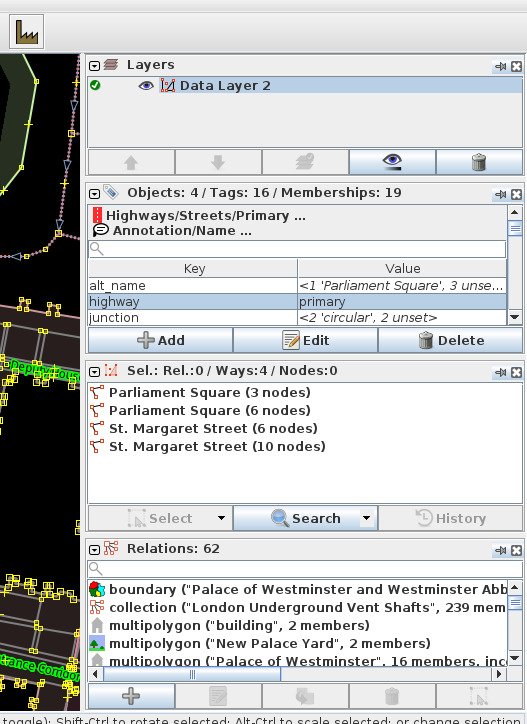
The Sidebar can host several panels on the right hand side of the interface.
To activate a panel
- click on its icon in the lower part of the Edit Toolbar on the left side of JOSM
- click on its menu item in the main menu Windows
- by searching its name with
 Search menu items (
Ctrl+Space) in main menu Help - by its keyboard shortcut (see table below)
Panel pinning
- To pin a separated panel: Click the ordinary close button
- To unpin a panel: press pin icon
Header buttons for each panel when it's pinned
- The
 black, down-headed arrow head rolls the panel up and the
  black, right-headed arrow head respectively rolls it out.
- The
 eye symbol switches dynamic buttons on and off.
- The
 pin icon unpins the panel (e.g. opens it in a separate window). Note: non-standard icons will disappear in this mode
- The
 cross closes the panel.
Panels
Panels are listed at the Windows menu page.
OS specific window management for unpinned panels
Microsoft Windows
- Desktop Window Manager (dwm.exe) is used by default
- 2*2 tiles
- Default shortcuts
- more alternative ways
bug.nGithub recommended as open source alternativeAquaSnapnurgo-software.com is recommended as non-free, priced alternative
MacOS
SpectacleSpectacle open source alternative- 2*2 tiles
- Shortcuts
Moomfrom Many Tricks (10$ in app store)- others
Linux
Ubuntu 16.04 LTS
- Uses Compiz
- 2*2 tiles
- Default shortcuts under "Window Placement" section
Others
- Gnome shortcuts
- Comparison of tiling window managers at Arch wiki
Attachments (1)
-
sidebar.jpg
(129.4 KB
) - added by 5 years ago.
screenshot
Download all attachments as: .zip
Note:
See TracWiki
for help on using the wiki.