| Version 16 (modified by , 12 years ago) ( diff ) |
|---|
This page is outdated. Screen shots are outdated, second and third tab are not explained at all and the tags and members tab needs more information. Also the first paragraph needs rework or even some parts moved to other pages.
Languages:
Table of Contents
Relation Editor Dialog
JOSM has three visible features to allow working with  relations: this relation editor, a relation list, and a modified property display dialog.
The relation editor dialog can be used to create, modify, and delete relations.
In the  tags/memberships dialog below the listed keys and values there is a list that any relations of which the selected object is a member of is listed together with its "role" in that relation. Double-clicking on a line there will open this relationship editor for the relation in question.
The  relation list is just another toggle dialog which can be activated using the gear icon on the left panel. It shows a list of all relations loaded and you can add or delete relations there as well.
Relation Editor
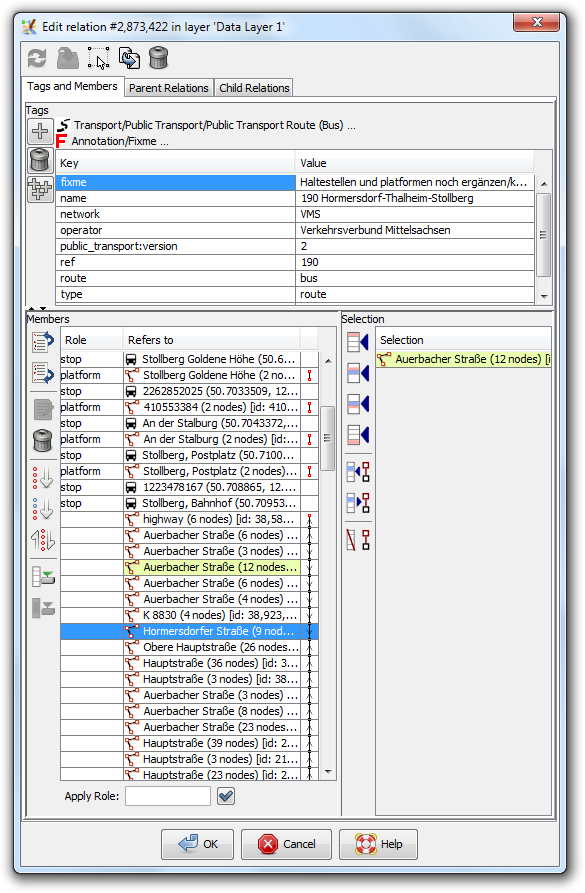
The relation editor consists of three tabs and the three buttons on top to:
 Apply the current changes made within the relation editor to the data
 Clone e.g create a copy of the relation and open it in another relation editor dialog
 delete the current relation
Tags and Members
The tags and members tab has an upper part similar to the tags/membership dialog where tags for the relation can be entered and a lower part that contains the list of members of the relation on the left side and a list of the current selection on the right.

Tags
On top in the upper part are links to presets matching the current tags of the relation and below are the tags in a table. The three button one the left are:
 Add a new tag
Delete the current selected boxes of the tag table
 Paste tags from buffer
Members
In the lower left part is the member list of the relation. The list shows each member with its role on the left, in the middle the object type as icon plus some identifier like name, ref or simply the id of the object and on the right information about neighbor ways' connections useful for consistency checks like checking that the members of a multipolygon form closed ways or that a route is a complete line without missing some ways in the middle.
Selecting members in this list works as usual and changing the role of a member is possible by clicking on the role. Alternatively, the apply role text field at the bottom allows to set a role to all currently selected members.
The buttons on the left offer the following actions if appropriate:
 Move the currently selected members up (
Alt+up)
 Move the currently selected members down (
Alt+down)
 Open additional relation editors for the currently selected members of object type relation.
Remove the currently selected members from the relation (Alt+Delete)
 Sort the currently selected members (
Alt+End)
 Reverse the order of the currently selected members
 Download all incomplete members (
Alt+Home)
 Download selected incomplete members
Selection
In the lower right part is the selection where currently selected objects in the current data set are shown. Objects with yellow background color are already member of the relation.
Following actions are offered by the buttons:
 Add all objects selected in the current data set before the first member
 Add all objects selected in the current data set before the first selected member
 Add all objects selected in the current data set after the last member selected member
 Add all objects selected in the current data set after the last member
 Select relation members in the member list which refer to objects in the current selection
 Select objects in the current data set for currently selected relation members in the member list
 Remove all members referring to one of the selected objects in the cuurent data set
Parent Relations
Child Relations
Error and Warning Messages
Conflict in data when saving or applying a relation
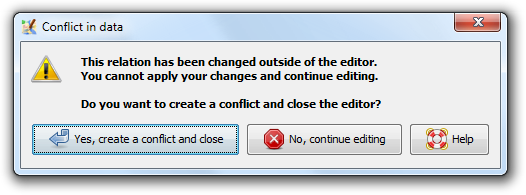
A relation may be edited concurrently in the relation editor dialog and outside of the relation editor dialog. While the relation editor dialog for a relation is open you may for instance split a way the relation refers to. In this case, the relation is modified but the changes due to the way splitting are not immediately reflected in the relation editor dialog. JOSM keeps track of them, though, and when you close the relation editor dialog or apply changes, the following warning message is displayed:

It indicates that JOSM is aware of two incompatible versions of this relation. Since JOSM can't resolve the differences between these versions automatically, it proposes to create a conflict which you can resolve later using the Conflict Dialog.
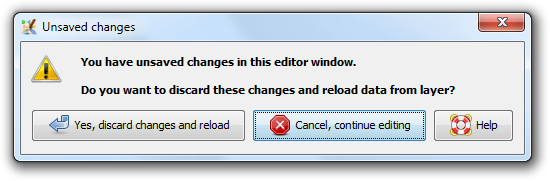
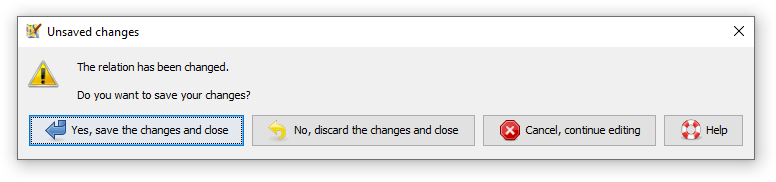
Unsaved changes

See also
 Relation list dialog
- Conflict
- Object
- A more elaborate example can be found on the OSM wiki: JOSM Relations and Turn Based Restrictions
Back to Main Help
Attachments (7)
- relation_conflict.png (33.7 KB ) - added by 11 years ago.
- warning-conflict-in-data.png (34.1 KB ) - added by 11 years ago.
- relation 51560.png (10.5 KB ) - added by 10 years ago.
- child relations of 1152180.png (11.1 KB ) - added by 10 years ago.
-
relation_editor.png
(100.7 KB
) - added by 9 years ago.
relation editor screenshot
- children of 6016064.png (38.7 KB ) - added by 8 years ago.
-
relation_editor_unsaved_changes_warning.png
(13.4 KB
) - added by 6 years ago.
unsaved changes warning
Download all attachments as: .zip