| Version 14 (modified by , 16 years ago) ( diff ) |
|---|
Languages:
turnrestrictions plugin
The turnrestrictions plugin is currently under development.
You can download the current version from
the OSM SVN. It isn't
integrated into JOSMs plugin management feature yet. By 04/2010 you'll be able to download and update it via JOSM preferences too.
Introduction
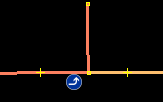
In OpenStreetMap a turn restriction limits navigation options. They restrict whether one can navigate from one way to another or not. For instance, the turn restriction depicted below forbids to drive straight. Vehicles have to turn left at the junction.

Turn restrictions are important for routing and navigation software which are based on OSM data.
The turnrestrictions plugin supports editing of turn restrictions. It consists of two major components:
- Turn Restriction Toggle Dialog - the turn restrictions toggle dialog is displayed on the right in the Toggle Dialogs Section. It displays the list of turn restrictions in the current data set and allows to create or delete turn restrictions, or to launch the Turn Restriction Editor to edit a turn restriction.
- Turn Restriction Editor - the Turn Restriction Editor is a special purpose editor for turn restrictions.
Terminology
Technically, a turn restriction is an OSM relation. A turn restriction
- must have a relation member with role
fromreferring to a way. We call this way the from-way. - must have a relation member with role
toreferring to a way. We call this way the to-way. - must have at least of relation member with role
viareferring to a node or way. We call these objects via-object.
Use Cases
Creating a turn restriction
There are several possibilities to create a new turn restriction. Firstly, you can lauch the Turn Restriction Editor for a new turn restriction from the Turn Restriction Toggle Dialog:
- Click on
 in the Turn Restriction Toggle Dialog. Alternatively, select New from the popup menu.
Alternatively, you can launch a new editor with a keyboard shortcut:
- Press the shortcut for creating or editing a turn restriction. On most plattforms the shortcut is Ctrl-Shift-T.
- If objects in the current JOSM selection already participate in a turn restriction, the following window pops up.

Just click on Create new turn restriction to launch the turn restriction editor for a new turn restriction. Alternatively, press the key n or hit Enter.

In both cases, the turnrestrictions plugin initializes the new turn restriction with objects from the current JOSM selection:
- The first selected way in the JOSM selection becomes the from-way.
- The last selected way in the JOSM selection becomes the to-way
- If the from- and the to-way have a node in common, this node becomes a via-object.
A fast way to create a turn restriction is therefore to
- Select the from- and to-way in JOSM
- Press Ctrl-Shift-T
- Choose the type of the turn restriction and save it.
Editing a turn restriction
There are several possible ways to launch a Turn Restriction Editor in order to edit a turn restriction. Firstly, you can lauch the Turn Restriction Editor for an existing turn restriction from the Turn Restriction Toggle Dialog:
- Select a turn restriction in the Turn Restriction Toggle Dialog
- Click on
 . Alternatively, select Edit from the popup menu.
Alternatively, you can launch a new editor with a keyboard shortcut:
- Press the shortcut for creating or editing a turn restriction. On most plattforms the shortcut is Ctrl-Shift-T.
- If objects in the current JOSM selection already participate in a turn restriction, the following window pops up.
Just double-click on the turn restriction you want to edit. Alternatively, for the top 9 turn restrictions displayed in the popup window you can use the shortcuts 1 to 9 to launch the Turn Restriction Editor. In the example above, you would press 1 to start editing.
A fast way to edit a turn restriction is therefore to
- Select the from- or to-way in JOSM
- Press Ctrl-Shift-T
- Type 1 to lauch the Turn Restriction Editor
Deleting a turn restriction
There are several possible ways to delete a turn restriction. Firstly, you can delete it in the Turn Restriction Toggle Dialog:
- Select a turn restriction in the Turn Restriction Toggle Dialog
- Press DEL or click on
 . Alternatively, select Delete from the popup menu.
Alternatively, you can launch a Turn Restriction Editor and click on  in its toolbar.
Turn Restriction Toggle Dialog
The Turn Restriction Toggle Dialog helps you to keep track of the turn restrictions in the current edit layer.
Here's a screenshot of the toggle dialog and its popup menu:

If you tick the checkbox Only participating in selection the dialog displays only turn restrictions in which objects from the current selection are participating. If the checkbox isn't selected, then all turn restrictions in the current edit layer are displayed.
You can apply some actions to the turn restrictions displayed in this dialog.
| Create a new turn restriction | Click  or select New from the popup menu or select New from the popup menu
|
| Edit a turn restriction | Select the turn restriction and click  or select Edit from the popup menu or select Edit from the popup menu
|
| Delete a turn restriction | Select one or more turn restrictions, press DEL, or click on or select Delete from the popup menu.
|
| Select the turn restriction | In order to select the turn restriction and its members in the current edit layer, first select the turn restriction in the list and then select  Select in current data layer from the popup menu. Select in current data layer from the popup menu.
|
| Zoom to the turn restriction | Select the turn restriction in the list and then select  Zoom to from the popup menu. Zoom to from the popup menu.
|
Turn Restriction Editor
The Turn Restriction Editor allows you to create and edit turn restriction. It provides two user interfaces:
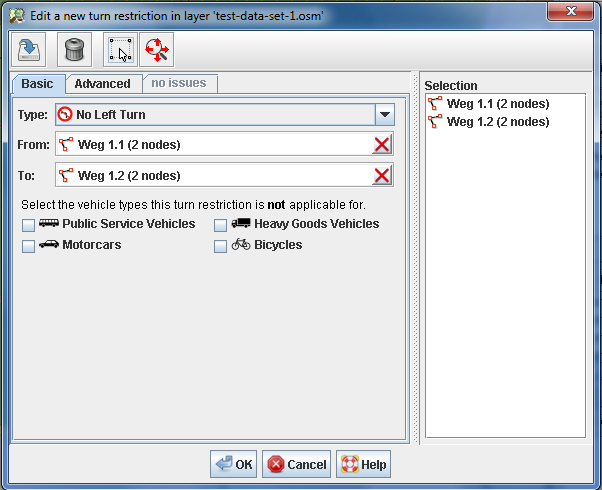
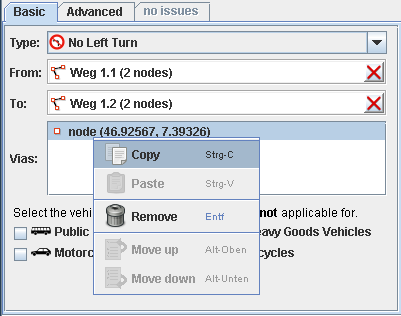
- a Basic Editor. This is a special purpose user interface for editing the properties of a turn restriction.
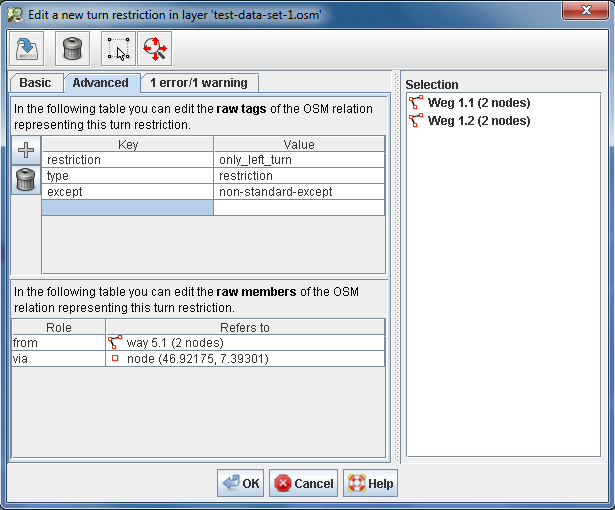
- an Advanced Editor. This is a generic user interface for editing the raw data elements of the OSM relation which represents a turn restriction.
You can use either of these user interfaces. Regardless of whether you use the Basic Editor or the Advanced Editor you should make sure that the resulting turn restriction is valid. The turn restriction editor checks the turn restriction and shows error messages and warnings in a third user interface, i.e. the list of issues.
Basic Editor

Advanced Editor
Resolving Errors and Warnings
Attachments (10)
- only_left_turn_sample.png (1.6 KB ) - added by 16 years ago.
- create-turn-restriction-popup.png (6.1 KB ) - added by 16 years ago.
- toggle-dialog-screenshot.png (40.3 KB ) - added by 16 years ago.
- sample-screen-shot.png (54.1 KB ) - added by 16 years ago.
- sample-screen-shot-2.png (64.8 KB ) - added by 16 years ago.
- sample-screen-shot-3.png (60.8 KB ) - added by 16 years ago.
- sample-screen-shot-1.png (67.5 KB ) - added by 16 years ago.
- turnrestrictions.png (4.3 KB ) - added by 16 years ago.
- basic-editor-with-vias.png (20.4 KB ) - added by 16 years ago.
- preferences-screen-shot.png (115.7 KB ) - added by 16 years ago.
Download all attachments as: .zip