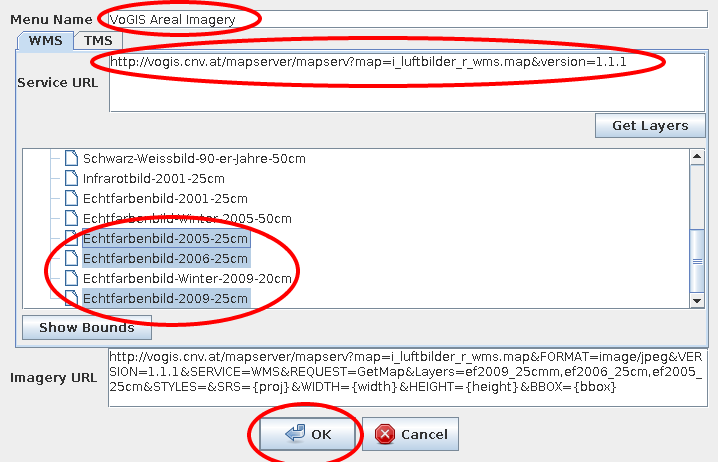
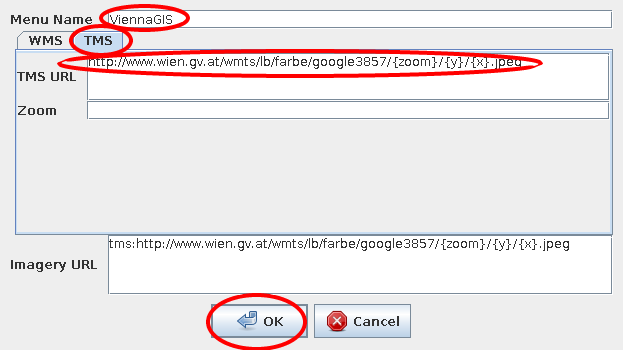
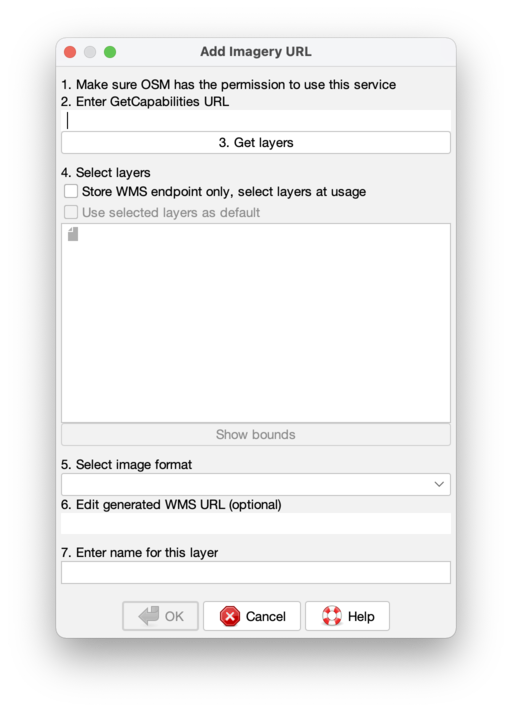
This page is incomplete. The individual dialogs for adding customized sources are not explained.
Languages:
Table of Content
Preferences > Imagery
 Modify list of imagery layers displayed in the Imagery menu
Four tabs are available for adding, deleting and modifying imagery sources, general imagery settings, offset bookmarks and imagery cache settings.
Note: To display an imagery (background) in the Mapview use the Imagery menu instead.
Imagery providers
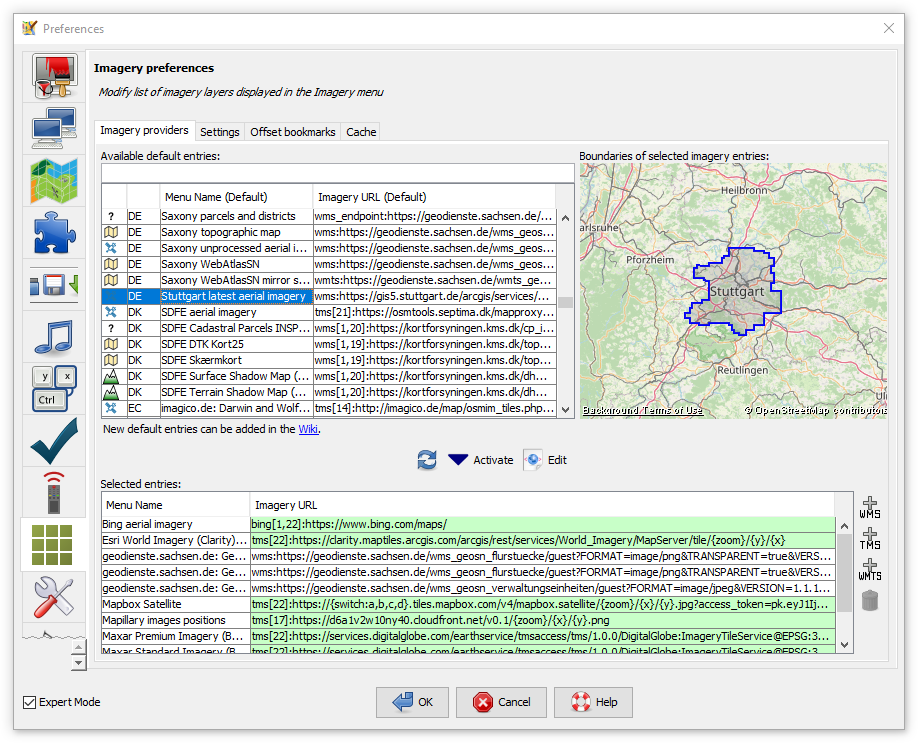
Here you can modify the list of imageries which appear in the Imagery menu. A lot of predefined sources are available, additionally modifiying existing and defining customized entries is possible. JOSM supports WMS, TMS, WTMS and MVT servers.
Available default entries
The top left list contains all available sources. If you select a source and if it is not provided global its bounds are displayed on the little map on the top right. You can filter this list by typing in the box above. You can use parts of the source name, the country code (e.g. cz), the country name (e.g. Czech republic, use the country name in the language JOSM is set to), the source category (photo, elevation, historicphoto, map, historicmap, osmbasedmap, quality assurance or other) or the URL.
- To update (reload from JOSM server) the list of default entries click on the
 button between the two lists.
- To copy an entry from the top list to the bottom list select it in the top list and click on the
 Activate button between the two lists.
Note: To add an entry to the top list of default entries read the Documentation and edit Maps or its subpages (for advanced users).
Selected entries
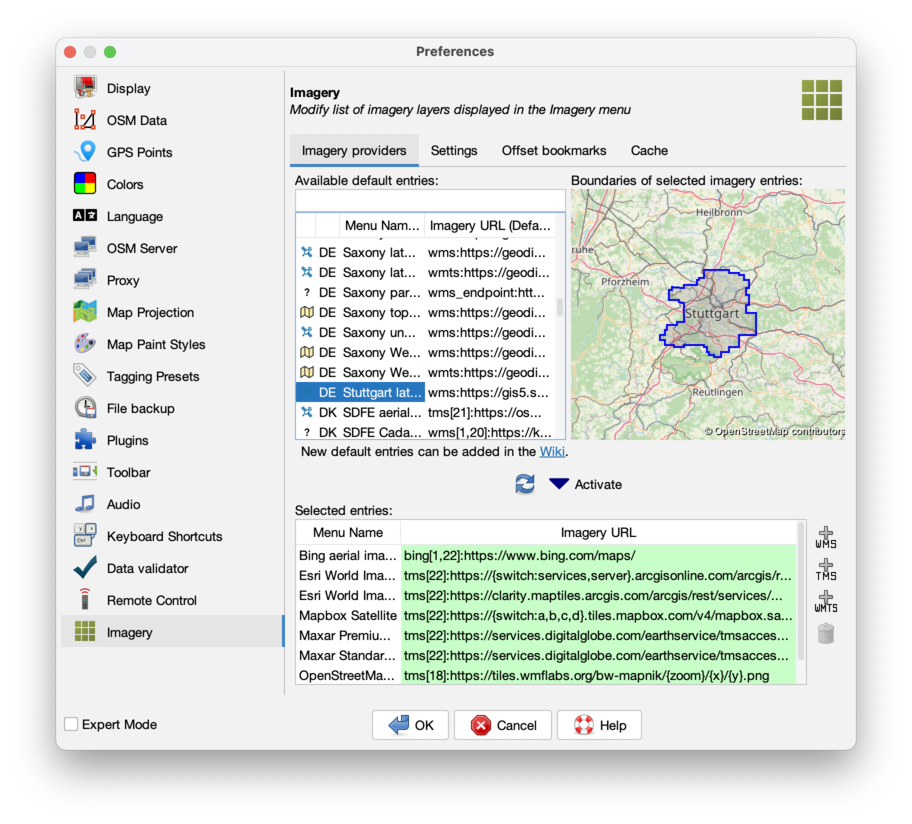 The bottom list contains all entries which will appear in the Imagery menu. Activated default entries are highlighted green in both lists. (The green color doesn't say anything about the state/health of the servers they mention, nor the validity of the URLs.)
- To add an custom WMS/TMS/WMTS/MVT source click on the respective button on the right,
 ,
,  ,
,  or
or  and follow the instructions.
- To delete an entry in the bottom list select it and click on the
 button.
- To modify an entry, double click on the field in the table and modify its content.
Tip: To manually add a new entry by hand, activate an entry from the list above and modify it to your needs.
The list of selected entries is saved in advanced preference as value of key: imagery.entries
Settings
Here you can edit some general imagery settings. Some of these settings are also available, per imagery layer, by right click in map view with a visible imagery layer.
Common Settings
- Sharpen (requires layer re-add)
-
adds a sharpening post-process. Values are None, Soft or Sharp. As this changes the entry in the list, the imagery layer has to be re-added.
Advance preference:imagery.sharpen_level
- Tiles zoom offset
-
offset between calculated zoom level and zoom level used to download and show tiles. Negative values (underzoom) will result in lower resolution of imagery useful with HiDPI displays, positive values (overzoom) will result in higher resolution, at the cost of increased memory consumption.
Advance preference:imagery.generic.zoom_offset
WMS Settings
- Auto zoom by default
-
whether the zoom levels of the WMS imagery layer should be adjusted when zooming in or out of the map.
Advance preference:imagery.wms.default_autozoom(default:true)
- Simultaneous connections
-
Number of simultaneous connections.
Advance preference:imagery.wms.loader.maxjobs(default:3)
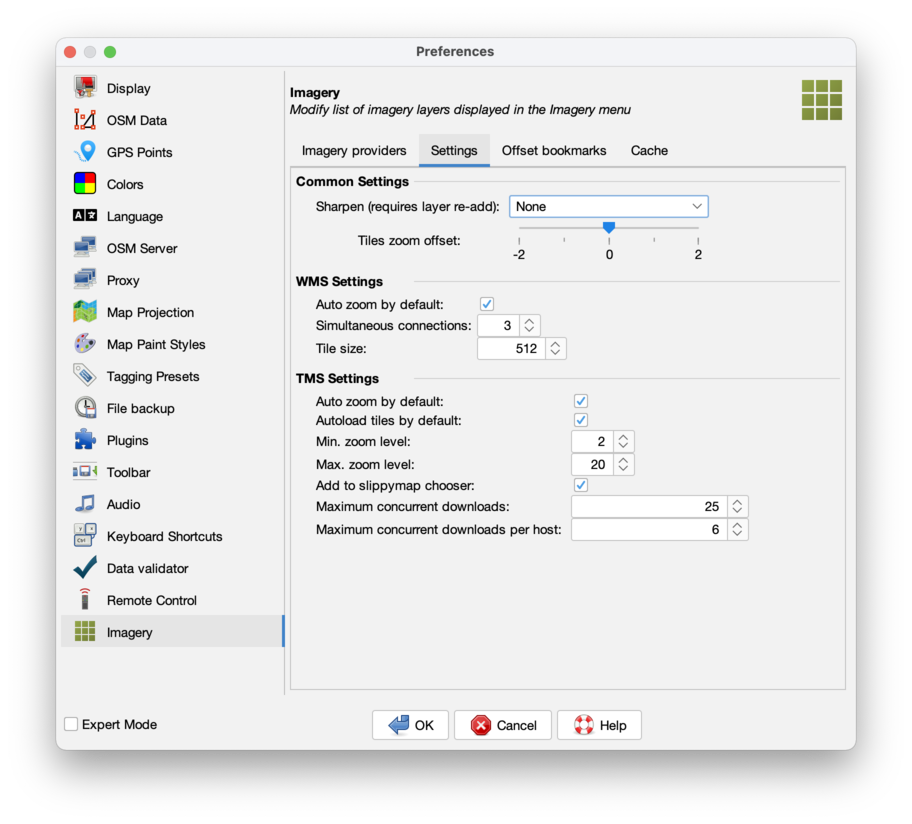
- Tile size
-
size of each tile.
Advance preference:imagery.wms.imageSize(default:512)
TMS Settings
- Auto zoom by default
-
whether the zoom levels of the TMS imagery layer should be adjusted when zooming in or out of the map.
Advance preference:imagery.generic.default_autozoom(default:true)
- Autoload tiles by default
-
whether TMS tiles should be loaded automatically or only manually.
Advance preference:imagery.generic.default_autoload(default:true)
- Min. zoom level
-
minimum zoom level for TMS layers.
Advance preference:imagery.tms.min_zoom_lvl(default:2)
- Max. zoom level
-
maximum zoom level for TMS layers.
Advance preference:imagery.tms.max_zoom_lvl(default:20)
- Add to slippymap chooser
-
whether TMS imageries should be available in download dialog.
Advance preference:imagery.tms.add_to_slippymap_chooser(default:true)
- Maximum concurrent downloads
-
global maxmium number of parallel TMS imagery downloads.
Advance preference:imagery.tms.tmsloader.maxjobs(default:25)
- Maximum concurrent downloads per host
-
maximum number of parallel TMS imagery downloads per host.
Advance preference:imagery.tms.tmsloader.maxjobsperhost(default:6)
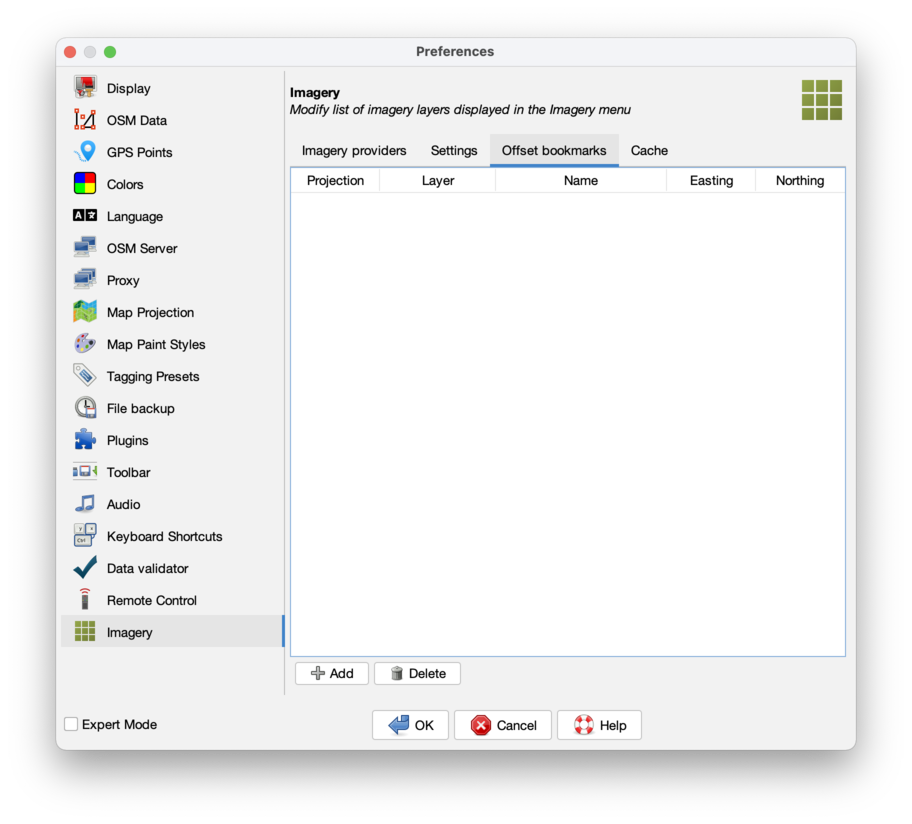
Offset bookmarks
Here are listed all offset bookmarks which can easily be added via  New offset in the Imagery menu and the
  layers list panel's context menu.
Advance preference: imagery.offsetbookmarks
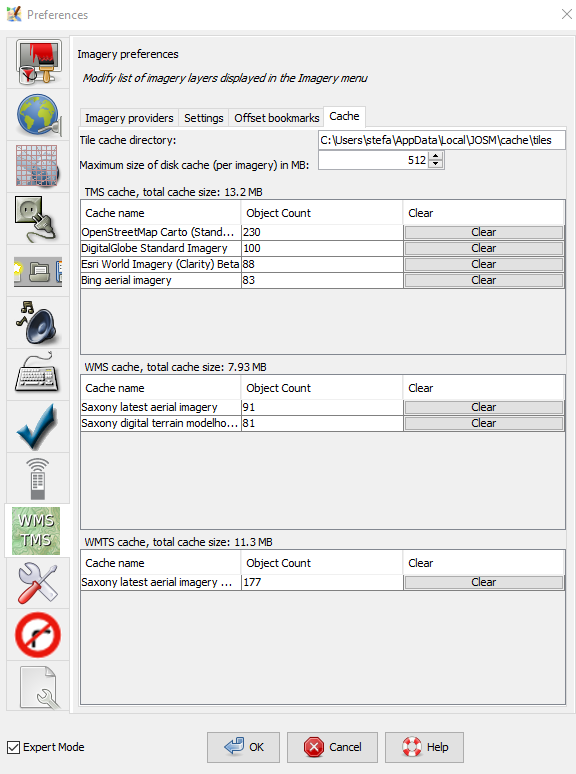
Cache
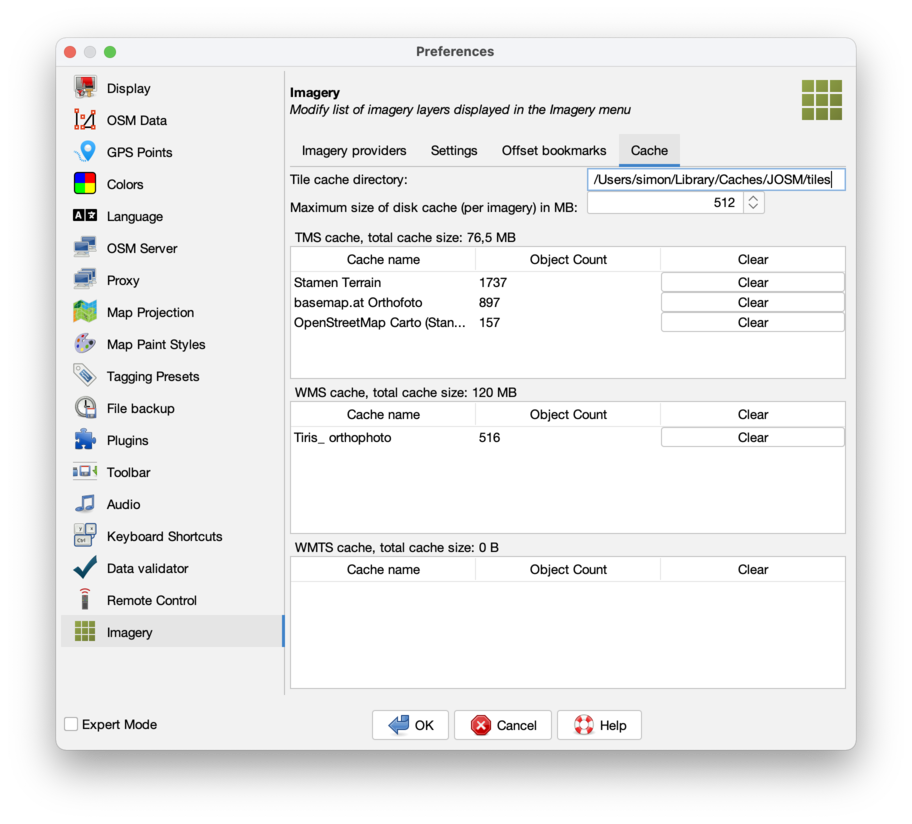
Here are listed all cached images (tiles) from each source. You can use the clear button in each line to delete the cached images for each source. You may need a JOSM restart to take effect in the Mapview.
Note: A possibly existing Mapnik entry stems from using the slippy map shown by the JOSM download dialog in older JOSM versions. Since r14495 (#17054), you can safely delete it.
Cache settings
- Tile cache directory
-
location of the imagery tile cache, see default directories.
Advance preference:imagery.generic.loader.cachedir
- Maximum size of disk cache (per imagery) in MB
-
quota option per imagery.
Advance preference:imagery.cache.max_disk_size(default:512)
Back to Preferences dialog
Back to Edit Menu
Back to Main Menu
Back to Main Help
Attachments (12)
- wms.png (25.2 KB ) - added by 14 years ago.
- wms-error.png (2.8 KB ) - added by 14 years ago.
- tms.png (11.7 KB ) - added by 14 years ago.
- scr_imagery_prefs_cache.png (71.4 KB ) - added by 8 years ago.
- predefined-imagery.png (193.8 KB ) - added by 6 years ago.
-
PreferencesImagerySettings.png
(151.1 KB
) - added by 5 years ago.
new screenshot
-
PreferencesImageryProviders.png
(434.6 KB
) - added by 5 years ago.
new screenshot
-
PreferencesImageryOffsetBookmarks.png
(121.9 KB
) - added by 5 years ago.
new screenshot
-
PreferencesImageryCache.png
(151.8 KB
) - added by 5 years ago.
new screenshot
-
PreferencesImageryAddWms.png
(69.5 KB
) - added by 5 years ago.
new screenshot
-
PreferencesImageryAddWmts.png
(58.5 KB
) - added by 5 years ago.
new screenshot
-
PreferencesImageryAddTms.png
(91.0 KB
) - added by 5 years ago.
new screenshot
Download all attachments as: .zip