| Version 15 (modified by , 10 years ago) ( diff ) |
|---|
Languages:
Contourmerge Plugin

Usage
Usage on areas
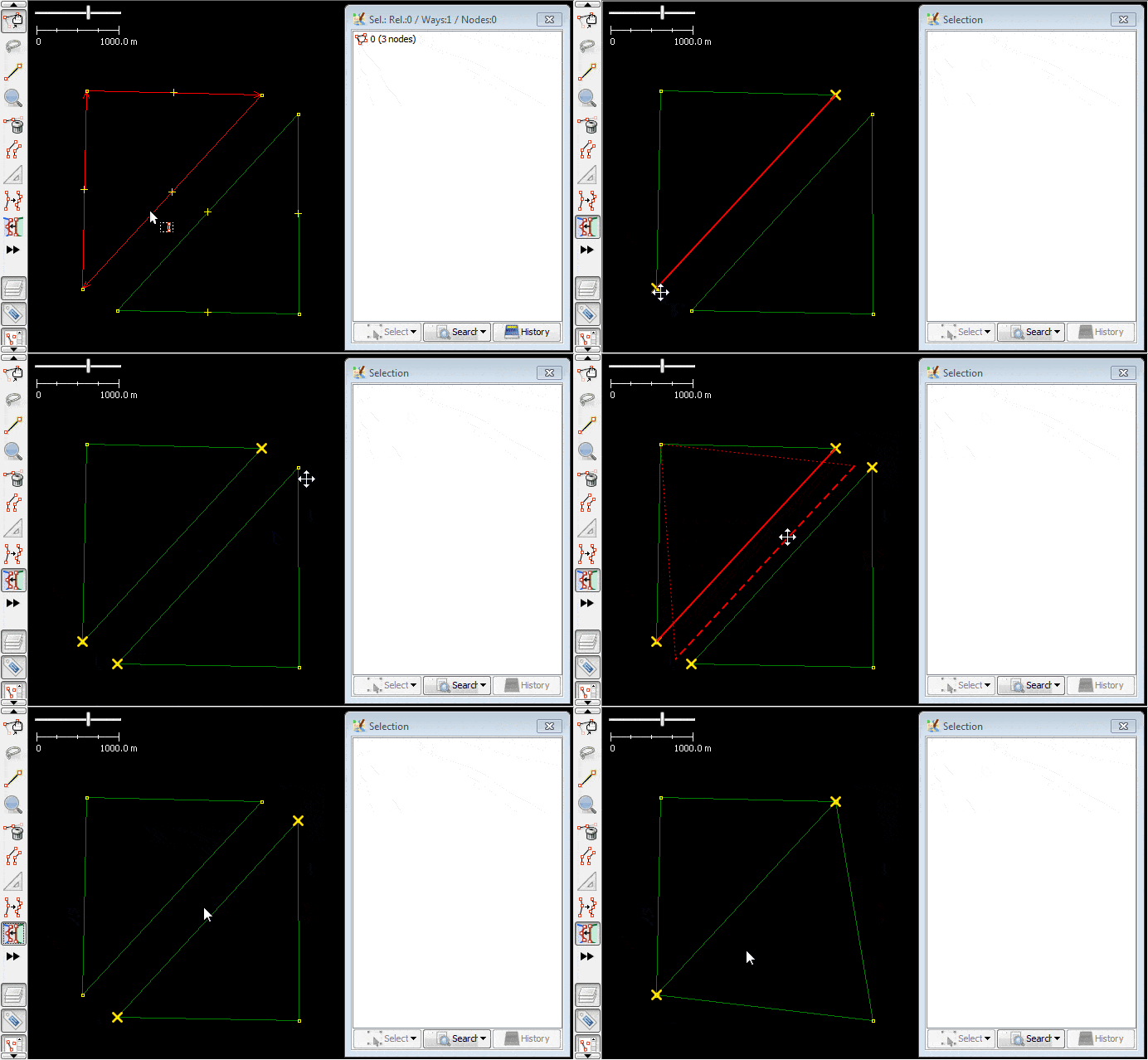
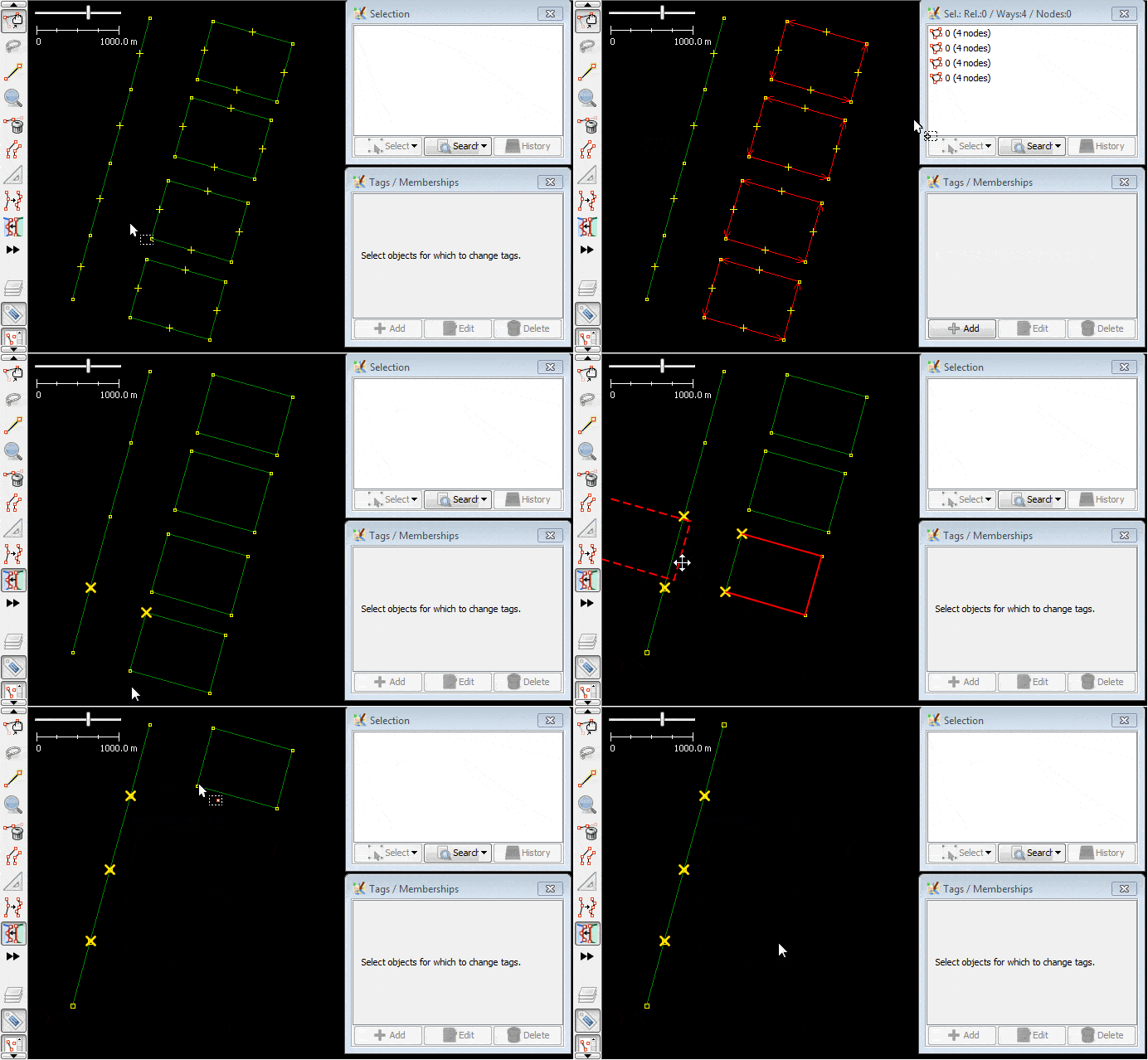
- Enable mode, you will need to select (at least) two points for every area (make sure you are editing areas, not on ways)
- Use left mouse click to select point (icon: standard icon add node will appear); use left mouse click to deselect a point (icon with cross will indicate selected point)
- After all 4 points selected, you can pick one of 4 parts as source geometry to move. Hover mouse over part and you will (cursor: move with 4 arrows);
- After you started to drag source geometry, you have one of two options in target geometry. Your source geometry will change it's shape to a target geometry shape after mouse hover and icon of a shortcut will be displayed.
- Contours will be merged. But if source geometry had only one segment left, it will be completely collaplsed
- You can repeat steps 2-6 as many times as you want until tool will disabled or there nothing left to merge
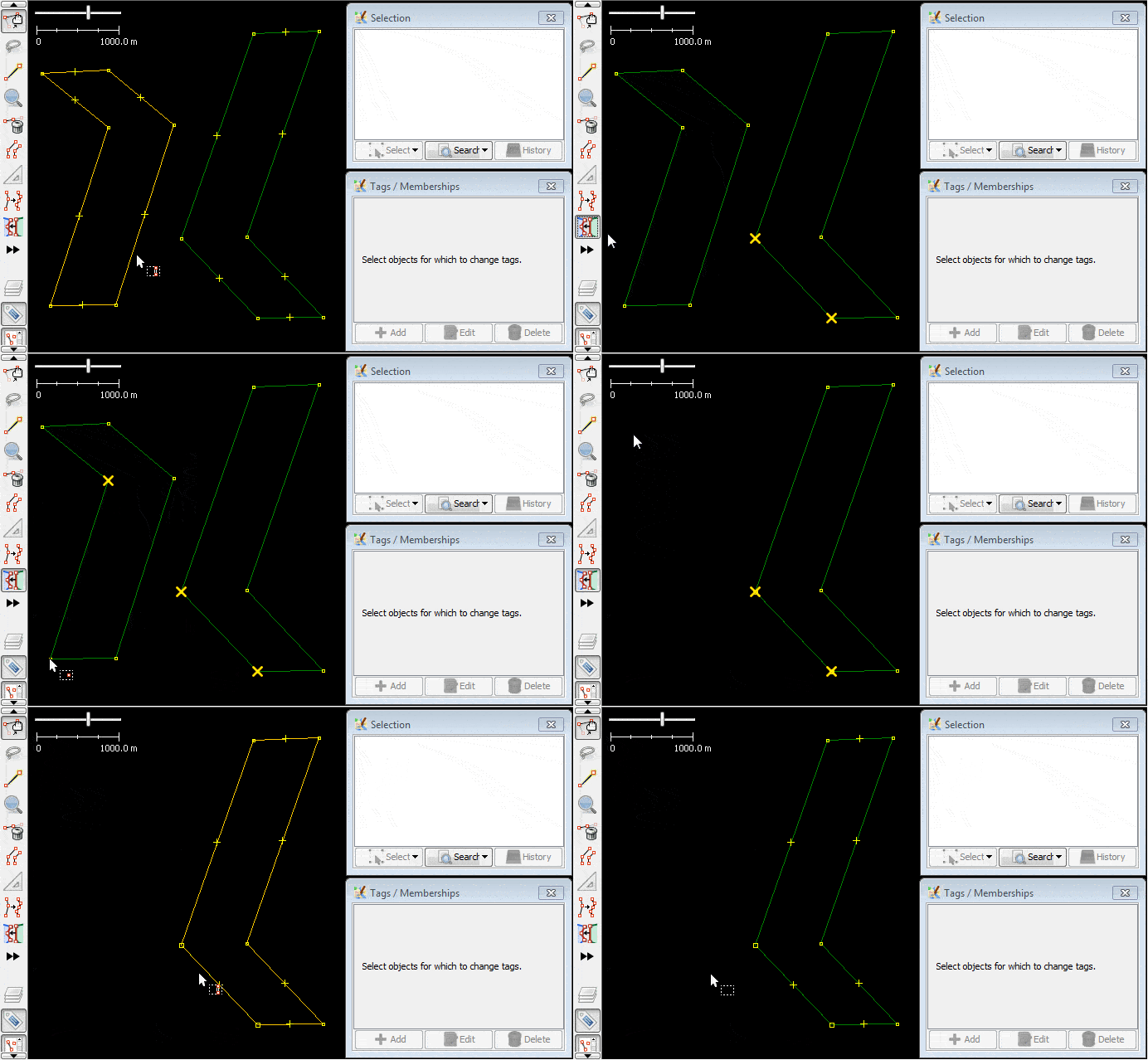
Regular usage on the left and complete collapse of the source geometry on the right:
Usage with ways
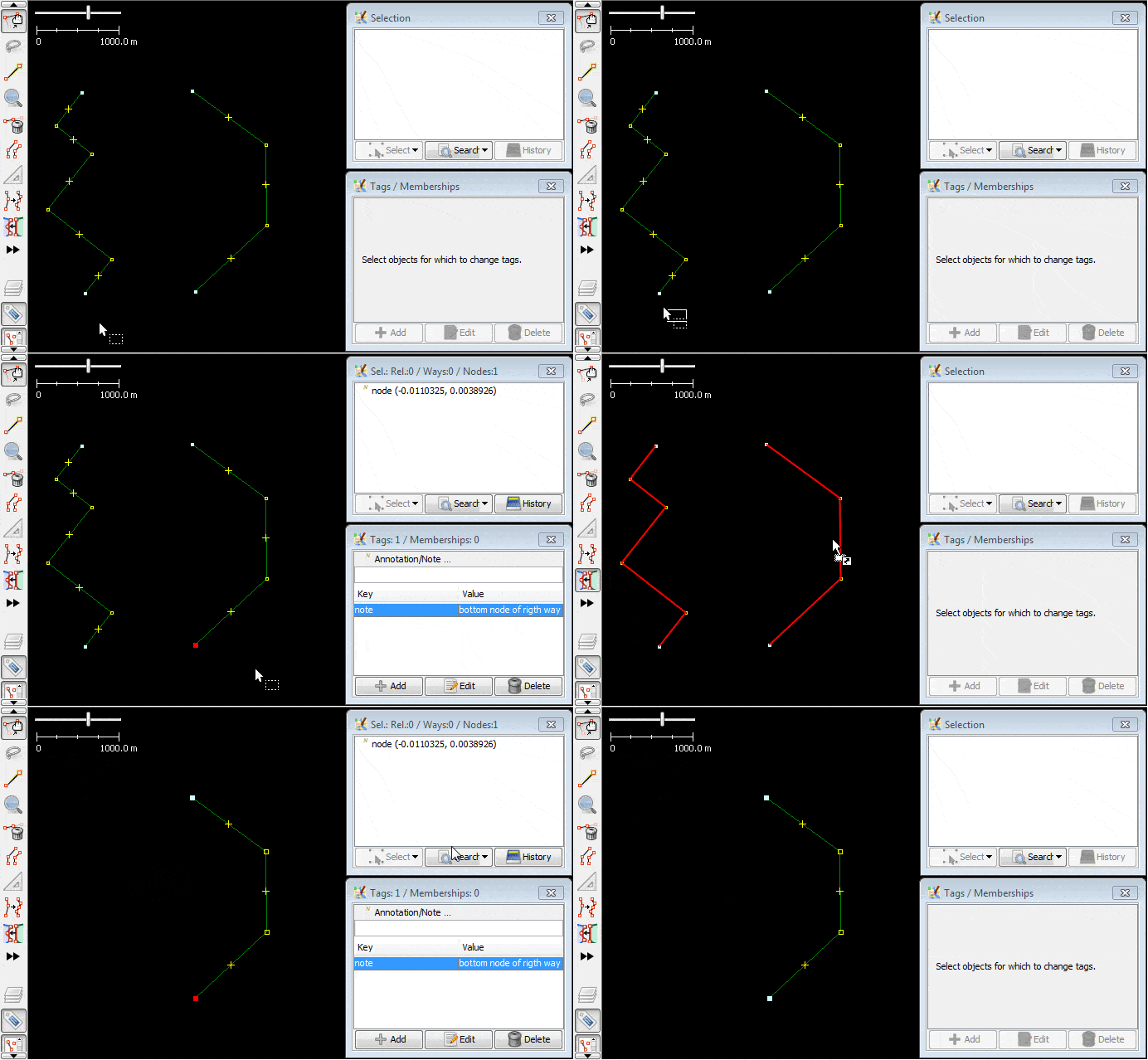
Notes on source:
- tags on a way will be kept
- tags on nodes will be discarded
- geometry will be replaced
Notes on target:
- nothing is changed
Old content below
In a nutshell
The contourmerge plugin helps you to align the contours of areas in JOSM.
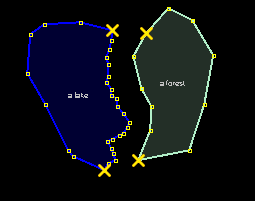
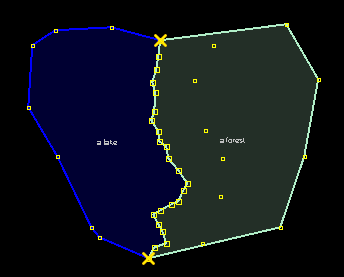
 Here's a typical example: a lake with a detailled shoreline and a forest.
The contour of the forest should be aligned with the lakes shoreline.
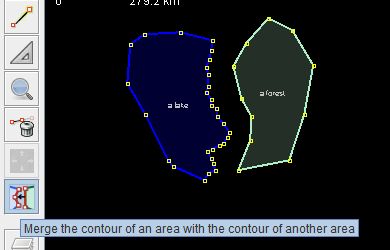
Select the contourmege map mode in the toolbar for map modes and perform the steps below.
Step 1 - Select the "cut-nodes"

- Select the part of the contour you want to merge, in both the areas for the lake and the forest. Left-Click on the respective nodes to mark them as selected.
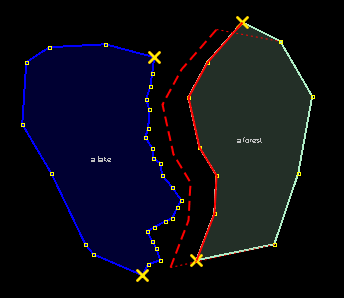
Step 2 - Drag the source contour

- Drag the source contour between two "cut-nodes"

- When you drag it over a possible target contour, the source contour is aligned with the target contour.
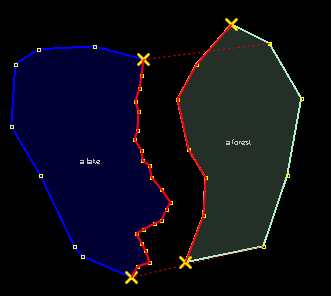
Step 3 - Align the contours

- Drop the source contour. The contours of the lake and the forest are merged.
If the merge doesn't happen as expected, reversing one of the ways helps.
Back to Plugin Help
Back to Main Help
Attachments (10)
- lake-and-forest.0.png (4.5 KB ) - added by 15 years ago.
- lake-and-forest.2.png (5.9 KB ) - added by 15 years ago.
- lake-and-forest.1.png (17.1 KB ) - added by 15 years ago.
- lake-and-forest.3.png (14.0 KB ) - added by 15 years ago.
- lake-and-forest.4.png (13.9 KB ) - added by 15 years ago.
- lake-and-forest.5.png (6.9 KB ) - added by 15 years ago.
- ex1-merge-contour-with-another-countour-usage-on-areas.gif (132.7 KB ) - added by 10 years ago.
- ex2-merge-contour-with-another-countour-usage-on-ways.gif (257.5 KB ) - added by 10 years ago.
- ex3-merge-contour-with-another-countour-usage-on-areas.gif (114.9 KB ) - added by 10 years ago.
- ex4-merge-contour-with-another-countour-usage-on-areas.gif (139.0 KB ) - added by 10 years ago.
Download all attachments as: .zip
Note:
See TracWiki
for help on using the wiki.