| Version 2 (modified by , 6 years ago) ( diff ) |
|---|
Mapillary filter panel
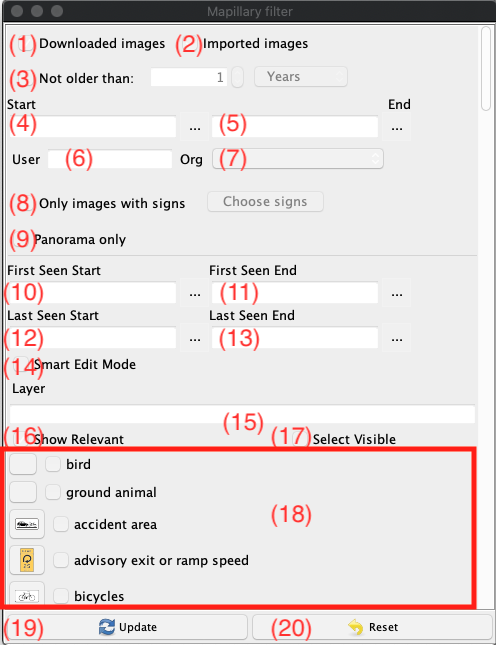
The Mapillary filter panel allows the user to temporarily hide sequences and images based on one (or multiple) filters.
Textual explanations
Fields 1-9 and 19 are for image filtering.
- Show/hide downloaded images. If it is selected, download images are shown.
- Show/hide imported images. If it is selected, download images are shown.
- Filter out images that are older than the specified time frame. Updates the field for (4).
- Filter out images that were taken prior to the specified date.
- Filter out images that were taken after the specified date.
- Only show images from the specified user. This is freeform, so check your spelling.
- Only show images from the specified organization. This is only shown if you are logged in, since that is the only method to get organization names at this time.
- Only show images with signs. Specific signs can be filtered for in a dialog that shows when "Choose signs" is selected.
- Only show panoramas (i.e., 360 images)
Fields 10-18 are for object detections.
- Filter out objects that were first seen prior to the specified date.
- Filter out objects that were first seen after the specified date.
- Filter out objects that were last seen prior to the specified date.
- Filter out objects that were last seen after the specified date.
- Enable smart edit mode. This mode filters out objects that do not currently have a mapped JOSM preset. It also makes other modifications throughout the program.
- Filter area (18) to only show detections that contain any of the entered words
- Only show relevant detections. This requires that a object detection layer to be downloaded. At the time of writing, you do have to toggle this on and off in order for it to work properly after downloading a detection layer.
- Select/deselect the detections in area (18) that are currently visible (this includes those visible via scrolling).
- Select or deselect specific detection classes. Selected classes are filtered out.
- Update filtered Mapillary images based off of the settings in the dialog
- Reset all filters
Fields 21-23 are pagination controls for area (18).
- Show the previous page of results for area (18).
- Set the number of results per page for area (18).
- Show the next page of results for area (18).


Attachments (2)
-
MapillaryFilterDialogPageMainArea.png
(79.1 KB
) - added by 6 years ago.
Mapillary Filter Dialog, most relevant options
-
MapillaryFilterDialogPagePaginationArea.png
(32.1 KB
) - added by 6 years ago.
Mapillary Filter Dialog, pagination area
Download all attachments as: .zip
Note:
See TracWiki
for help on using the wiki.