| Version 6 (modified by , 12 months ago) ( diff ) |
|---|
Languages:
KindaHackedInUtils Plugin
This plugin contains several useful functions that are kind of hacked into JOSM. So they are in some way unconventional to the typical use of JOSM.
"Hijacked" Functions
This functions use existing modes of JOSM without the need to activate them.
| Keyboard shortcut | Name | Description | Used JOSM function |
|---|---|---|---|
B
| Create new point at the location the mouse is pointing at | When pressing B on the keyboard a new point will be created at the mouse location.
| This works like activating the draw mode and double clicking at the location the point should be created at. |
K
| Split way at the location the mouse is pointing at | When pressing K on the keyboard the way under the mouse location will be split at the mouse locations.
| This works like activating the split mode and clicking at the location the way should be split. |
Add direction to objects with mouse pointing
Press H on the keyboard to add the direction value to the selected object.
What it does?
The function will add the key direction (or traffic_sign:direction for traffic signs if enabled in the preferences of the plugin) with a direction value to the selected object. The direction values is either a number of 0 to 359 degrees or the abbreviation of a degree number if the number matches that number. For some objects forward and backward are also used.
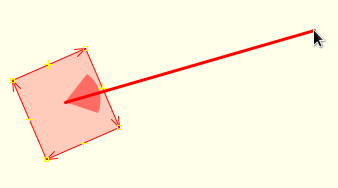
The direction depends on the mouse location relative to the selected object, the direction of the way the object is part of and if certain keys are present for the selected object when pressing H on the keyboard. If the key traffic_sign" or the key/value highway=traffic_signals` are present the direction value is handled like this:

If the mouse point anywhere inside the forward area in this image the the point in the middle which is a traffic sign or traffic signals will get the direction value of forward, if the mouse is in the backward area the direction value will be backward. If the mouse is hovering over the way segment (in direction of the way) after the point in the middle it always will be forward, if the mouse is on the way segment before the point in the middle it will always be backward.
The exception from those rules is if the direction value of forward or backward would be or could be ambiguous the degree value will be used instead.
If you prefer to switch out the forward and backward areas you can disable the preference Natural direction for traffic signs in the preferences. Additionally if you want to get the direction value for traffic signs with pointing opposite to the front side of the signs instead of pointing in the direction the traffic sign is effecting you can add an advanced preference key kindahackedinutils.oppositeSimpleDirection with the value true to the preferences. This preference will only work if Natural direction for traffic signs is disabled.
For example the sign in the middle is a speed limit sign, with the default settings you have to point to the way segment that is affected by the sign, so the way with the speed limit. If the advanced preference is set you will have to point to the way in front of the sign, so the way that hasn't the speed limit.
To force the usage of a degree value instead of forward/backward you can use the keyboard shortcut Alt+Shift+H
Detach nodes from areas
Select 
Detach nodes from ways and move them from the More tools menu or press Z on the keyboard.
What it does?
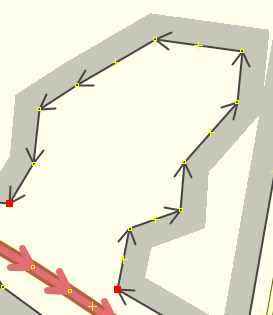
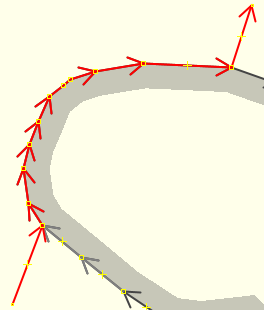
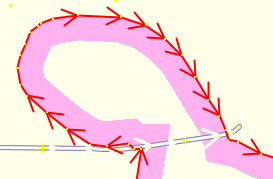
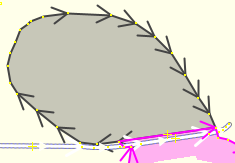
Sometimes areas are attached to a way which is typically wrong since the area doesn't reach up to the way line:

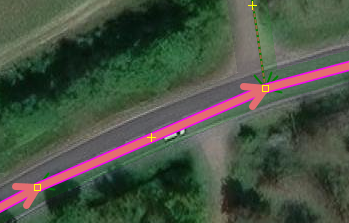
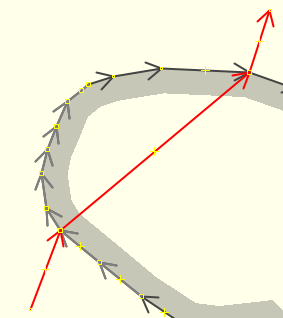
Here the areas are attached to the primary highway and the track and the curve is rather sloppy mapped. First add points to the primary highway to make the curve look better. Then select the primary highway and use the detach function, it will result in this:

The detach function will detach and move all points of areas that are attached to the selected way or if the area itself is selected detach and move all points of the area that are attached to ways. The movement of a point typically goes in the direction of the inside of the area but if the area is not a real area but a way that is part of a relation it might go wrong if the relation members are not present in the current edit layer.
Undo changes only for an object
Select 
Undo/redo changes on selected object from the More tools menu or press Ctrl+Alt+Shift+Z on the keyboard.
What it does?
Sometime you might want to undo an accidentally change of a single object after you've noticed the accident, so all changes to other objects that were done after the accident would be sustained.
To undo the changes of an object select the object or if it was deleted search for the deleted object for selection or copy the id of the deleted object from a newly downloaded layer.
If no object is selected the plugin will present you with a dialog to enter the id of the object to undo:

If an id is present in the clipboard it will be automatically entered as the wanted id. After pressing OK or if an object was already selected you will get the undo/redo dialog for the object:

Here you can select the change that should be undone/redone. The presented changes are all available undo command in which the object was included. Only when the object was deleted there might be missing some commands but those will be available after undoing the deletion of the object.
NOTE: This function will not check if the changes have already been undone/redone. So you have to know what to do.
Create or change turn restrictions
Select 
Create turn restriction or change selected from the More tools menu or press Shift+T on the keyboard.
What it does?
Sometimes turn restrictions were created wrong, like this:

To easily fix it select the existing turn restriction relation, then add the new to way to the selection and open the change turn restriction dialog:

Select the corrected restriction and press OK.
This works the same for new turn restrictions, first selected the from way, then add the to way to the selection and open the create turn restriction dialog to select the type of the new turn restriction.
NOTE: This is not a replacement for turn restriction plugin, it just leaves out options to make changing existing turn restrictions faster.
Attachments (27)
- detach.svg (3.2 KB ) - added by 12 months ago.
- unredo_id.png (17.9 KB ) - added by 12 months ago.
- unredo_dialog.png (85.2 KB ) - added by 12 months ago.
- direction_side.png (19.4 KB ) - added by 12 months ago.
- wrong_turn_restriction.png (1.3 KB ) - added by 12 months ago.
- unredo.svg (10.6 KB ) - added by 12 months ago.
- sloppy_curve.png (97.3 KB ) - added by 12 months ago.
- better_curve.png (98.9 KB ) - added by 12 months ago.
- turn_restriction.png (60.1 KB ) - added by 12 months ago.
- relation-add.svg (6.0 KB ) - added by 11 months ago.
- ambigouse.png (20.8 KB ) - added by 11 months ago.
- roof-direction-from-node.png (32.1 KB ) - added by 11 months ago.
- quick-relation-selection-list.png (24.5 KB ) - added by 11 months ago.
- re-add-members-to-relation.png (46.1 KB ) - added by 11 months ago.
- visualization.png (13.1 KB ) - added by 11 months ago.
- create_area_1.png (27.0 KB ) - added by 10 months ago.
- create_area_select_type.png (24.9 KB ) - added by 10 months ago.
- create_area_2.png (30.4 KB ) - added by 10 months ago.
- wrap_around_1.png (23.7 KB ) - added by 10 months ago.
- wrap_around_2.png (24.0 KB ) - added by 10 months ago.
- wrap_around_3.png (20.3 KB ) - added by 10 months ago.
- fix_1.png (22.3 KB ) - added by 10 months ago.
- fix_2.png (20.3 KB ) - added by 10 months ago.
- fix_3.png (22.3 KB ) - added by 10 months ago.
- closeway.svg (4.3 KB ) - added by 10 months ago.
- wraparound.svg (5.4 KB ) - added by 10 months ago.
- newarea.svg (5.0 KB ) - added by 10 months ago.
Download all attachments as: .zip