Search:
Login
Preferences
Help/Guide
About Trac
Register
Forgot your password?
Wiki
Timeline
Changelog
Browse Source
View Tickets
New Ticket
Roadmap
Builds
Sonar
Search
Context Navigation
+2
Start Page
Index
History
Editing Help/Action/ImproveWayAccuracy
Adjust edit area height:
8
12
16
20
24
28
32
36
40
Edit side-by-side
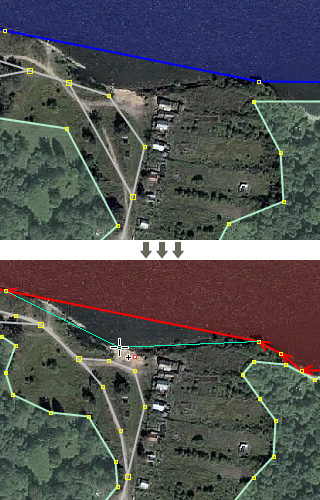
[[TranslatedPages]] = Improve Way Accuracy = [[Image(source:trunk/images/mapmode/improvewayaccuracy.png)]] ''Keyboard shortcut:'' **{{{W}}}** This mode is useful when you are improving accuracy of the ways that have already been mapped before. The goal of the mode is to substitute dragging and dropping nodes with clicking to quicken the editing process. [http://www.youtube.com/watch?v=NzunbvpVIX4 Demonstration video] == Usage == [[Image(JOSM-plugin-IWA-example.jpg, right)]] ''Before you begin:'' Make sure you have a high-resolution imagery or enough GPS traces below your data layer. 1. Select a way you want to work on. 1. Click on the **Improve Way Accuracy** [[Image(source:trunk/images/mapmode/improvewayaccuracy.png)]] button on the left panel to enter a special editing mode. 1. * ''To move existing nodes:''[[BR]] Click on the map where you think a node should be. The highlighted (nearest) node will be moved there. * ''To create new nodes:''[[BR]] Press and hold **{{{Ctrl}}}** button and click on the map. A new node will split the segment that is the closest one to the cursor. * ''To delete existing nodes:''[[BR]] Press and hold **{{{Alt}}}** or **{{{AltGr}}}** button and click on the map. The highlighted (nearest) node will be deleted. **Please try to use as much existing nodes as you can, because thus you keep their history.** 1. To start working on a different way without leaving the mode, unselect current way by pressing **{{{Esc}}}** and click on another one. == Tips == * The plugin automatically finds segments and nodes that are the closest to the cursor. However, if you want to get more flexibility, you can **lock the highlighted node/segment** when moving a mouse. Press and hold **{{{Shift}}}** or left mouse button and the focused node or segment will be kept the same no matter where you move the cursor. * JOSM has a [[WireframeToggle|wireframe view]] that turns off any styles and makes lines very thin. You can try it by pressing **{{{Ctrl+W}}}** It might be a good idea to toggle that view before improving ways accuracy as it allows to see the imagery below the data layer in a much better way. == Limitations == * **When you add or move nodes, they do not bind to nearby objects** as it happens in the [[Select|Select]] or [[Draw|Draw]] modes. This is not needed during the way shape improvement, but in case you would like to do so, select the nodes in the ''Select'' mode and [[MergeNodes|merge]] them, e.g., by pressing **{{{M}}}**. * **You cannot delete nodes that are connected to more than one way or that have tags** to prevent accidental breaking of topology or loss of information. Note that "uninteresting" tags are excluded, like FIXME, note, source, etc. ---- Back to [EditToolbar Edit Toolbar][[BR]] Back to [wiki:/Help Main Help]
Note:
See
WikiFormatting
and
TracWiki
for help on editing wiki content.
Change information
Your email or username:
E-mail address and name can be saved in the
Preferences
Comment about this change (optional):
Attachments
(1)
JOSM-plugin-IWA-example.jpg
(
94.1 KB
) - added by
simon04
14 years ago
.
Download all attachments as:
.zip
Note:
See
TracWiki
for help on using the wiki.