| Version 1 (modified by , 14 years ago) ( diff ) |
|---|
Altres idiomas:
Asistente para la Autorización OAuth
OAuth en pocas palabras
OAuth es un protocolo abierto para permitir asegurar la autorización de la API en un método simple y estándar desde las aplicaciones de escritorio y web.
Caso de uso estándar - mantener su contraseña de OSM privada
El caso de uso estándar en OSM es para que OAuth mantenga su contraseña de OSM más privada que con la autentificación básica.
OAuth tiene dos ventajas importantes sobre la autentificación básica:
- Su contraseña de OSM no tiene que ser guardada en texto sin cifrar en el archivo de preferencias de JOSM.
- Su contraseña de OSM tiene que ser transferida sólo una vez a través de Internet en una conexión segura, en contraste con la autentificación básica en la que se transfiere la contraseña de OSM como parte de cada solicitud enviada desde JOSM al servidor de OSM en texto claro.
En la terminología de OAuth, un usuario de JOSM autoriza a JOSM para acceder al servidor de OSM en nombre del usuario. Durante el proceso de autorización nunca la contraseña de OSM se tiene que introducir en un cuadro de diálogo de JOSM si el usuario no tiene plena confianza en JOSM (a menos que quiera por razones de conveniencia ver aquí). Por el contrario, el servidor de OSM emite un token de acceso que JOSM presentará al servidor de OSM cuando cargue datos en nombre del usuario. Los tokens de acceso no revelan la contraseña del usuario y pueden ser revocados en cualquier momento.
Caso de uso avanzado - acceso delegado a otros mapeadores
Un caso de uso más avanzado para OAuth es delegar el acceso de su cuenta de OSM a otros mapeadores. OAuth permite conceder a otro usuario un acceso restringido a su cuenta si es necesario.
Ejemplo: Un mapeador A puede conceder a un mapeador B el derecho a descargar sus trazas GPS privadas desde el sitio web de OSM. El mapeador puede generar un token de acceso a OAuth y restringirlo al privilegio "Descargar mis trazas GPS privadas". El mapeador A envía entonces un correo electrónico con el token de acceso al mapeador B. B puede entrar el token de acceso en JOSM y ahora se le permite descargar en el nombre de A trazas GPS privadas desde el servidor de OSM. Sin embargo, B no podrá subir en el nombre de A, y no sabe en el nombre de A su contraseña. En cualquier momento, A puede revocar el token de acceso expedido a B.
El asistente para la autorización OAuth
El asistente para la autorización OAuth se encuentra en las preferencias en la parte inferior de Ajustes de la conexión.
¿Qué significa la autentificación/autorización?
Al subir datos geográficos al servidor de OSM tiene que decirle al servidor quien es usted. El servidor de OSM identifica a cada mapeador que sube pidiendo su nombre de usuario de OSM. El servidor de OSM además necesita autentificar su identidad, es decir, para determinar con certeza si el mapeador es de hecho el usuario reclamado. Para este propósito, se pide una contraseña, además del nombre de usuario. El servidor asume de que todo el que conozca la contraseña secreta del nombre de usuario xyz es autentificado de manera fiable para ser xyz. Un mapeador conectado con un nombre de usuario y contraseña autentificados tiene derecho a ejecutar una amplia gama de operaciones en el servidor. El mapeador está autorizado para subir datos, para crear conjuntos de cambios, para cerrar conjuntos de cambios, para subir trazas GPS, para leer y cambiar sus preferencias personales en el servidor, para invitar a otros como amigos, para enviar mensajes de correo electrónico a otras cuentas, etc. Actualmente, no es posible crear una cuenta de OSM con un nombre de usuario y una contraseña de OSM con derechos restringidos, es decir, una cuenta que sólo sería capaz de subir trazas GPS, pero no datos del mapa. El que se ha autentificado correctamente con un nombre de usuario de OSM y una contraseña de OSM está enteramente autorizado para hacer todo lo que un usuario de OSM puede hacer normalmente en el servidor.
Aquí es donde entra en juego OAuth: OAuth le permite autorizar a otra persona a actuar de una forma restringida en su nombre. En lugar de entregar su nombre de usuario de OSM y su contraseña de OSM, lo que daría derecho completamente al receptor para actuar en su nombre en el servidor de OSM, sólo entregue un "ticket" en el que los otorgue los derechos que son enumerados. Este ticket es llamado un token de acceso. Las restricciones aplicadas a un token de acceso son:
- an Access Token is only valid for a specific client (called a Consumer in OAuth terminology), i.e. only for JOSM, but not for OpenStreetBugs
- an Access Token is only valid for specific operations, i.e. only for uploading GPS traces, but not for uploading map data
- an Access Token could only be valid for a certain time, i.e. only today, but this is not yet supported by the OSM server
In addition to username/password pairs, the OSM server also accepts OAuth Access Tokens to authenticate and authorise a user. More specifically, it accepts requests signed with such a token, but this is beyond of the scope of this online help.
The OAuth Authorisation Wizard allows you to receive a valid OAuth Access Token, provided that you have an OSM username and OSM password, or to enter and use an OAuth Access Token in JOSM, provided that you got one from somebody else who has an OSM username and an OSM password.
Fully automatic authorisation process
The easiest way to get an Access Token is to let JOSM fully automatically retrieve one from the OSM server.
- Step 1/3 - Open the preferences dialog
Click on the Preferences button in the toolbar. In the dialog, select the Connection Setting tab.
- Step 2/3 - Get the Access Token
Enter your OSM username and your OSM password and click on Authorise now.

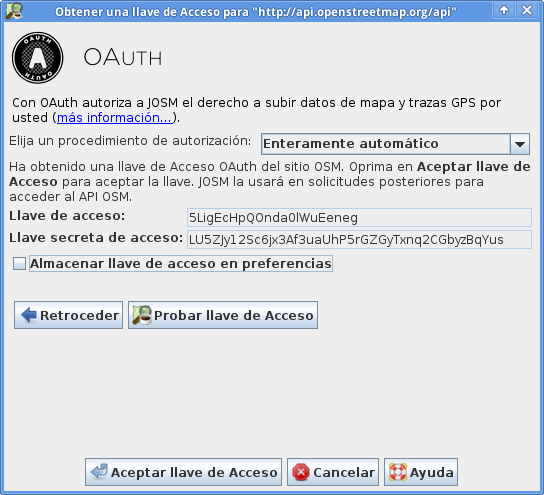
- Step 3/3 - Accept the Access Token
JOSM displays the retrieved Access Token.

- Deselect the checkbox Save to preferences if you don't want to save the Access Token in the JOSM preferences. If you don't save it the Access Token will be lost when you close JOSM. If you later startup JOSM again you will have to retrieve a new Access Token to work with OAuth based authentication again.
- Click on Test Access Token" to test the token
- Click on Accept Access Token to accept it.
Restricting the granted privileges
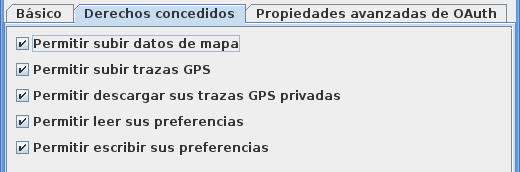
When JOSM fully-automatically requests and authorises an Access Token, it grants it five privileges:
- the right to upload data to the OSM server
- the right to upload GPS traces to the OSM server
- the right to download private GPS traces from the OSM server
- the right to read the preferences stored on the OSM server
- the right to write preferences stored on the OSM server
These are the default settings. If you want to restrict the granted privileges:
- Click the tab Granted rights
- Deselect each privilege which should not be granted to the requested Access Token

Advanced OAuth parameters
When JOSM fully-automatically requests and authorises an Access Token, it uses default values for the OAuth parameters. Advanced users may want to change these parameters
- in order to use a different Consumer Token (consisting of a Consumer Key and a Consumer Secret). This allows you to create your own Consumer Token for JOSM and then use it in JOSM.
- in order to use it on a different than the standard OSM server. For instance, this allows users to use OAuth with an OSM development server or with a local installation of the OSM server application.
In order to edit the Advanced OAuth parameters
- Click the tab Advanced OAuth parameters
- Deselect the checkbox Use default settings
- Enter your values for the five OAuth parameters

Semi-automatic authorisation process
You can also retrieve an Access Token semi-automatically. If you use this process you have to use both dialogs in JOSM and the OSM website launched in an external browser to create and authorise the Access Token. In contrast to the fully automatic process you never have to enter your OSM username or your OSM password into a JOSM dialog. This process is therefore suitable for a user which - for whatever reason - never wants to use their OSM password outside of the secure login page of the OSM website. The fully automatic process runs exactly the same steps that would run manually in the semi-automatic process, just without your intervention.
- Step 1/3 - Get the Request Token
Click on Retrieve Request Token to retrieve an OAuth Request Token.

- Step 2/3 - Authorise the Request Token in an external browser
JOSM now launches an external browser with the OSM website. Please login and follow the instructions. Then switch back to the OAuth Authorisation Wizard and click on Retrieve Access Token.

- Step 3/3 - Accept the Access Token
JOSM displays the retrieved Access Token. Click on Accept Access Token to accept it.

Advanced OAuth parameters
When JOSM semi-automatically requests and authorises an Access Token, it uses default values for the OAuth parameters. Advanced users may want to change these parameters
- in order to use a different Consumer Token (consisting of a Consumer Key and a Consumer Secret). This allows you to create your own Consumer Token for JOSM and then use it in JOSM.
- in order to use it on a different than the standard OSM server. For instance, this allows users to use OAuth with an OSM development server or with a local installation of the OSM server application.
In order to edit the Advanced OAuth parameters
- Select the checkbox Display Advanced OAuth Parameters
- Enter your values for the five OAuth parameters

Manual authorisation process
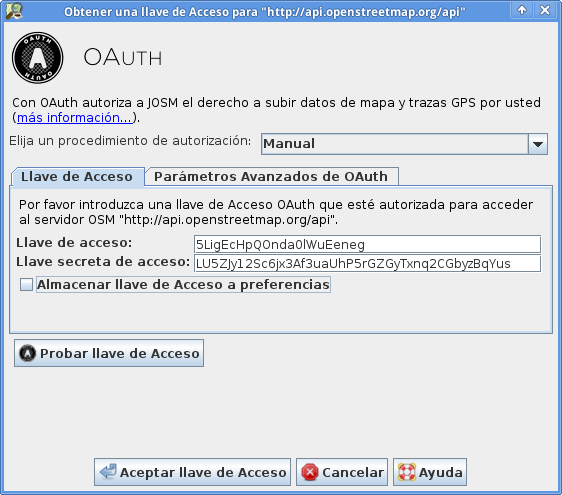
The manual authorisation process allows you to enter an arbitrary Access Token. You can use this process
- to enter an Access Token you have kept in a secure place, for instance in a secure store for credentials
- to enter an Access Token you have received from somebody else, for instance from another mapper who granted you restricted account access
- Step 1/1 - Enter the Access Token and accept it
Enter the Access Token and click on Accept Access Token.

Advanced OAuth parameters
Troubleshooting
- If you are working on a university or corporate network, a firewall may prevent the OAuth authentification request.
Please check the corresponding connection with your network engineer.
Volver a Ajustes de la conexión
Volver a Ayuda principal
Attachments (9)
- fully-authomatic-1.png (53.7 KB ) - added by 14 years ago.
- fully-authomatic-2.png (50.3 KB ) - added by 14 years ago.
- fully-authomatic-privileges.png (13.4 KB ) - added by 14 years ago.
- fully-automatic-advanced.png (26.7 KB ) - added by 14 years ago.
- manual.png (51.0 KB ) - added by 14 years ago.
- semi-automatic-advanced.png (37.0 KB ) - added by 14 years ago.
- semi-automatic-step-1.png (43.9 KB ) - added by 14 years ago.
- semi-automatic-step-2.png (55.7 KB ) - added by 14 years ago.
- semi-automatic-step-3.png (56.0 KB ) - added by 14 years ago.
Download all attachments as: .zip