| Version 1 (modified by , 15 years ago) ( diff ) |
|---|
La traducción esta incompleta, falta la última parte.
Altres idiomas:
Administrador de Conjunto de cambios
 Atajo de teclado:
 Ctrl+Alt+C
TOC(inline)
Iniciando el Administrador de Conjunto de cambios
Hay varias maneras de iniciar el Administrador de conjunto de cambios:
- Seleccione la opción del menú
 Vista->Administrador de Cambios
- Presione
Ctrl+Alt+C - Seleccione uno o más cambios en el Dialogo Lista de Cambios y haga clic en
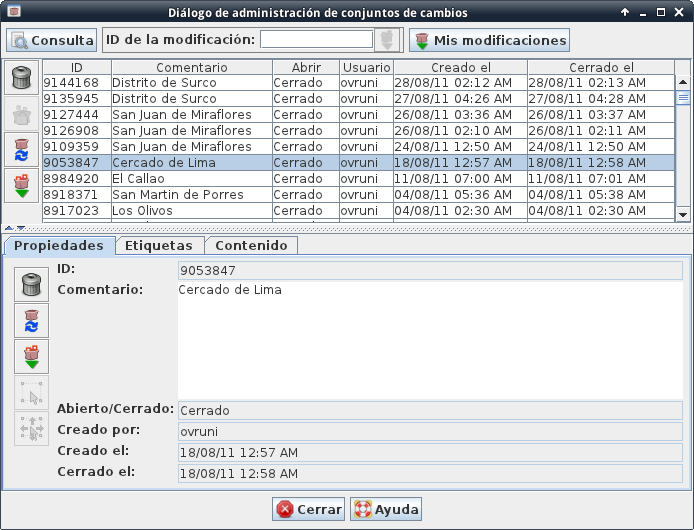
La ventana del Administrador de Conjunto de cambios

Consulta de cambios
Hay varias formas de consultar y descargar cambios. La consulta más común y las operaciones de descarga pueden ser invocadas directamente desde el Administrador de conjunto de cambios. Otras funciones más avanzadas son proporcionados por el cuadro de diálogo Consultar modificaciones.
Consultar y descargar un conjunto de cambios mediante su ID único
Si desea descargar un conjunto de cambios específico cuyo ID usted sabe, usted puede descargarlo directamente desde el administrador de cambios.

- Introduzca el ID del conjunto cambios en el campo de entrada de la barra de herramientas del Administrador de conjunto de cambios.
- Presione
ENTERo haga clic en

Si descarga un único conjunto de cambios, JOSM descargará tanto las propiedades del conjunto de cambios (por ejemplo, su ID o la fecha en que fue creado) y el contenido del conjunto de cambios (es decir, la lista de los objetos creados, actualizados o borrados con este conjunto de cambios).
Consultar y descargar su conjunto de cambios abierto
Conjunto de cambios puede estar abierto o cerrado. Un cartógrafo siempre se puede cargar objetos adicionales a un conjunto de cambios abierto que le son propios.
Si desea descargar la lista de los conjuntos de cambios abiertos de los cuales usted es dueño
- Haga clic en Mis modificaciones en la barra de herramientas del Administrador de conjunto de cambios
Tenga en cuenta que esto descarga sólo las propiedades del conjunto de cambios sin el contenido del conjunto de cambios. Para descargar el contenido de los conjuntos de cambios ver más adelante.
Consultas Avanzadas
Advanced queries like
- querying the changesets owned by another mapper
- querying the most recent changesets open or closed on the OSM server
- querying changesets which modified object in a specific area (called a "bounding box")
can be run using the Changeset Query Dialog.
To launch the Changeset Query Dialog:
- Click on
 Query in the toolbar section of the Changeset Manager

Managing the cache of downloaded changesets
JOSM locally maintains a cache of the changesets downloaded from the OSM server. The content of this cache is displayed in the upper half of the Changeset Manager.
Removing changesets from the cache
Changesets can be removed from the local cache. Removing a changeset from the cache doesn't affect the OSM server. The changeset isn't deleted on the server. In fact, it is not possible to delete a changeset on the server.
Removing changesets from the local cache can be useful because the local changeset cache consumes memory, though. You can remove changesets you don't need from the cache in order to free up the memory.
To remove one or more changesets from the local cache
- Select the changesets in the Changeset Manager
- Click on
 or press
 DEL. Alternatively you may selectRemove from cache from the popup menu.

Updating the properties of changesets in the cache
Properties of changesets can cache over time. For instance, an open changeset can become closed or the tags of an open changeset can change because it is assigned a new set of tags in another upload.
In order to update the properties of one or more changesets
- Select the changesets in the Changeset Manager
- Click on
 . Alternatively you may select Update changeset from the popup menu.

Note that this will update the changeset properties only. For updating the changeset content, see below.
Downloading/Updating the content of changesets in the cache
A changeset includes a collection of object which have been created, updateded, or deleted by the changeset. These objects are called the changeset content. The size of a changeset content varies, but in general it can become very large. Changesets can grow up to 50,000 objects. Changeset content is therefore not automatically downloaded from the OSM server.
In order to download the changeset content of one or more changesets
- Select the changesets in the Changeset Manager
- Click on
 . Alternatively you may select Download changeset content from the popup menu.

The content of a changeset may change over time too, provided the changeset is still open. The same steps will always retrieve the lastest content for a given changeset. If the local cache already includes the content of a changeset, this operation will refresh it.
Managing a single changeset
Browsing properties, tags, and content
The detail view in the lower half of the Changeset Manager consists of three tabs:
- Properties - displays the basic properties of the currently selected changeset, i.e. its ID or whether the changeset is open or closed
- Tags - displays the tags assigned to the currently selected changeset
- Content - displays the changeset content
Click on either of these tabs to browse the respective information.
Remove a changeset from the local cache
- Click on to remove the currently selected changeset from the cache.
Updating/Downloading changeset content
There are two commands available to either update the basic properties of the changeset or to update/download the changeset content:
In order to update the changeset properties
- Click on
In order to update/download the changeset content
- Click on
 or respectively. Depending on whether the changeset content has already been downloaded either of these two actions is available.

Selecting objects in the changeset content in the Map View
If the Map View includes an active data layer you can select all objects in this layer which are also part of the current changeset in the Changeset Manager.
- Click on
 in the detail view of the Changeset Manager

You can also select
- Select the tab Content in the detail view
- Select one or more objects in the content
- Click on . Alternatively, you may select Select in layer in the popup menu.
Zooming to objects in the changeset content
If the Map View includes an active data layer you can "zoom to the changeset". Actually, neither the changeset nor the entire changeset content is ever included in a data layer. With "zoom to the changeset" we mean that JOSM zooms to the largest subset of objects in the data layer which is also a subset in the changeset content.
In order to zoom to "zoom to the changeset"
- Click on
 in the detail view of the Changeset Manager

Alternatively, you may zoom to a subset of the changeset content". In order to do so
- Click on the tab Content
- Make sure the changeset content is downloaded. If not, download it first.
- Select some objects in the changeset content
- Click on . Alternatively, you may select Zoom to layer from the popup menu.
Download and display the history of objects in the changeset content
For an object included in the content of a changeset, you may retrieve and display its history.
- Click on the tab Content
- Make sure the changeset content is downloaded. If not, download it first.
- Select some objects in the changeset content
- Click on
 . Alternatively, you may select Show history from the popup menu.

Véase también

Volver a Ayuda principal
Attachments (2)
- changesetmanager-screenshot.png (75.2 KB ) - added by 15 years ago.
- query-single-changeset.png (2.7 KB ) - added by 15 years ago.
Download all attachments as: .zip